---
title: "Google Ads Conversion Tracking Integration The End‑to‑End Playbook"
description: "Set up Google Ads conversion tracking end to end: choose an integration path, test the purchase tag and send profit as the conversion value."
canonical: "https://www.productmetrics.io/blog/google-ads-conversion-tracking"
pageType: article
language: en
publisher: "Product Metrics"
author: "Berend Vrakking"
datePublished: 2026-11-09
dateModified: 2026-11-09
image: "https://www.productmetrics.io/og/blog/google-ads-conversion-tracking.png"
---
> Content index: https://www.productmetrics.io/llms.txt
# Google Ads Conversion Tracking Integration The End‑to‑End Playbook
## Key takeaways
- Google Ads doesn’t track conversions inside Merchant Center. It relies on conversions tied to your website or app, just like Search and Performance Max.
- Shopping campaigns use the same conversion actions as the rest of your Google Ads account.
- To get to POAS, you first need clean conversion tracking for revenue, then a way to enrich those conversions with profit.
If your Google Ads conversion tracking is wrong, your bids are wrong.
Smart Bidding will happily optimize toward whatever signals you give it. If those signals are incomplete (or based on revenue instead of profit), Google will quietly scale the wrong products, audiences, and queries.
This playbook walks through an end‑to‑end approach to:
- Integrate and validate conversion tracking for Google Shopping ads
- Decide the right conversion architecture (native app, GTM, GA4, server‑side)
- Upgrade from ROAS to POAS so you optimize for **profit**, not just revenue
- Understand where a POAS enrichment layer like **productmetrics.io** fits
Save or share this with your team as the canonical checklist any time you launch or fix Google Ads campaigns.
## 1. How Google Ads Conversion Tracking Actually Works
Before you change tags or install new tools, it helps to be clear on what you’re trying to measure.
At a high level, Google Ads conversion tracking is a three‑step flow:
1. **Click** – A user sees a Shopping ad, clicks, and lands on your store.
2. **On‑site event** – They complete a key action (usually a purchase on the thank‑you page).
3. **Conversion signal** – Your tracking setup sends a conversion event (with value) back to Google Ads.
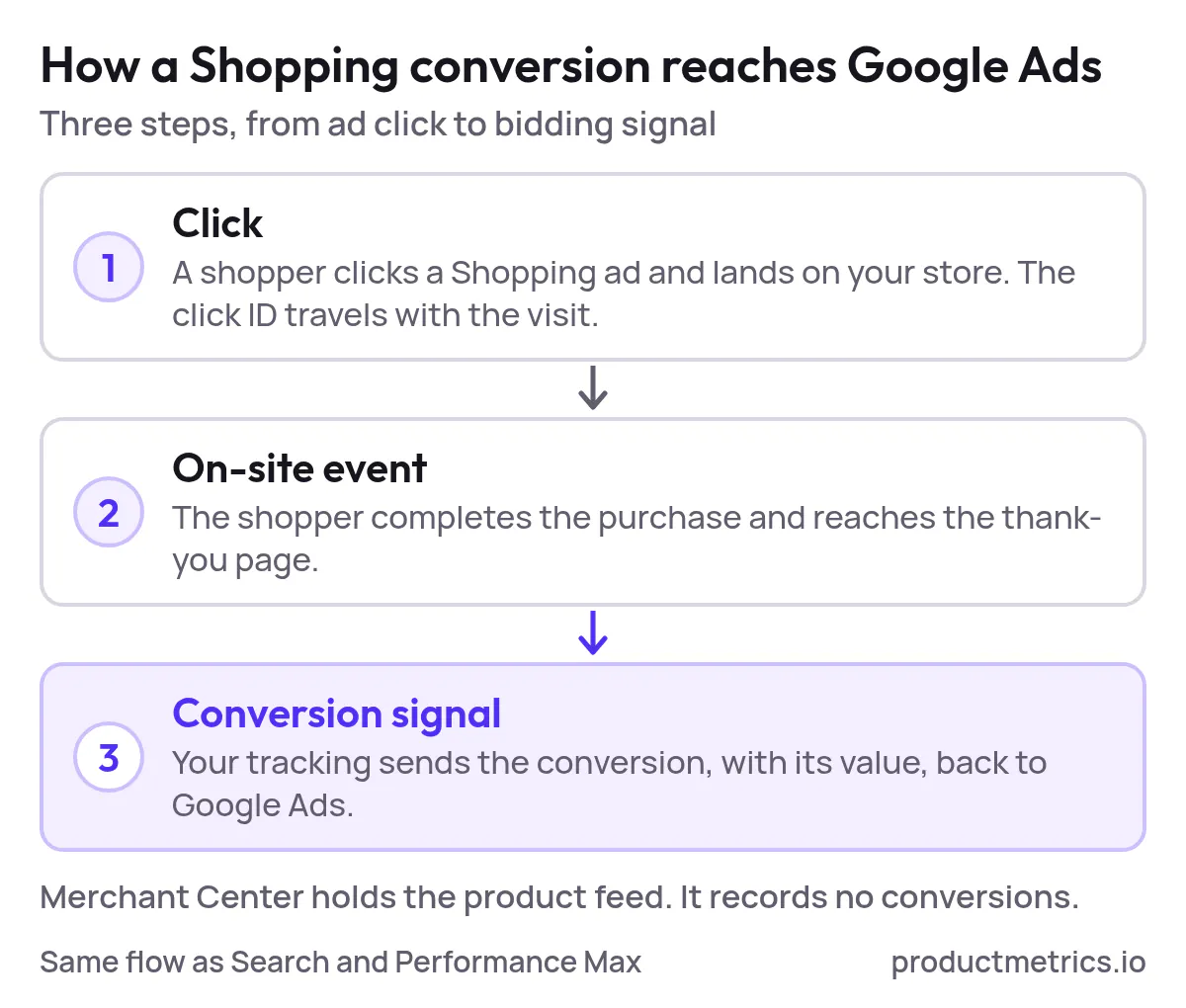
_Every Shopping conversion passes through the same three steps; Merchant Center holds the feed but records no conversions._
Google Ads doesn’t track conversions inside Merchant Center. It relies on conversions tied to your **website or app**, just like Search and Performance Max. The only thing that’s “Shopping‑specific” is that performance can be evaluated at the product ID / item level once conversions are flowing correctly.
### ROAS vs POAS In This Context
Most Shopping advertisers still optimize for **[ROAS (Return on Ad Spend)](https://www.productmetrics.io/glossary/roas)**:
> ROAS = *Revenue attributed to ads* ÷ *Ad spend*
But different products have wildly different margins, shipping costs, and return rates. A [400% ROAS on a 10%‑margin product](https://www.productmetrics.io/break-even-roas-calculator) can be less profitable than a 250% ROAS on a 60%‑margin product.
**Figure: ROAS against break-even ROAS for a 10% and a 60% margin product.** A ROAS of 4 on a 10% margin product sits far below its break-even ROAS of 10, while a ROAS of 2.5 on a 60% margin product clears its break-even of 1.67.
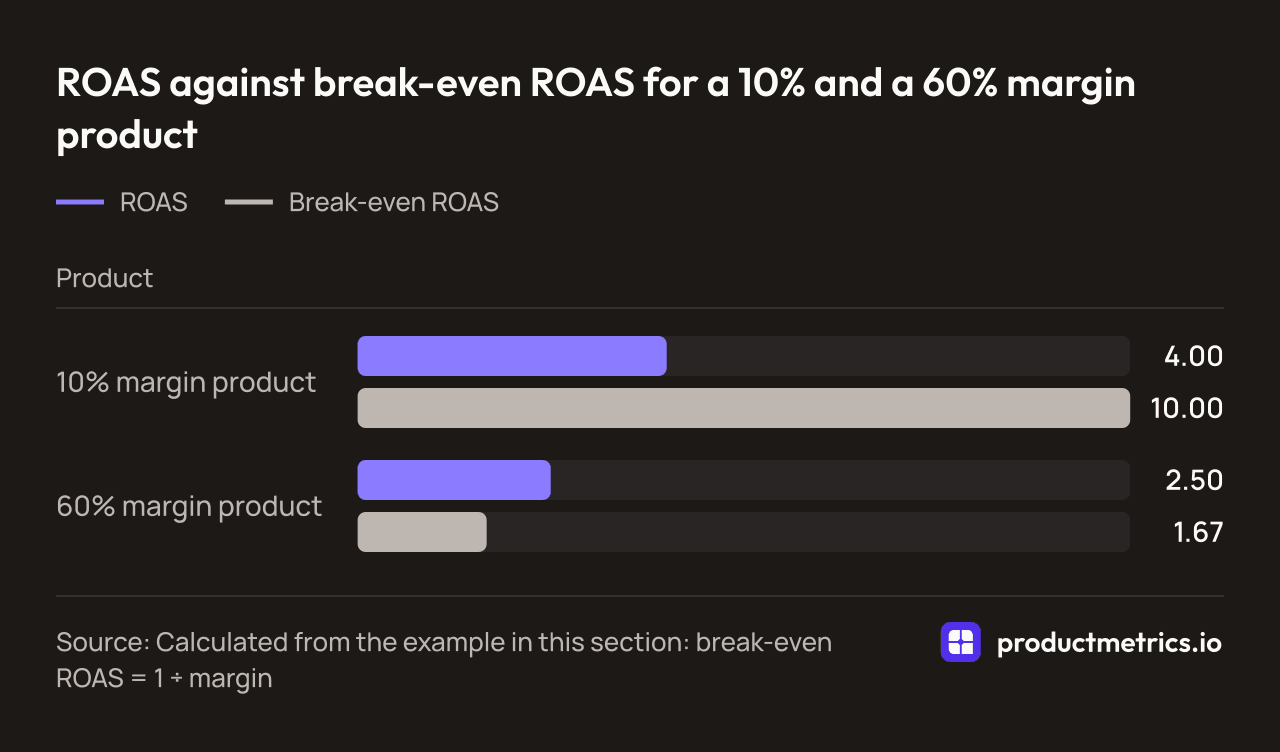
| Product | ROAS | Break-even ROAS |
| --- | --- | --- |
| 10% margin product | 4.00 | 10.00 |
| 60% margin product | 2.50 | 1.67 |
_Source: Calculated from the example in this section: break-even ROAS = 1 ÷ margin_
That’s why more advanced teams are shifting to **[POAS (Profit on Ad Spend)](https://www.productmetrics.io/glossary/poas)**:
> POAS = *Profit attributed to ads* ÷ *Ad spend*
**Figure: POAS of the same two products.** In POAS (ROAS × margin) the order flips: 0.4 for the 10% margin product and 1.5 for the 60% margin product, against a break-even POAS of 1.
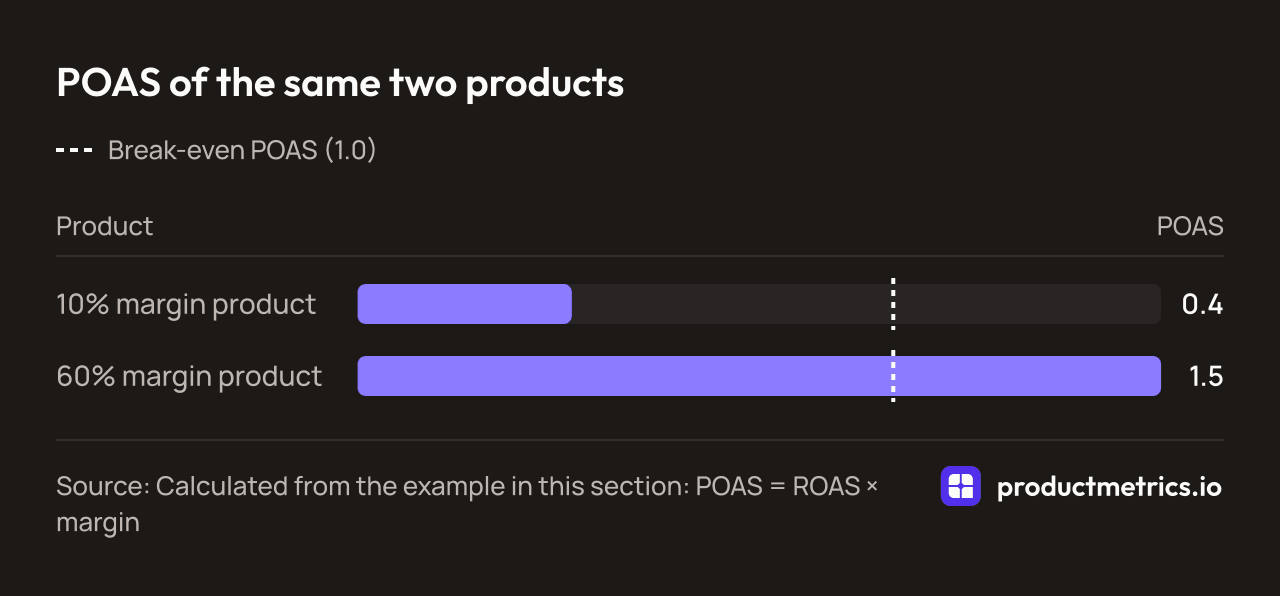
| Product | POAS |
| --- | --- |
| 10% margin product | 0.4 |
| 60% margin product | 1.5 |
Reference line: Break-even POAS (1.0).
_Source: Calculated from the example in this section: POAS = ROAS × margin_
To get to POAS, you first need clean conversion tracking for **revenue**, then a way to enrich those conversions with **profit**.
This playbook covers both.
## 2. Decide What To Track And What Actually Counts As A Conversion
Before you open Google Ads or Google Tag Manager, get alignment on two questions:
1. **What is our primary conversion for Shopping?**
For most ecommerce brands, this should be **Purchase / Completed order**.
2. **What values do we want to send with that conversion?**
Short term, that’s usually **order revenue** (tax + shipping policies may vary by brand). Long term, you’ll want **order profit** or **[product‑level profit](https://www.productmetrics.io/glossary/profit-per-product)** to power POAS.
### Primary vs Secondary Conversions
A clean setup usually looks like this:
- **Primary conversions** (used for bidding):
- Purchase / Order completed (value = at least revenue; ideally profit once POAS is in place)
- **Secondary conversions** (for analysis and remarketing only):
- Add to cart
- Begin checkout
- Email sign‑up, account creation, etc.
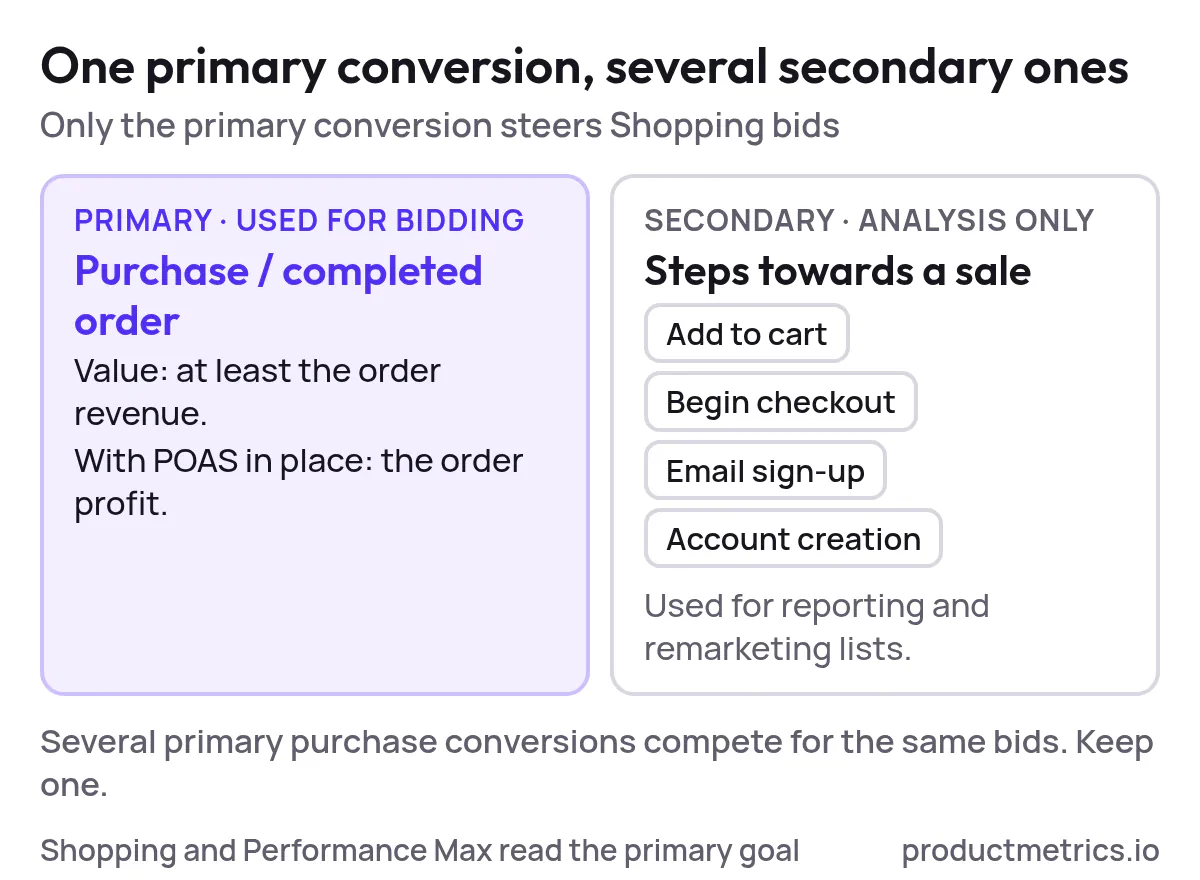
_Only the primary purchase conversion steers Shopping bids; secondary actions feed reporting and remarketing._
You can track multiple actions, but your Shopping campaigns should generally bid toward **one main, profit‑aligned goal**.
## 3. Choose Your Google Ads Conversion Tracking Integration
There are four common ways ecommerce brands integrate conversion tracking for Google Shopping ads. You may already be using one today.
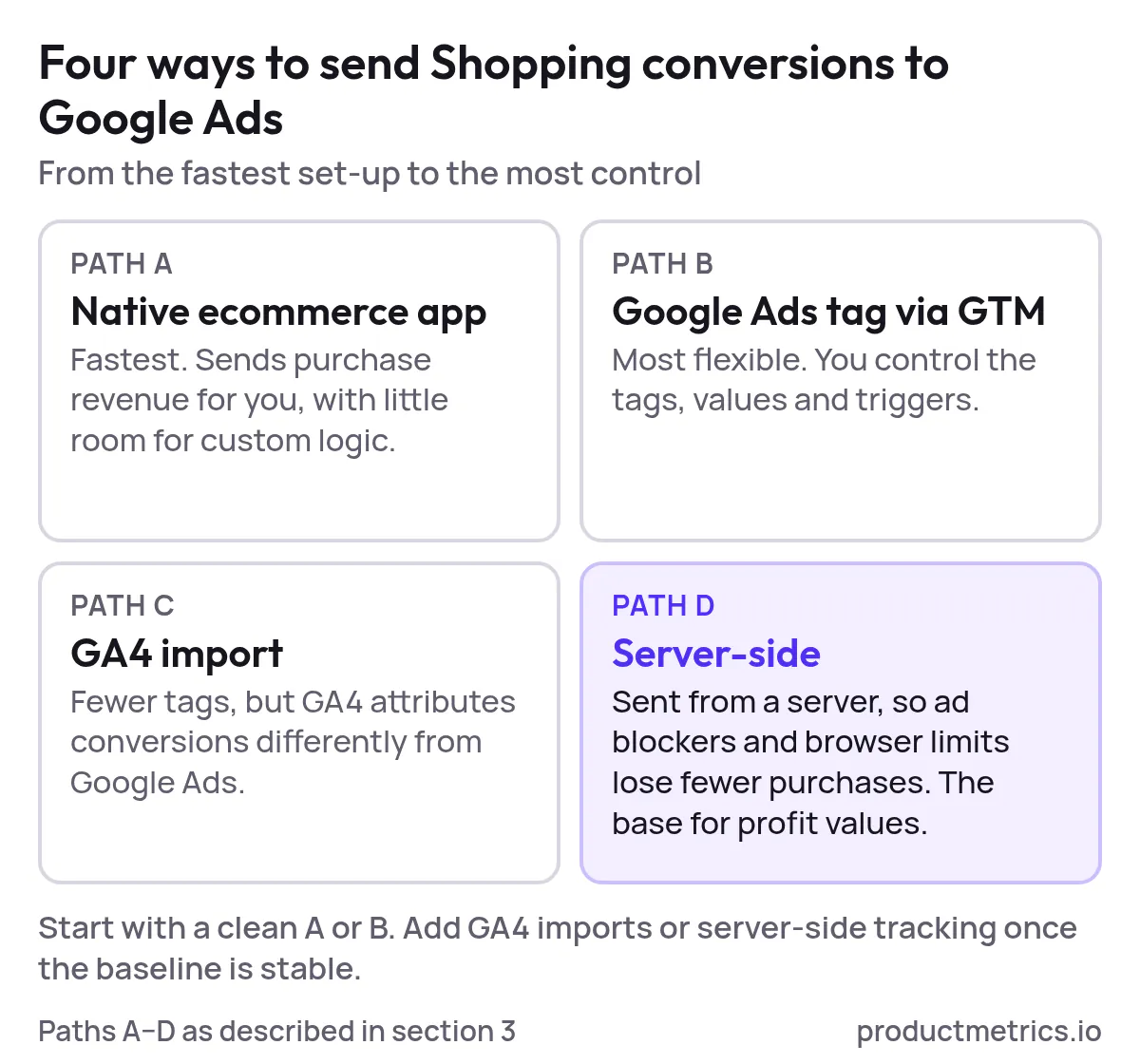
_The four paths trade set-up speed for control; server-side is the one that also carries profit values later._
### Path A Native Ecommerce App Integration (Fastest)
Examples: native Google channel apps for platforms like Shopify, BigCommerce, or other hosted carts.
Characteristics:
- Handles the base Google tags and purchase events for you
- Usually sends **purchase revenue** automatically
- Limited flexibility for custom logic (e.g., profit instead of revenue, advanced attribution logic)
Best for: smaller stores or teams who need a **minimum viable setup quickly** and are comfortable with revenue‑based optimization for now.
### Path B Google Ads Tag Via Google Tag Manager (Most Flexible)
Characteristics:
- You define conversion actions inside Google Ads (e.g., Purchase)
- You install Google Tag Manager (GTM) on your site
- Within GTM, you configure:
- A **Conversion Linker** tag
- A **Google Ads Conversion** tag that fires on the order confirmation page
- Data layer variables (transaction value, currency, transaction ID, etc.)
Best for: brands that want full control, the ability to support **multiple platforms**, and a future‑proof path to **server‑side and POAS**.
### Path C Import Conversions From GA4 Into Google Ads
Characteristics:
- GA4 tracks purchases on your site
- You mark key events as conversions in GA4
- You import those conversions into Google Ads
Pros:
- Fewer tags to maintain
- Leverages GA4’s ecommerce implementation across channels
Cons:
- [Attribution model differences](https://www.productmetrics.io/glossary/data-driven-attribution) vs Google Ads
- Less direct control over Shopping‑specific conversion configuration
### Path D Server‑Side Conversion API (Advanced High‑Scale)
Characteristics:
- Conversions are [sent from your server](https://www.productmetrics.io/blog/what-is-server-side-tracking) (or a dedicated tracking server) to Google Ads
- More robust to ad blockers, browser restrictions, and tracking prevention
- Ideal foundation for **offline data** (returns, cancellations, LTV) and **profit enrichment**
Best for: higher‑spend accounts, multi‑channel performance teams, and anyone serious about maximizing POAS.
> **Rule of Thumb:** Start with the cleanest version of Path A or B. Once you’re stable and spending meaningfully, layer in GA4 imports or server‑side tracking where they add real value.
## 4. Implement A Clean Baseline Setup Example With GTM
To make this concrete, let’s walk a generic “Path B” implementation. Even if you’re using a native app, this will help you validate what’s happening under the hood.
### Step 1 Create Your Primary Conversion Action In Google Ads
Inside your Google Ads account:
1. Go to **Tools & Settings → Conversions**.
2. Create a new conversion action (type: **Website**).
3. Configure it as:
- **Goal / action optimization:** Purchase (or your equivalent ecommerce goal)
- **Value:** Use different values for each conversion
- **Count:** Every
- **Attribution:** Use whatever your team has standardized on
4. Save the action and note the **Conversion ID** and **Conversion Label** if you’ll implement via GTM.
### Step 2 Make Sure Your Base Tags Are Installed
1. Install **Google Tag Manager** on all pages of your site if you haven’t already.
2. In GTM, add a **Conversion Linker** tag that fires on all pages. This ensures Google Ads can correctly read and pass [click identifiers](https://www.productmetrics.io/glossary/gclid) through to the conversion event.
### Step 3 Fire The Purchase Conversion On The Thank‑You Page
On your order confirmation / thank‑you page:
1. Ensure a **data layer** or equivalent object exposes at least:
- Transaction/order ID
- Order value
- Currency
- (Optional) Products purchased, quantities, etc.
2. In GTM, create variables to read those values from the data layer.
3. Create a **Google Ads Conversion** tag that:
- References your Conversion ID and Label
- Uses the data layer value for the conversion value
- Uses the data layer value for transaction ID
- Fires on a trigger limited to your **order confirmation page** only.
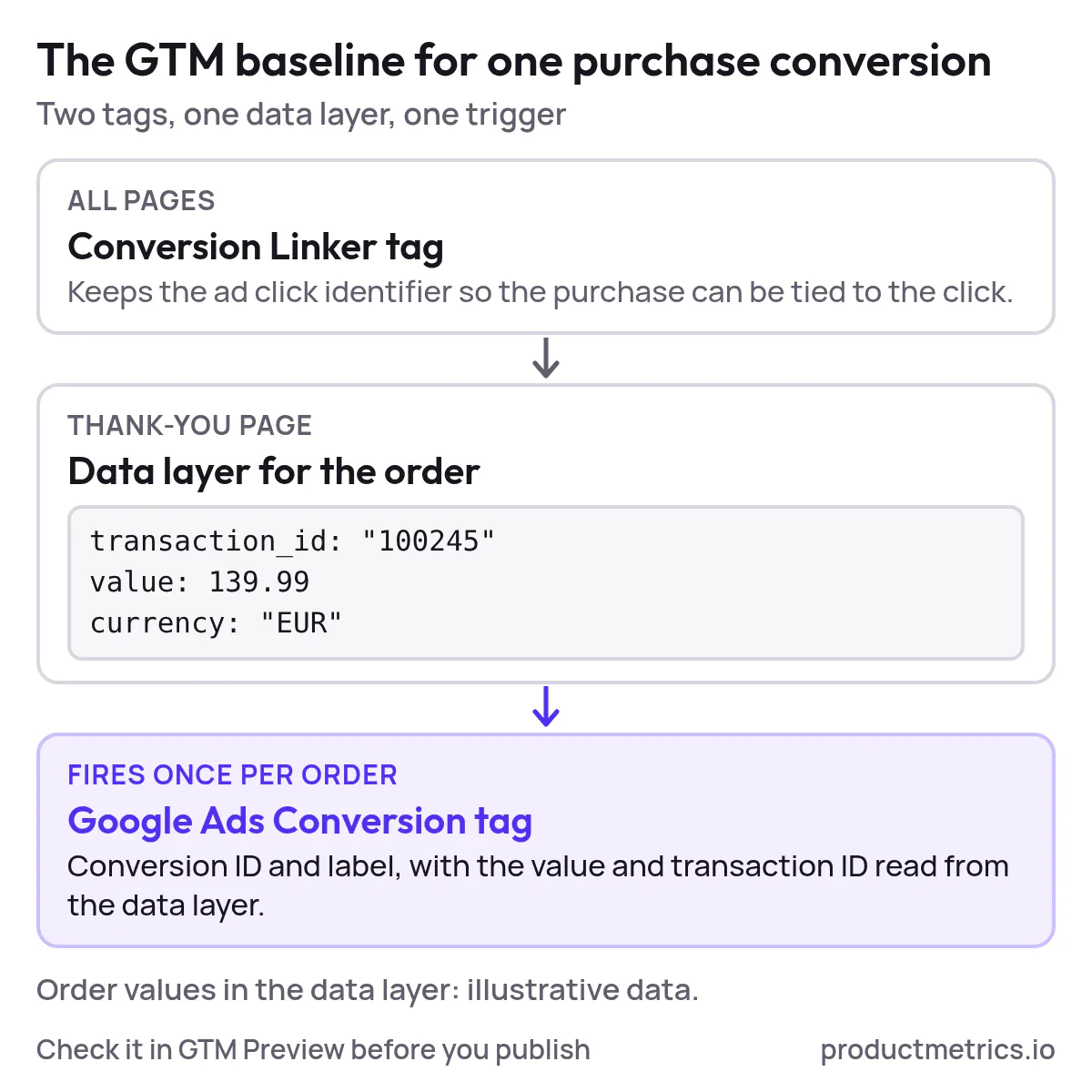
_Two tags and one data layer: the linker keeps the click, the conversion tag reads value and transaction ID from the order._
### Step 4 Test And Publish
1. Use GTM’s **Preview** mode to place a test order.
2. Confirm that:
- The Conversion Linker fires on all pages
- The Purchase conversion tag fires **once** on the thank‑you page
- Values and currency look correct
3. Publish your GTM container.
4. In Google Ads, check the conversion’s status after your test and once live traffic starts hitting the page. Expect to see an initial “no recent conversions” or similar status before conversions accumulate.
Once this baseline is stable, your Google Ads and Performance Max campaigns now receive **consistent purchase and revenue data**. That alone puts you ahead of a lot of accounts where conversions are double‑counted, missing, or mis‑valued.
## 5. Enhancing Your Signals Beyond Basic Conversions
A basic setup is enough to get started, but to push Shopping performance further (and prepare for POAS), you’ll want to improve both **quantity** and **quality** of signals.
### Enhanced Conversions
[Enhanced conversions](https://www.productmetrics.io/blog/enhanced-conversions-vs-server-side-tracking) let Google use hashed first‑party customer data (like email) to recover more conversions that would otherwise be lost to tracking limitations.
High level steps:
- Make sure your checkout collects at least one supported identifier (e.g., email).
- Configure your tags (or GTM) to send hashed versions of those identifiers with the conversion event.
- Turn on enhanced conversions for the relevant conversion action in Google Ads.
Result: better match rates between on‑site conversions and ad clicks, which typically improves bidding and reporting accuracy.
### Server‑Side And Offline Data
Once you’re spending meaningfully on Shopping, consider:
- **[Server‑side tracking / conversion API](https://www.productmetrics.io/server-side-tracking):** Send conversions from a server you control to reduce loss from [ad blockers](https://www.productmetrics.io/ad-blocker-conversion-tracking) and browser changes.
- **Offline conversion imports:** Adjust for cancellations, COD failures, returns, or delayed outcomes (e.g., high‑ticket B2B ecommerce where orders are approved later).
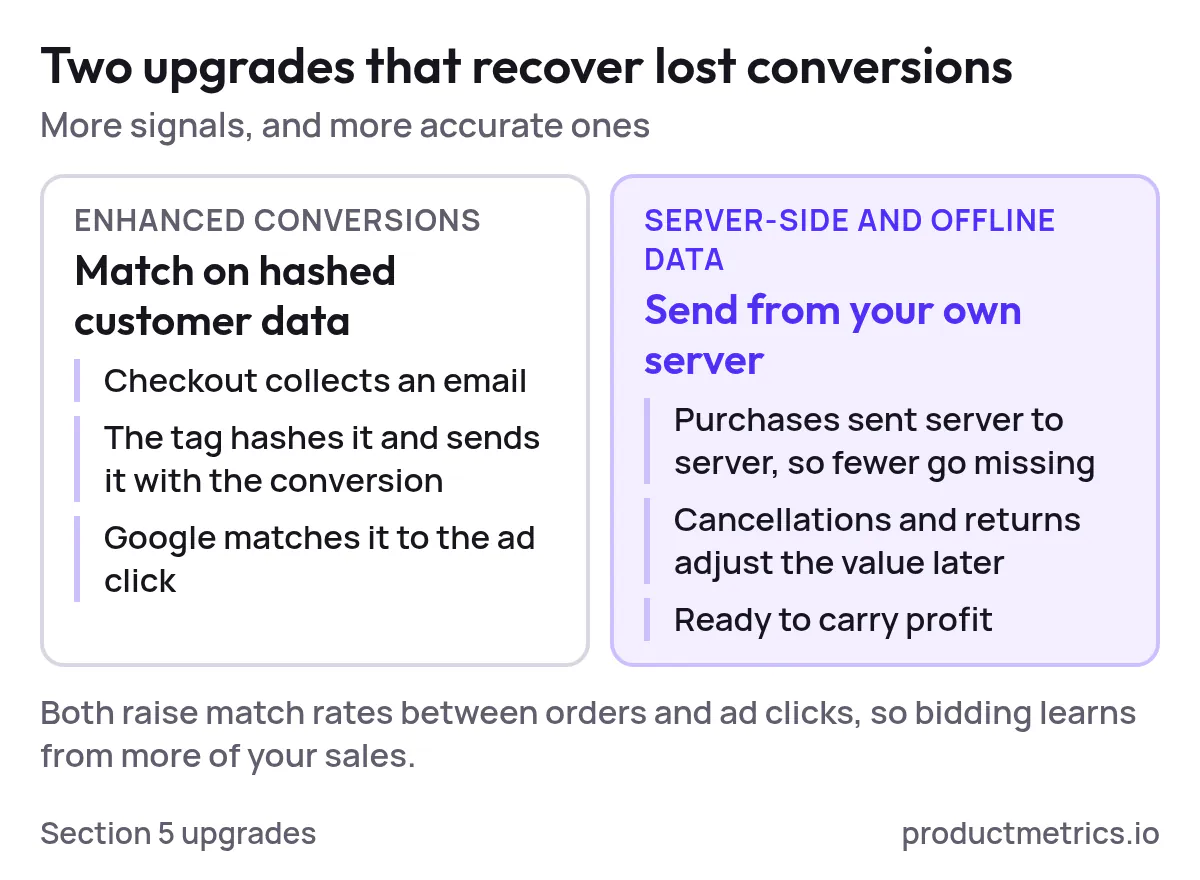
_Enhanced conversions match more orders to clicks; server-side and offline data keep the value right after cancellations and returns._
These become especially powerful when combined with **profit data**, which is where POAS comes in.
## 6. From ROAS To POAS Adding Profit To Your Google Ads Tracking
[Revenue‑based ROAS hides profit dynamics](https://www.productmetrics.io/blog/poas-vs-roas). POAS surfaces them.
To [implement POAS tracking](https://www.productmetrics.io/blog/poas-tracking-google-ads) you need three layers:
1. **Reliable order‑level tracking** (what we’ve just set up)
2. **Cost and margin data** for each product/order
3. **A way to send profit‑based values back to Google Ads**
### Step 1 Define Your Profit Model
Decide what “profit” means for your team at the tracking level. Common options:
- **Gross profit:** Revenue minus cost of goods sold (COGS)
- **[Contribution margin](https://www.productmetrics.io/glossary/contribution-margin):** Gross profit minus variable costs like shipping, payment fees, and handling
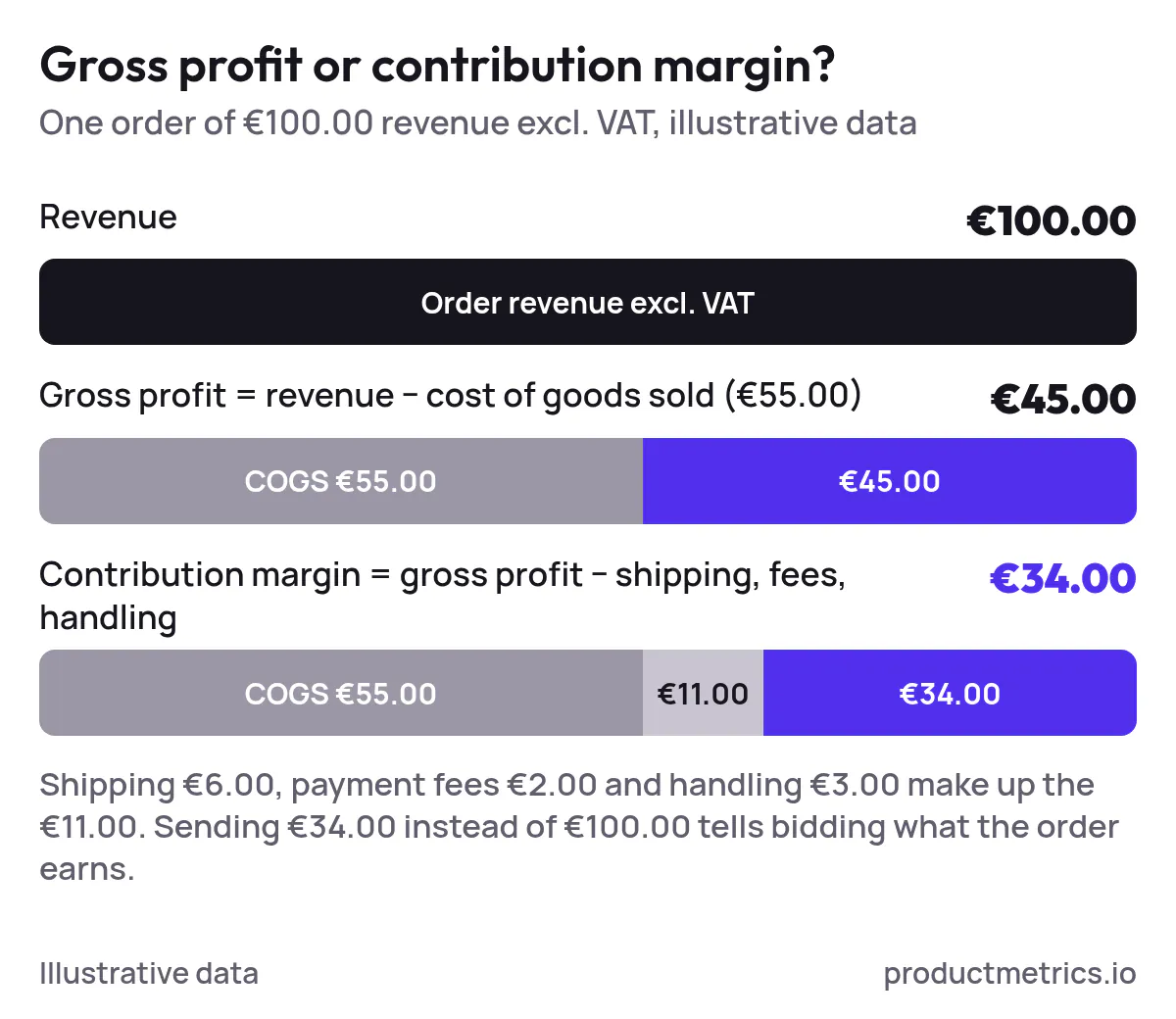
_On a €100.00 order, gross profit is €45.00 and contribution margin €34.00 (illustrative data): the second is closer to what the order earns._
The closer you get to contribution margin, the more aligned your bidding will be with actual business outcomes. But start with a model you can maintain consistently.
### Step 2 Map Profit To The Events You’re Already Tracking
For each order (and ideally each product within the order), you want to be able to compute:
- Product ID(s)
- Quantity
- Revenue per product
- Cost per product
- Profit per product and per order
Once you have that, you can:
- Replace the **revenue value** you send with a **profit value**, or
- Maintain separate conversion actions: one for revenue, one for profit (then gradually shift bidding to the profit‑based one).
### Step 3 Send Profit As The Conversion Value
Depending on your tracking stack, profit can be injected in a few ways:
- **Client‑side tags:** Your frontend receives profit (or margin %) in the data layer and sends it as the conversion value.
- **Server‑side / conversion API:** Your backend calculates profit after the order is finalized, then posts it to Google Ads as an offline or server‑to‑server conversion.
- **[Third‑party POAS tools](https://www.productmetrics.io/blog/poas-tracking-tools):** A dedicated tool ingests your orders and costs, calculates profit, and synchronizes enriched conversion values back to Google Ads.
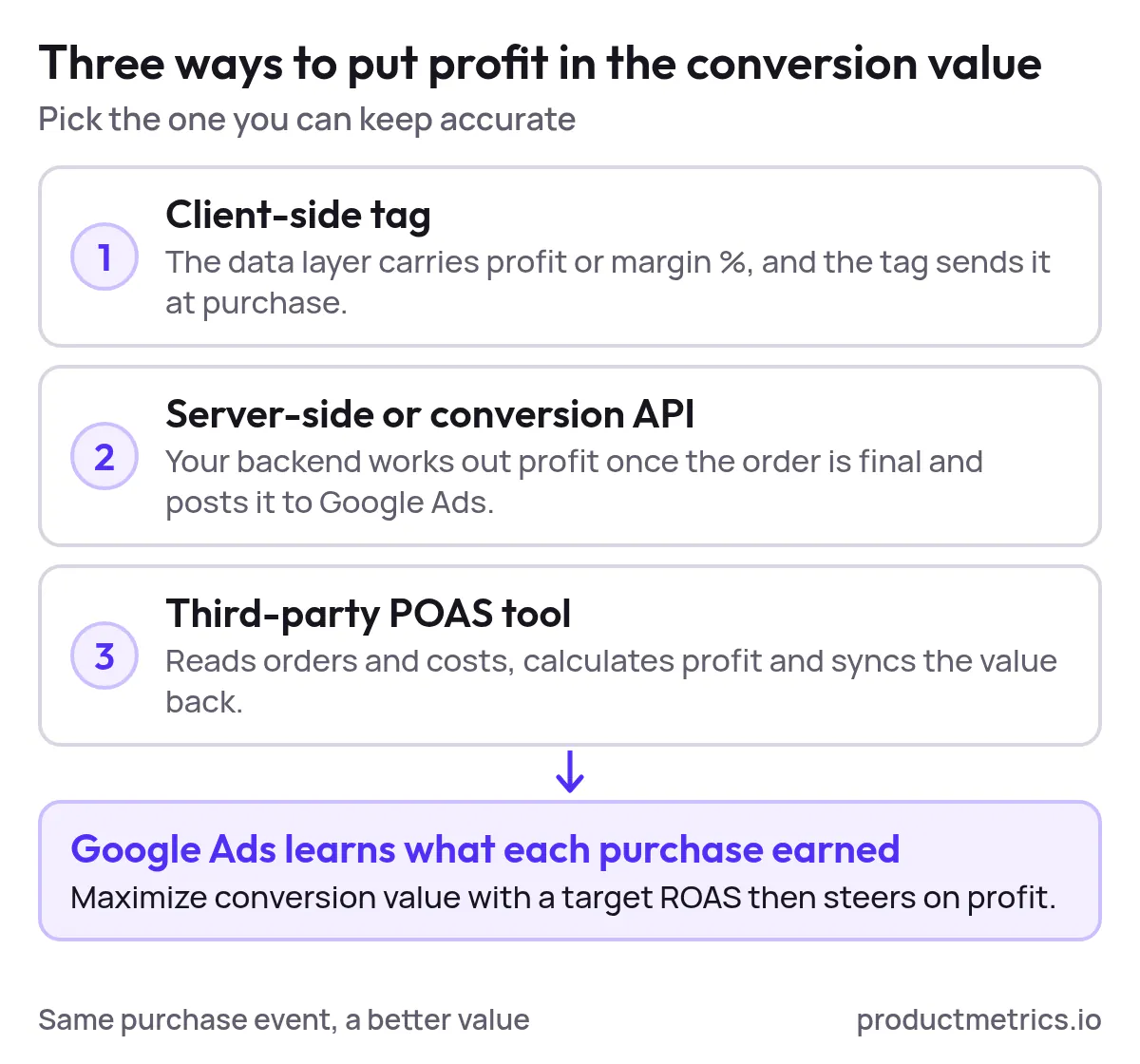
_All three routes send the same purchase event with a better value, so bidding learns what each purchase earned._
Regardless of the path, the goal is the same: when Google records a “purchase” from your Shopping campaigns, it also learns **how much profit** that purchase generated.
Once enough profit‑based conversions accumulate, you can:
- Change your bid strategies to optimize for **[Target ROAS](https://www.productmetrics.io/blog/target-roas-from-margin)** using profit instead of revenue; or
- Switch to a dedicated profit‑based conversion goal if your account uses goal‑level optimization.
## 7. Where productmetrics.io Fits In Your POAS Stack
All of the above is possible with custom engineering, but it’s complex and brittle—especially if you sell across multiple channels, regions, or platforms.
A POAS‑focused enrichment layer like **productmetrics.io** is designed to sit between your ecommerce stack and Google Ads and Meta to:
1. **Connect your data sources**
- Sync product and order data from your store and feeds
- Pull in cost / margin inputs (COGS, shipping, fees, discounts) where available
2. **[Calculate profit and POAS](https://www.productmetrics.io/poas-calculator) at the right granularity**
- Compute profit per order and per product
- Attribute that profit back to the correct campaigns, ad groups, and product IDs
3. **Send enriched conversions back to Google Ads and Meta**
- Push profit‑based conversion values or custom metrics back into your Google Ads and [Performance Max campaigns](https://www.productmetrics.io/performance-max)
- Keep those signals up to date as product costs, prices, and behaviors change
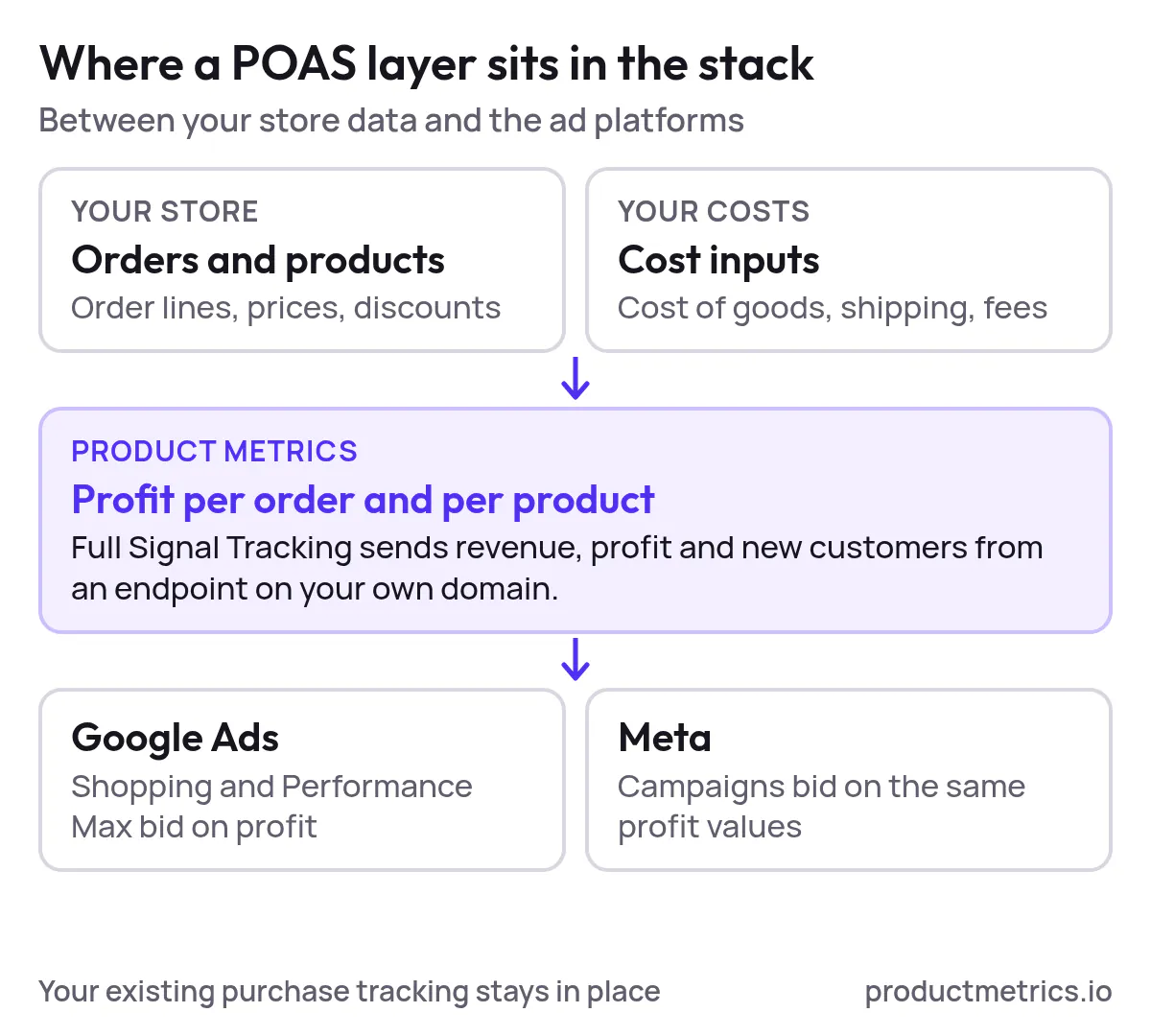
_Product Metrics sits between your store data and the ad platforms: Full Signal Tracking sends profit to Google Ads and Meta._
Instead of wrestling with custom scripts and one‑off integrations, you get a maintained layer that **enriches the conversion tracking you already have** and makes Google’s bidding engine care about **profit**, not just revenue.
If you’re already comfortable setting up and validating native Google Ads conversion tracking, the next logical step is to let a tool like productmetrics.io handle the heavy lifting of POAS tracking across your catalog.
> **Bid on profit in Google Ads and Meta.** Full Signal Tracking sends profit with every conversion from your own domain, so bidding steers on what each order earns. Sends revenue, profit and new customers to Google Ads and Meta. [Book a demo](https://www.productmetrics.io/demo)
## 8. Swipe This Checklist Google Ads Conversion Tracking End‑To‑End
Use this as a quick diagnostic or as a launch checklist for new Shopping accounts.
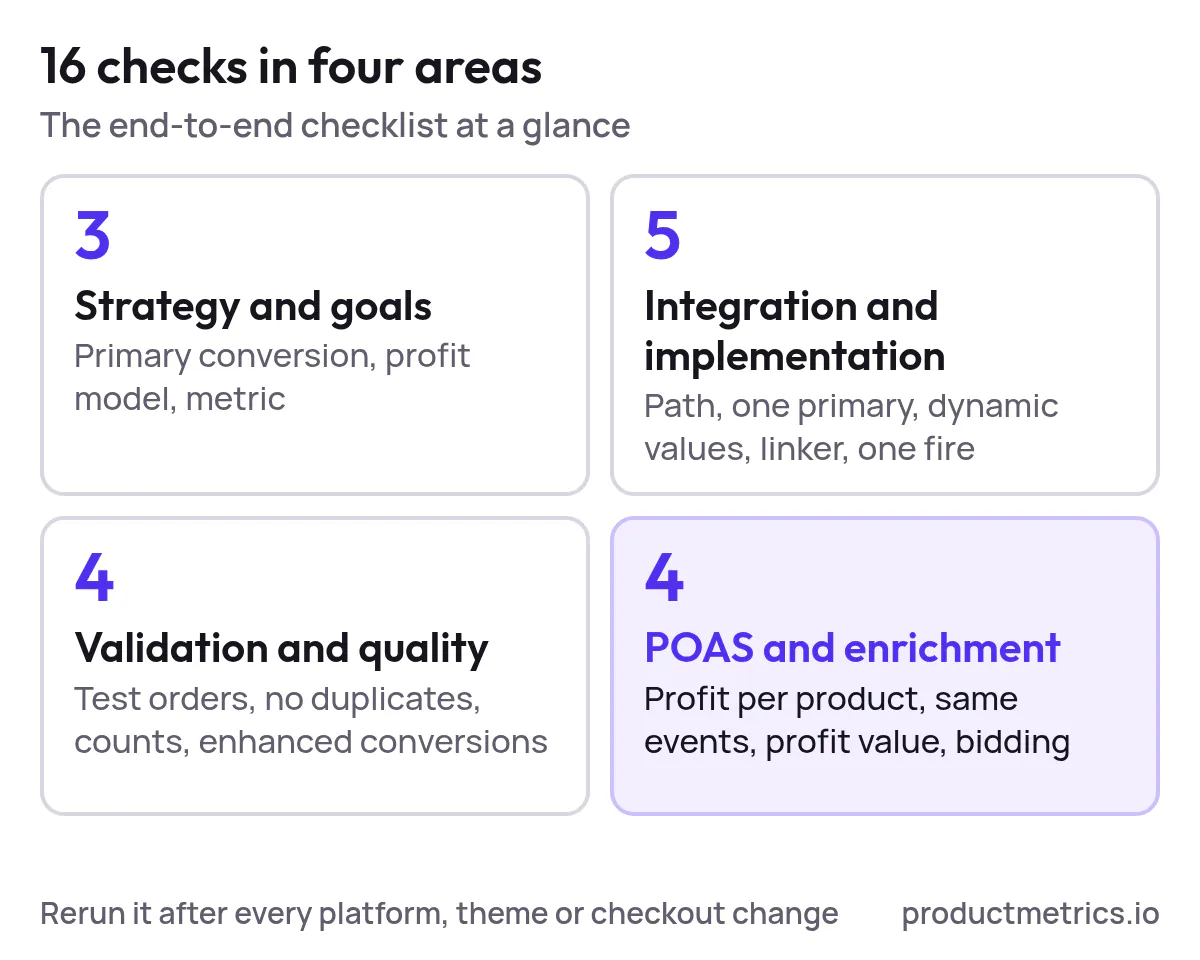
_Sixteen checks in four areas; the POAS block only works once the first three hold._
**Strategy & goals**
- [ ] Primary conversion defined (usually Purchase / Completed order)
- [ ] Profit model agreed (gross profit vs contribution margin)
- [ ] Decision made on short‑term optimization metric (revenue vs profit)
**Integration & implementation**
- [ ] Chosen integration path (native app, GTM tag, GA4 import, server‑side)
- [ ] Only one primary purchase conversion used for bidding in Shopping campaigns
- [ ] Conversion value uses dynamic values per order
- [ ] Conversion Linker (or equivalent) deployed on all pages
- [ ] Purchase event fires once per order on the thank‑you page
**Validation & quality**
- [ ] Test orders show up in Google Ads with the [expected value and currency](https://www.productmetrics.io/sdk-debugger)
- [ ] No obvious duplicate conversions (1 order ≈ 1 conversion)
- [ ] Conversion counts and order counts are directionally consistent (after adjusting for attribution differences)
- [ ] Enhanced conversions enabled where possible
**POAS & enrichment**
- [ ] Per‑product and per‑order profit can be calculated reliably
- [ ] Profit values are mapped to the same events used for purchase tracking
- [ ] Google Ads is receiving a profit‑based conversion value (or a parallel profit goal)
- [ ] Bidding strategies reviewed to ensure they’re optimizing toward profit, not just revenue
Revisit this checklist any time you change platforms, themes, checkout flows, or tracking tools.
## 9. FAQ Quick Answers To Common Google Ads Tracking Questions
### How Do I Integrate Conversion Tracking For Google Shopping Ads?
At a minimum you need:
1. A **purchase conversion action** in Google Ads.
2. A way to **fire that conversion** when an order is completed (native ecommerce app, Google Tag Manager tag, GA4 import, or server‑side endpoint).
3. A **value parameter** that reflects the order value (and later, profit).
If you’re on a major ecommerce platform, starting with the official Google integration and then layering a GTM or POAS solution on top is usually the fastest path.
### How Do I Set Up Conversion Tracking For Google Ads Campaigns Specifically?
Shopping campaigns use the same conversion actions as the rest of your Google Ads account. Once you’ve set up a purchase conversion and marked it as a primary goal, Shopping and Performance Max will automatically optimize toward that goal.
The key is to:
- Avoid multiple conflicting primary purchase conversions
- Make sure your Shopping campaigns are opted into the correct goal at the campaign or account level
### How Can I Enhance Conversion Tracking For Google Ads Beyond The Basics?
Three high‑impact upgrades:
1. Turn on **enhanced conversions** to reclaim lost conversions.
2. Implement **[server‑side tracking](https://www.productmetrics.io/blog/server-side-tracking-tools)** or offline imports if you have high spend or complex checkout behavior.
3. Introduce **[POAS tracking](https://www.productmetrics.io/blog/operationalizing-poas)** so your conversion value reflects profit instead of just revenue.
### What’s The Best Way To Implement POAS Tracking For Google Ads?
Technically, POAS tracking is just **standard conversion tracking with a better value attached**. The “best” implementation is the one you can keep accurate over time.
For most teams that means:
- Centralizing cost and margin data per product
- Using a dedicated tool (like productmetrics.io) or well‑maintained internal integration to calculate profit per order
- Sending that profit as the conversion value into Google Ads via tags, server‑side events, or offline conversions
### Do I Need A Separate Tool For POAS Or Can I Do It All In Google Ads?
You can approximate profit optimization in Google Ads (for example, using value rules or margin‑based markups), but those approaches break down quickly for:
- [Large catalogs with variable margins](https://www.productmetrics.io/blog/break-even-roas-per-product)
- Frequent price or cost changes
- Multiple regions, currencies, and tax regimes
A POAS‑first tool gives you a **single source of truth for profit**, keeps calculations up to date, and pushes consistent values back into Google Ads—without constant manual maintenance.
Dialed‑in Google Ads conversion tracking is table stakes. Profit‑enriched conversion tracking is the edge.
Get the first one right, then use a POAS layer like productmetrics.io to turn Google’s bidding algorithms into **profit maximizers**, not just revenue chasers.
## Keep reading.
- [The Accuracy Benchmark for Google Shopping ROAS: 2026 Vendor Tests, Error Rates, and Methodology](https://www.productmetrics.io/blog/google-shopping-roas-accuracy-benchmark)
- [Tracking POAS In Google Ads & Shopping Setup Accuracy And Per-Product Profit](https://www.productmetrics.io/blog/poas-tracking-google-ads)
- [10 server-side tracking tools for ecommerce teams](https://www.productmetrics.io/blog/server-side-tracking-tools)
---
Written by Berend Vrakking, founder of Product Metrics. Last updated 2026-11-09.
1M+ products analysed · Nominated at the Dutch Search Awards for Best Measurement Campaign (2023) and Best Use of Data (2024)
HTML version: https://www.productmetrics.io/blog/google-ads-conversion-tracking