---
title: "From Heroes to Zombies: Automated Product Group Labelling for Shopify, GMC and Performance Max"
description: "From heroes to zombies: label every Shopify product in Merchant Center by role, keep the labels fresh automatically and use them in Performance Max."
canonical: "https://www.productmetrics.io/blog/shopify-custom-labels-merchant-center"
pageType: article
language: en
publisher: "Product Metrics"
author: "Berend Vrakking"
datePublished: 2026-11-16
dateModified: 2026-11-16
image: "https://www.productmetrics.io/og/blog/shopify-custom-labels-merchant-center.png"
---
> Content index: https://www.productmetrics.io/llms.txt
# From Heroes to Zombies: Automated Product Group Labelling for Shopify, GMC and Performance Max
## Key takeaways
- The catch: the Google & YouTube app **doesn’t expose custom label fields in Shopify’s UI**, so you can’t natively mark products as “hero” or “zombie” there.
- For most PMax and Shopping setups, a **30–90 day** window balances freshness with enough data per SKU.
- Case studies on large PMax product ranges regularly report that **80–85% of spend can concentrate on the top 10–20 best‑sellers**, leaving long‑tail and new items largely untested.
Most Shopify stores running Performance Max have the same plot twist:
A handful of products are the *heroes* of your Google Shopping revenue.
Everything else is background noise—under‑served *sidekicks*, budget‑draining *villains*, and invisible *zombies* that never get a real test.
Performance Max and Shopping don’t use keywords; they use your Merchant Center product feed to decide which items to show and how often. **Product data and product grouping decide where your budget goes.** (Source: [Google Ads Help](https://support.google.com/google-ads/answer/2454022))
This guide shows how to turn that chaos into a clear, automated system:
- A simple **Heroes / Sidekicks / Villains / Zombies** framework for listing group relevance
- How to turn that framework into **automatic custom labels for Shopify in Google Merchant Center**
- How those labels power **segmentation, budgets, and creative** in Performance Max
- Where Product Metrics fits as **the tool that labels products as heroes, sidekicks, villains and zombies**—and more—at scale
## 1. Why Listing Group Relevance Breaks in Google Shopping and Performance Max
### Shopping And PMax Care About Products, Not Keywords
When you run Shopping or Performance Max with a Merchant Center feed, Google chooses which queries to show your products for using attributes like title, description, price, brand and GTIN—not keywords you bid on. (Source: [Google Ads Help](https://support.google.com/google-ads/answer/2454022))
Inside a Shopping campaign or a Performance Max campaign with a product feed, you group SKUs into **product groups / [listing groups](https://www.productmetrics.io/glossary/listing-group)**, then set priorities or targets at that group level. (Source: [Google Ads Help](https://support.google.com/google-ads/answer/6275317))
[Custom labels in Merchant Center](https://www.productmetrics.io/glossary/custom-labels) (`custom_label_0` to `custom_label_4`) were created specifically so you can define your *own* product groupings—such as season, margin tier, or performance band—and use those labels for reporting, filtering and bidding. (Source: [Google Merchant Center Help](https://support.google.com/merchants/answer/6324473))
### The Zombie Product Problem
In large product ranges, Performance Max happily spends most of your money on a small set of proven products. Thousands of other SKUs get few or no impressions for weeks. Many practitioners call these low‑ or no‑impression items **[zombie products](https://www.productmetrics.io/glossary/zombie-products)**. (Source: [Clarmix](https://clarmix.com/blog/what-is-a-supplemental-feed-in-google-merchant-center))
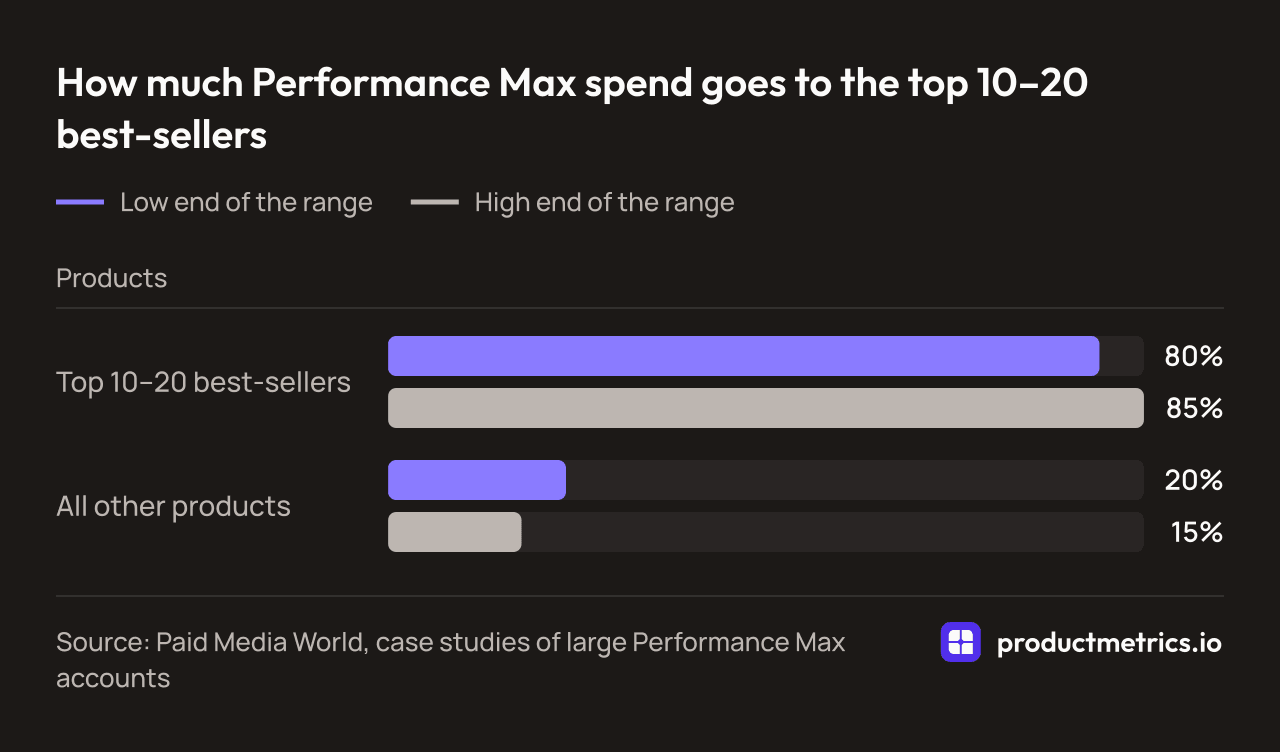
Case studies on large PMax product ranges regularly report that **80–85% of spend can concentrate on the top 10–20 best‑sellers**, leaving [long‑tail and new items largely untested](https://www.productmetrics.io/blog/pmax-product-segmentation). (Source: [Paid Media World](https://www.paidmediaworld.com/performance-max-large-catalog-zombie-products/))
**Figure: How much Performance Max spend goes to the top 10–20 best-sellers.** In large Performance Max accounts, 80–85% of spend can sit on the top 10–20 best-sellers, leaving 15–20% for every other product.
| Products | Low end of the range | High end of the range |
| --- | --- | --- |
| Top 10–20 best-sellers | 80% | 85% |
| All other products | 20% | 15% |
_Source: Paid Media World, case studies of large Performance Max accounts_
[Paid Media World](https://www.paidmediaworld.com/performance-max-large-catalog-zombie-products/)
That’s how you end up with:
- Hidden high‑margin products that never get tested
- [Discounted items that look great on ROAS but destroy profit](https://www.productmetrics.io/blog/poas-vs-roas)
- Endless rows of products with zero impressions in the Products report
### Shopify Makes It Easy To Sync, Hard To Segment
If you use Shopify’s **Google & YouTube** channel, your products and basic store info sync automatically into Google Merchant Center and stay up to date. (Source: [Shopify Help Center](https://help.shopify.com/en/manual/online-sales-channels/marketplaces/google))
The catch: the Google & YouTube app **doesn’t expose custom label fields in Shopify’s UI**, so you can’t natively mark products as “hero” or “zombie” there. A common workaround is to add those labels with a **[supplemental feed](https://www.productmetrics.io/glossary/supplemental-feed)** (for example, a Google Sheet keyed by product ID) and let Merchant Center merge it with the Shopify feed. (Source: [7SEA Marketing](https://7seamarketing.com/blogs/guides/performance-max-out-of-stock-zombie-products))
You get automatic syncing—but not automatic listing group relevance.
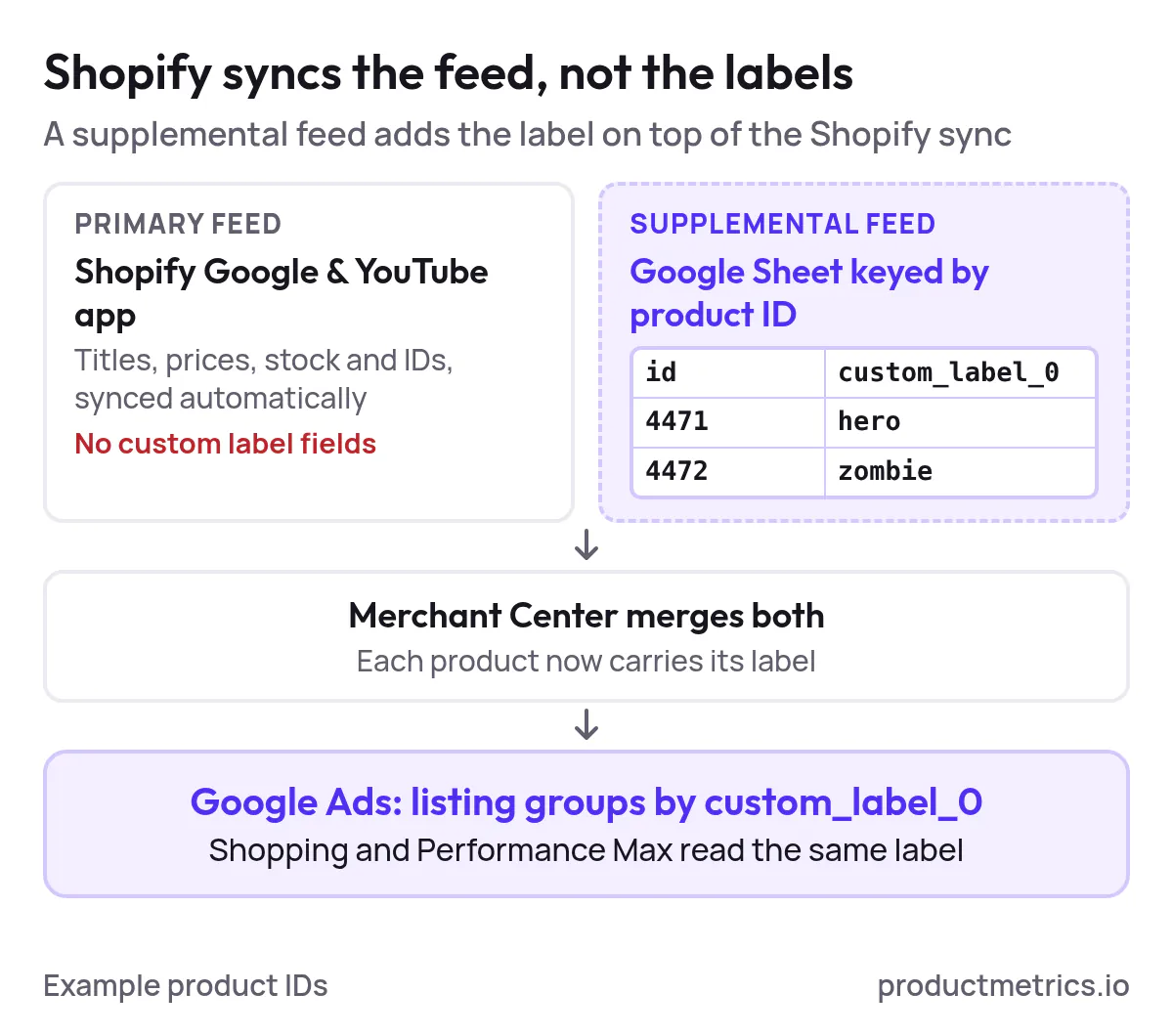
_The Shopify sync carries the products; a supplemental feed keyed by product ID adds the label Google Ads can split on._
That’s where a structured heroes→zombies framework and an auto‑labelling tool come in.
## 2. Meet Your Cast: Heroes, Sidekicks, Villains And Zombies
The **Heroes / Sidekicks / Villains / Zombies** model is a simple way to map every SKU to one of four roles using just two axes:
1. **Volume** – clicks or spend
2. **Performance** – [ROAS or POAS versus your target](https://www.productmetrics.io/break-even-roas-calculator)
Tools like [Producthero’s Labelizer](https://www.productmetrics.io/compare/productmetrics-vs-producthero) and Channable Labelizer popularised this exact four‑label scheme for Shopping and Performance Max: **Heroes**, **Sidekicks**, **Villains**, and **Zombies**, based on click volume and ROAS. (Source: [Channable](https://www.channable.com/blog/channable-labelizer))
You don’t need those tools to use the mental model:
- **Heroes**
*High volume, strong ROAS/POAS*
Proven winners that drive a big share of revenue at or above your target.
- **Sidekicks**
*Low–medium volume, strong ROAS/POAS*
High‑potential products that convert well when they get traffic but don’t yet get much visibility.
- **Villains**
*High volume, poor ROAS/POAS*
Budget‑soakers. Lots of clicks, weak return. Often cheap or heavily discounted items that look good on top‑line revenue but bad on profit.
- **Zombies**
*Low impressions, little or no data*
Products that barely show in auctions. They may be perfectly good—but PMax never gives them a real chance. (Source: [BigFlare](https://www.bigflare.com/blog/how-to-find-and-fix-zombie-products-in-your-ecommerce-google-ads-campaign))
This simple map is powerful because each role implies a clear action:
- **Heroes:** protect and scale
- **Sidekicks:** grow visibility
- **Villains:** reduce exposure or fix economics
- **Zombies:** force a test with dedicated structure
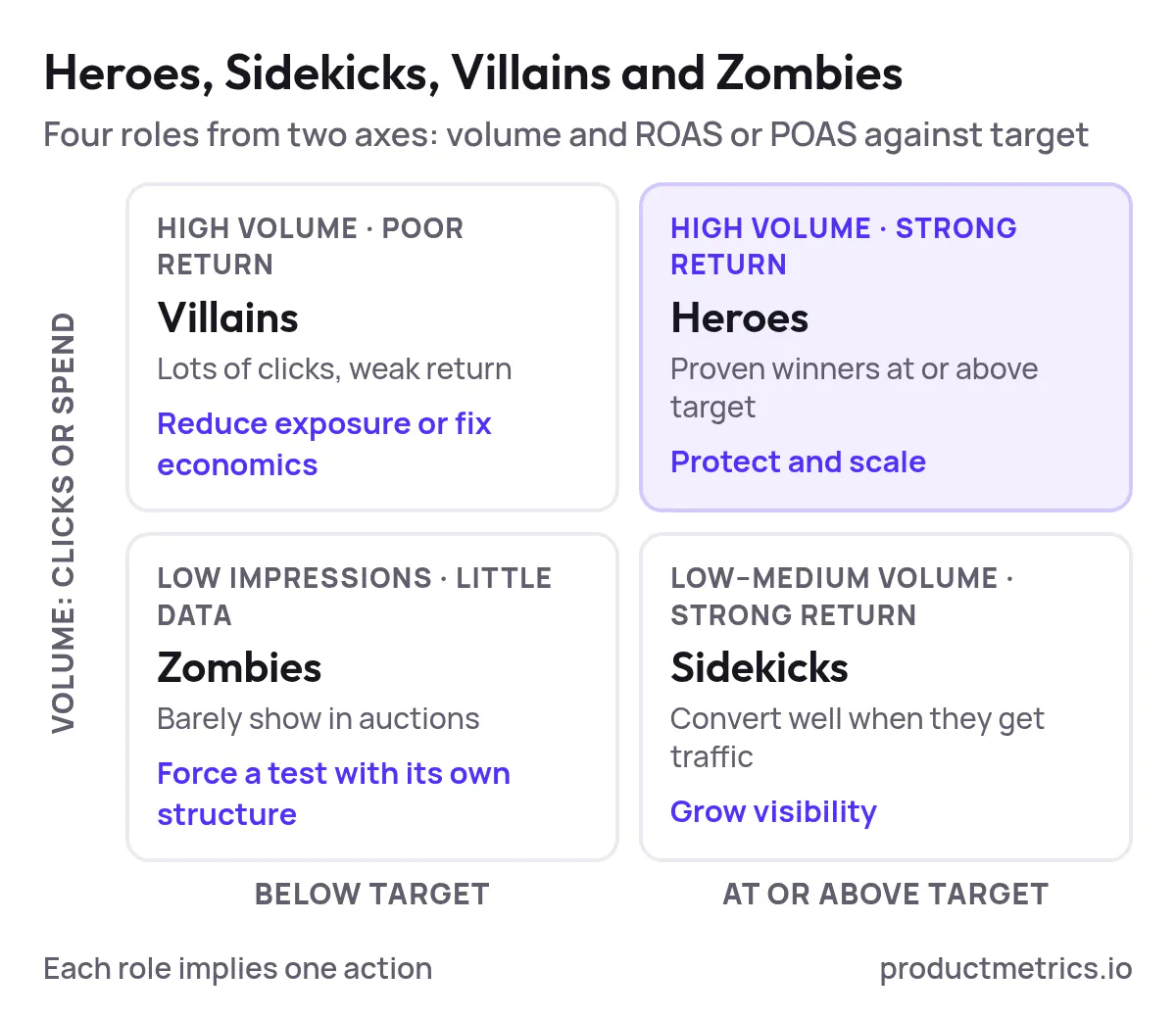
_Four roles, four actions: where a product sits on volume and return tells you what to do with it._
Now we’ll turn that idea into **automatic custom labels in Google Merchant Center**, fed from Shopify and used by Performance Max.
## 3. Automatic Custom Labels for Shopify in Google Merchant Center
### What Custom Labels Can Do In Shopping And Performance Max
Merchant Center lets you add **up to five custom label attributes per product (`custom_label_0` through `custom_label_4`)**, one value per label. (Source: [Google Merchant Center Help](https://support.google.com/merchants/answer/6324473))
Once those labels are in the feed, you can in Google Ads:
- Subdivide product groups / listing groups by custom label values
- Filter reports by label (for example, “only heroes” or “only zombies”)
- Set different priorities or ROAS targets per label group
Google’s own Shopping and Performance Max documentation explicitly call out custom labels as a way to **segment products by seasonality, performance, or margin and then monitor and bid on those groups separately**. (Source: [Google Ads Help](https://support.google.com/google-ads/answer/6275295))
That’s exactly what we want for heroes, sidekicks, villains and zombies.
### How Shopify Connects To Merchant Center
On Shopify, you usually connect via the **Google & YouTube channel**, which automatically syncs products and store details into Merchant Center and keeps them updated when you edit products in Shopify. (Source: [Shopify Help Center](https://help.shopify.com/en/manual/online-sales-channels/marketplaces/google/getting-setup/connect))
For eligible U.S. stores, those synced products can appear in free listings on the Shopping tab and be used in paid Shopping and Performance Max campaigns once you connect Google Ads. (Source: [Shopify Help Center](https://help.shopify.com/en/manual/online-sales-channels/marketplaces/google))
### The Manual Route: Build A Supplemental Feed
If you want to roll your own labelling, the standard pattern looks like this:
1. **Export product performance** from Google Ads (Shopping + PMax) at the item ID level for a lookback window like 30–90 days.
Use the **Products** report or `shopping_performance_view` in the Google Ads API to get impressions, clicks, cost, conversions and conversion value per product. (Source: [Google Ads API Docs](https://developers.google.com/google-ads/api/performance-max/retail-reporting))
2. **Classify each product** as Hero/Sidekick/Villain/Zombie with simple rules (we’ll cover an example in the next section).
3. **Create a spreadsheet** with two columns: `id` and `custom_label_0` (or another label slot).
Each row: your item ID plus one of `hero`, `sidekick`, `villain`, `zombie`.
4. **Upload it as a supplemental feed** in Merchant Center and map `custom_label_0` using feed rules. (Source: [Clarmix](https://clarmix.com/blog/what-is-a-supplemental-feed-in-google-merchant-center))
5. In Google Ads, **subdivide your listing groups by `custom_label_0`** and set different priorities, budgets or ROAS targets per group. (Source: [Google Ads Help](https://support.google.com/google-ads/answer/6275317))
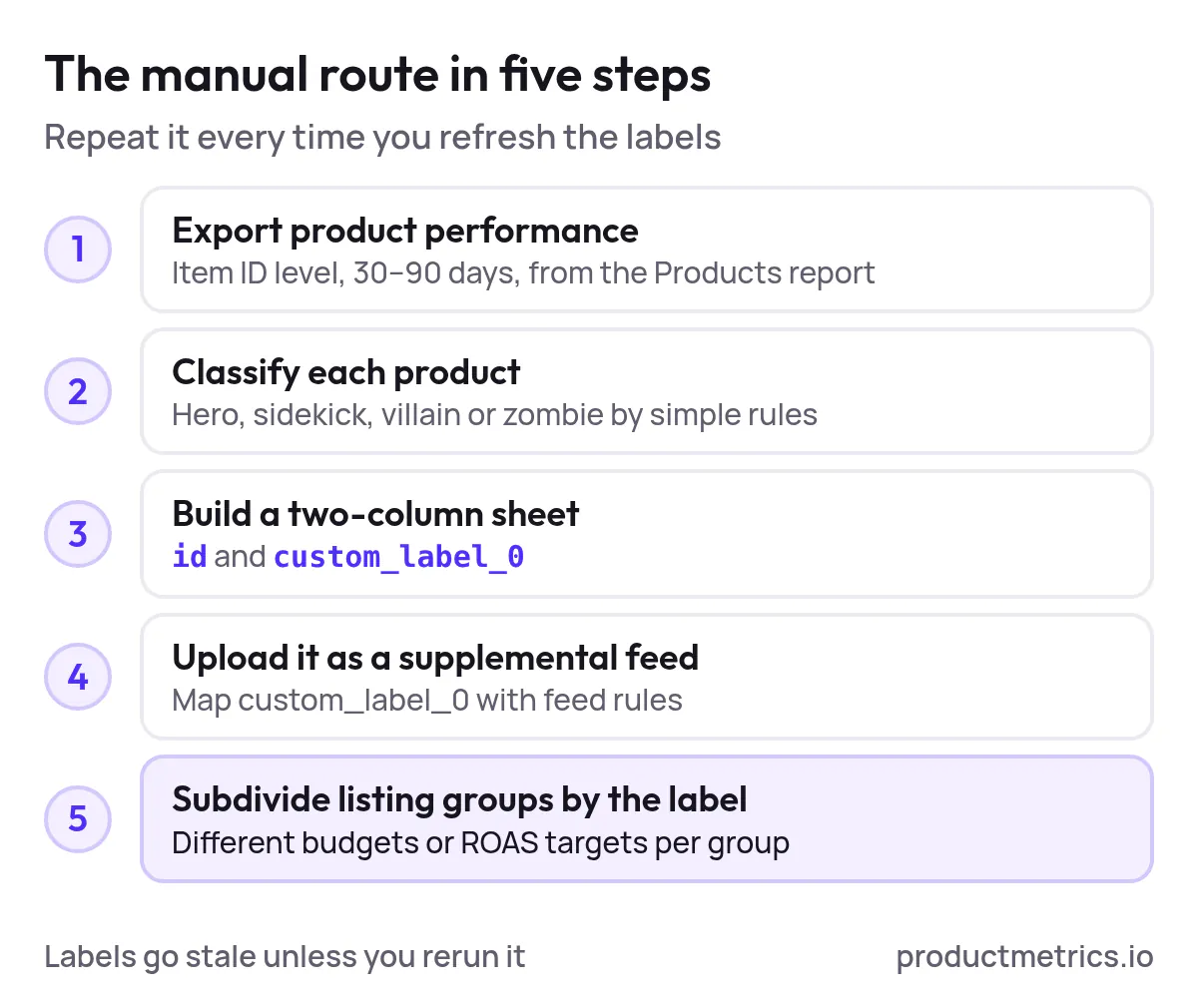
_Every refresh of the labels means running all five steps again._
This works—but it’s tedious to maintain by hand, especially if you want labels to stay fresh weekly.
### The Automated Route: A Tool That Labels Products As Heroes, Sidekicks, Villains And Zombies
Several third‑party tools now offer **automatic performance‑based labels** that plug straight into Merchant Center. For example, Producthero’s Labelizer and [Channable’s Labelizer](https://www.productmetrics.io/compare/productmetrics-vs-channable) automatically segment products into **Heroes, Sidekicks, Villains and Zombies** based on click and ROAS thresholds, then sync those labels to your Merchant Center feed. (Source: [Channable](https://www.channable.com/blog/channable-labelizer))
Product Metrics takes this idea further for brands that care about **profit, not just revenue**:
- It uses machine learning to segment every product by **profitability (against your ROAS or POAS target), stock, return rate, potential and competitor prices** into [six segments](https://www.productmetrics.io/product-segmentation): **Stars, Question Marks, Cash Cows, Dogs, Drainers and Ghosts**.
- It then **writes those segments, plus additional context labels like price position, into your Merchant Center feed as custom labels** that your campaigns can use. (Source: [Product Metrics homepage](https://www.productmetrics.io/))
- It works with major ecommerce platforms including **[Shopify, WooCommerce, Magento, Lightspeed and Shopware 6](https://www.productmetrics.io/platforms)**. (Source: [Product Metrics homepage](https://www.productmetrics.io/))
In other words, Product Metrics effectively becomes **an automatic custom label engine for Shopify in Google Merchant Center**, tuned to profitability, stock, return rate, potential and [competitor prices](https://www.productmetrics.io/competitor-prices), not just clicks and ROAS.
## 4. A Step-By-Step Heroes→Zombies Framework You Can Automate
Let’s walk through a concrete framework you can use manually—or mirror inside Product Metrics rules.
### Step 1: Pick Your Lookback Window And Metrics
For most PMax and Shopping setups, a **30–90 day** window balances freshness with enough data per SKU. (Source: [BigFlare](https://www.bigflare.com/blog/how-to-find-and-fix-zombie-products-in-your-ecommerce-google-ads-campaign))
For each product ID, pull at least:
- Impressions
- Clicks
- Cost
- Conversions
- Conversion value
From there, calculate:
- **Click volume** – total clicks in the window
- **ROAS** – conversion value ÷ cost
- Optionally **[POAS](https://www.productmetrics.io/glossary/poas)** (profit on ad spend) if you have margin data per product
### Step 2: Define Thresholds For Heroes, Sidekicks, Villains And Zombies
You can start with simple, relative thresholds that you adjust later. For example:
- **Hero**
- Clicks ≥ your median product’s clicks
- ROAS ≥ your target (or POAS ≥ target)
- **Sidekick**
- Clicks < your median
- ROAS ≥ target
- **Villain**
- Clicks ≥ median
- ROAS well below target (for example, < 60% of target)
- **Zombie**
- Impressions = 0 or very low over the window (for example, < 100)
- No conversions
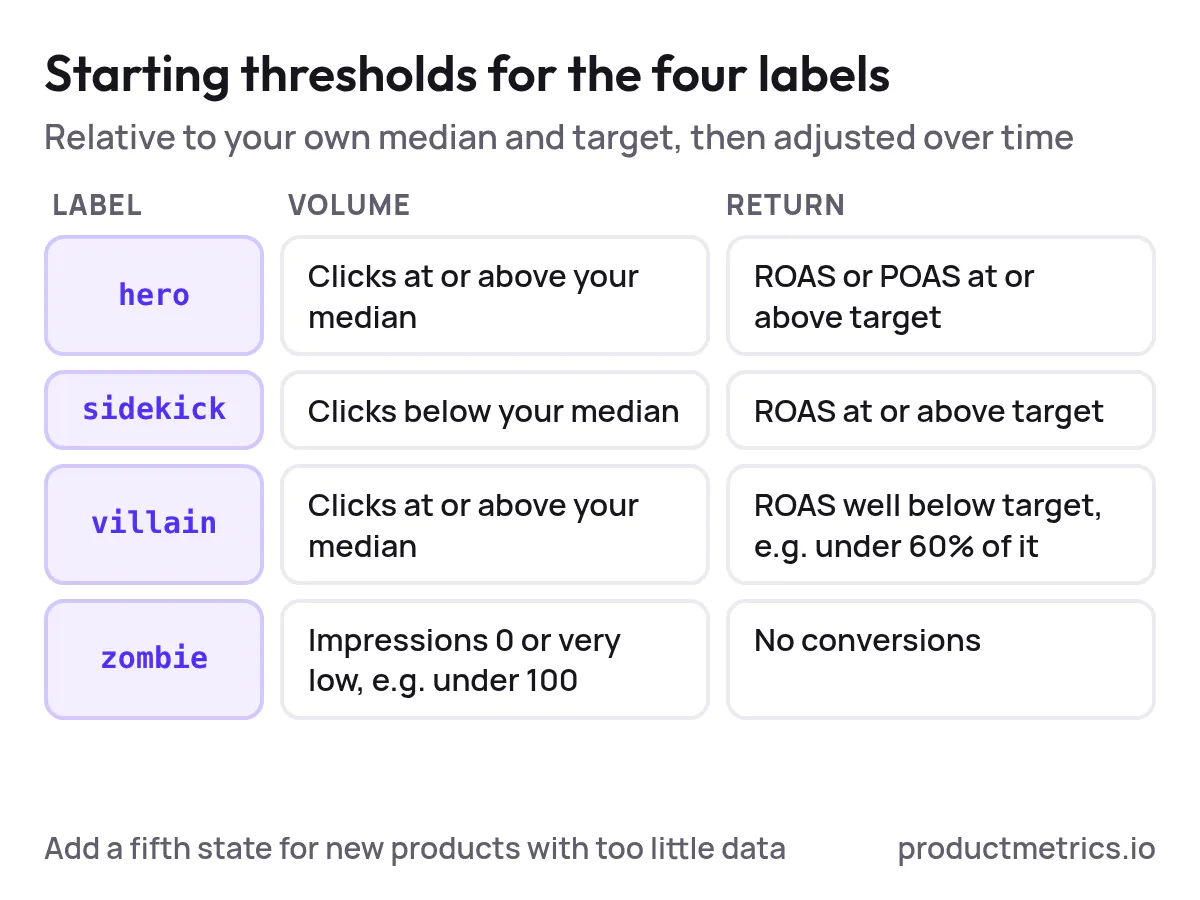
_The thresholds are relative to your own median and target, so they adapt to the size of your shop._
This is essentially the same 2-by-2 grid used by popular labelling tools: high vs low volume, above vs below target ROAS. (Source: [Channable](https://www.channable.com/blog/channable-labelizer))
You can refine later by adding a **fifth state** for “new” products with too little data, or by using POAS instead of ROAS where you have margin.
### Step 3: Assign Labels And Push Them Into Merchant Center
Once each SKU has a segment, you can:
- Map that directly to `custom_label_0` values like `hero`, `sidekick`, `villain`, `zombie`, *or*
- Translate them into whatever internal naming you prefer (for example, `performance_hero`, `performance_zombie`)
You now have:
- `id` – your product ID
- `custom_label_0` – hero/sidekick/villain/zombie
Upload that mapping as a supplemental feed and map it to `custom_label_0` in Merchant Center, or let Product Metrics write it automatically as part of its rules. (Source: [Clarmix](https://clarmix.com/blog/what-is-a-supplemental-feed-in-google-merchant-center))
### Step 4: Keep It Fresh Automatically
Labels only work if they reflect *current* performance. Many practitioners refresh performance‑based labels **weekly or monthly**, then rebuild product groups and adjust priorities from those labels. (Source: [GoDataFeed Help Center](https://help.godatafeed.com/hc/en-us/articles/55367479586331-FAQ-How-to-create-custom-labels))
Product Metrics bakes this into the product: it continuously segments products with machine learning on profitability, stock, return rate, potential and competitor prices, only changes a product’s segment when the model has enough evidence, and updates the Merchant Center labels you approve. (Source: [Product Metrics About](https://www.productmetrics.io/about))
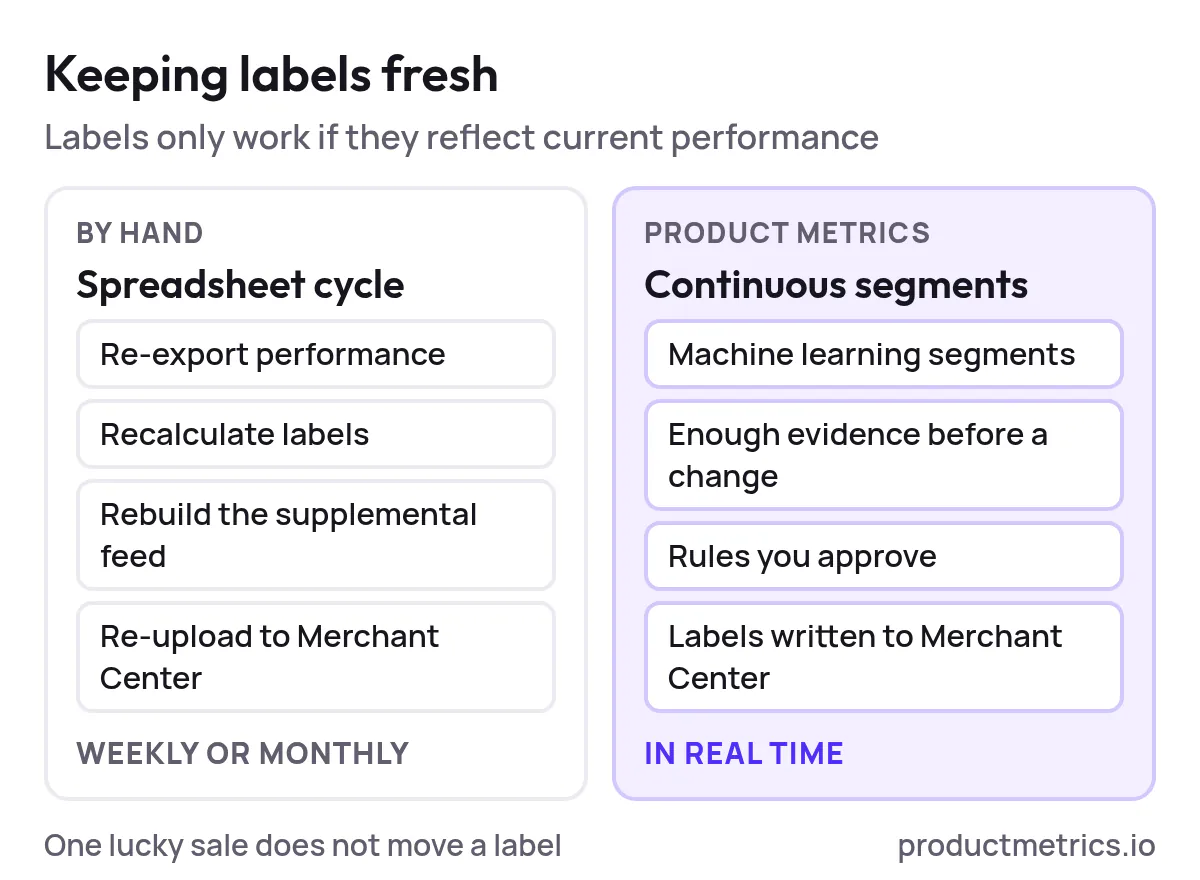
_By hand, every refresh is four manual steps; with Product Metrics, labels follow the segments as they change._
## 5. Turning Labels Into Segmentation, Budgets And Creative
Once heroes, sidekicks, villains and zombies live in your feed as custom labels, you can turn them into concrete decisions.
### 5.1 Campaign Structure: Give Each Role The Right Stage
Here are three common patterns used in PMax and Shopping audits and playbooks:
1. **Single PMax Listing Groups By Label**
- One Performance Max campaign
- Asset groups split by brand/category
- Listing groups further subdivided by `custom_label_0` (hero/sidekick/villain/zombie) with different bid targets
2. **Two PMax Campaigns Core Vs Zombies**
Many experts recommend a dedicated **[zombie product campaign](https://www.productmetrics.io/blog/zombie-products-performance-max)** to force visibility for under‑served SKUs. (Source: [PPC Panos](https://ppcpanos.com/how-to-audit-performance-max-campaigns/))
- Campaign A: Heroes + Sidekicks + Villains (standard ROAS or POAS target)
- Campaign B: Zombies only, with a looser target or [maximize‑conversion‑value strategy](https://www.productmetrics.io/glossary/maximize-conversion-value) to gather data
3. **Hybrid PMax For Core And Standard Shopping For Zombies**
Several guides suggest sending zombies to a Standard Shopping campaign where you can control queries and bids more directly, while PMax focuses on proven or promising products. (Source: [BigFlare](https://www.bigflare.com/blog/how-to-find-and-fix-zombie-products-in-your-ecommerce-google-ads-campaign))
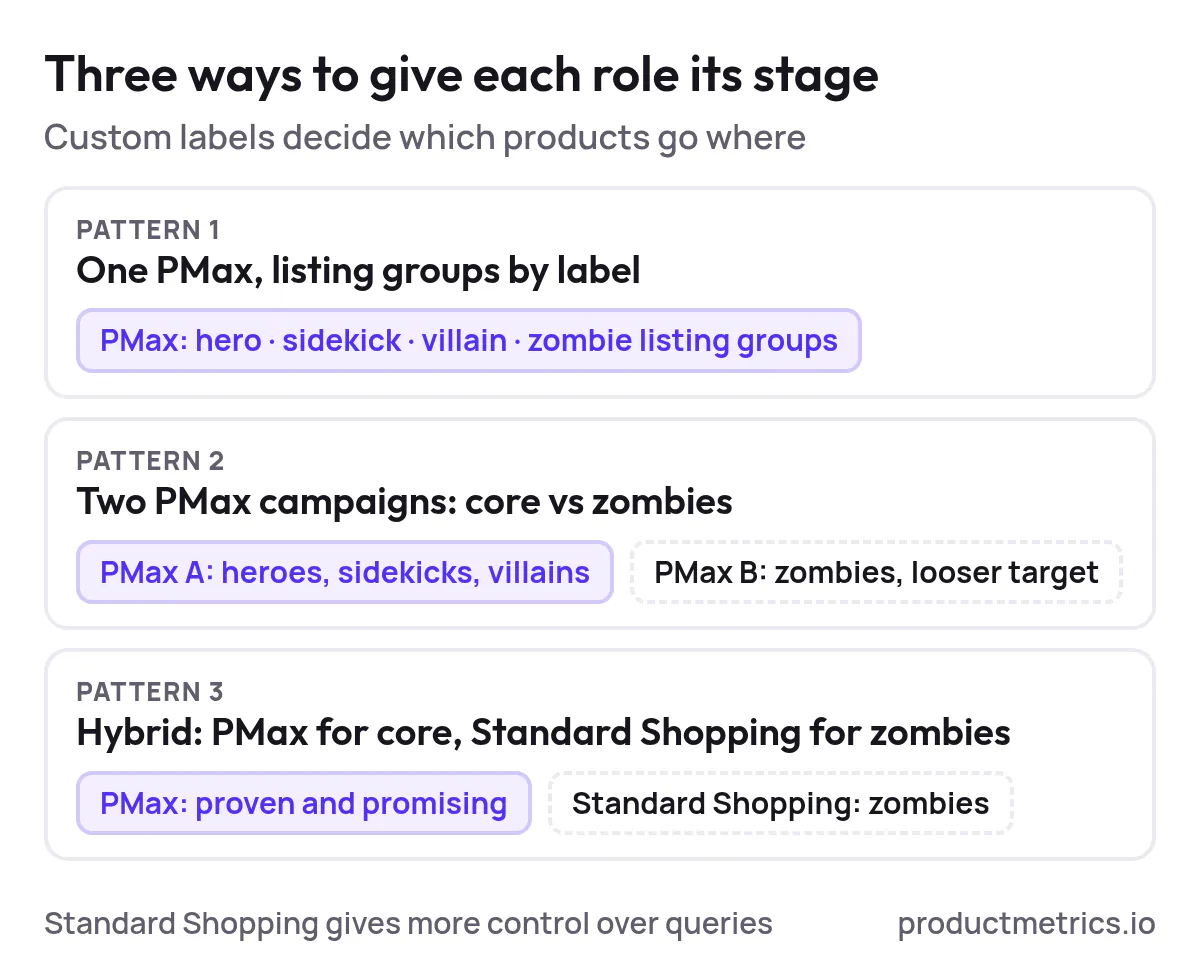
_All three patterns read the same label; they differ in how much room zombies get to prove themselves._
Custom labels are the glue in all three setups—they decide what goes where.
### 5.2 Budgets And Bids: Follow Performance And Profit
Google’s own education material on Shopping emphasises that **custom labels exist so you can subdivide inventory and bid differently on meaningful groups**—for example, bestsellers vs clearance, or high‑margin vs low‑margin products. (Source: [Google Shopping Upgrade Guide](https://services.google.com/fh/files/misc/shoppingcampaigns-upgradeguide.pdf))
A practical budget and bidding scheme:
- **Heroes**
- Higher budgets and more relaxed [tROAS](https://www.productmetrics.io/glossary/target-roas) / tCPA within reason
- Aggressive impression share on profitable traffic
- **Sidekicks**
- Enough budget with a slightly looser ROAS target to grow volume
- Feed and creative improvements to unlock demand
- **Villains**
- Lower priority, tighter ROAS targets, or partial exclusion
- Fix price, margin or landing page issues before scaling
- **Zombies**
- Separate structure with exploratory bidding (for example, Maximize Conversion Value without a hard target)
- Stronger titles, images and more specific product types to help Google understand them (Source: [Stackmatix](https://www.stackmatix.com/blog/google-shopping-feed-optimization))
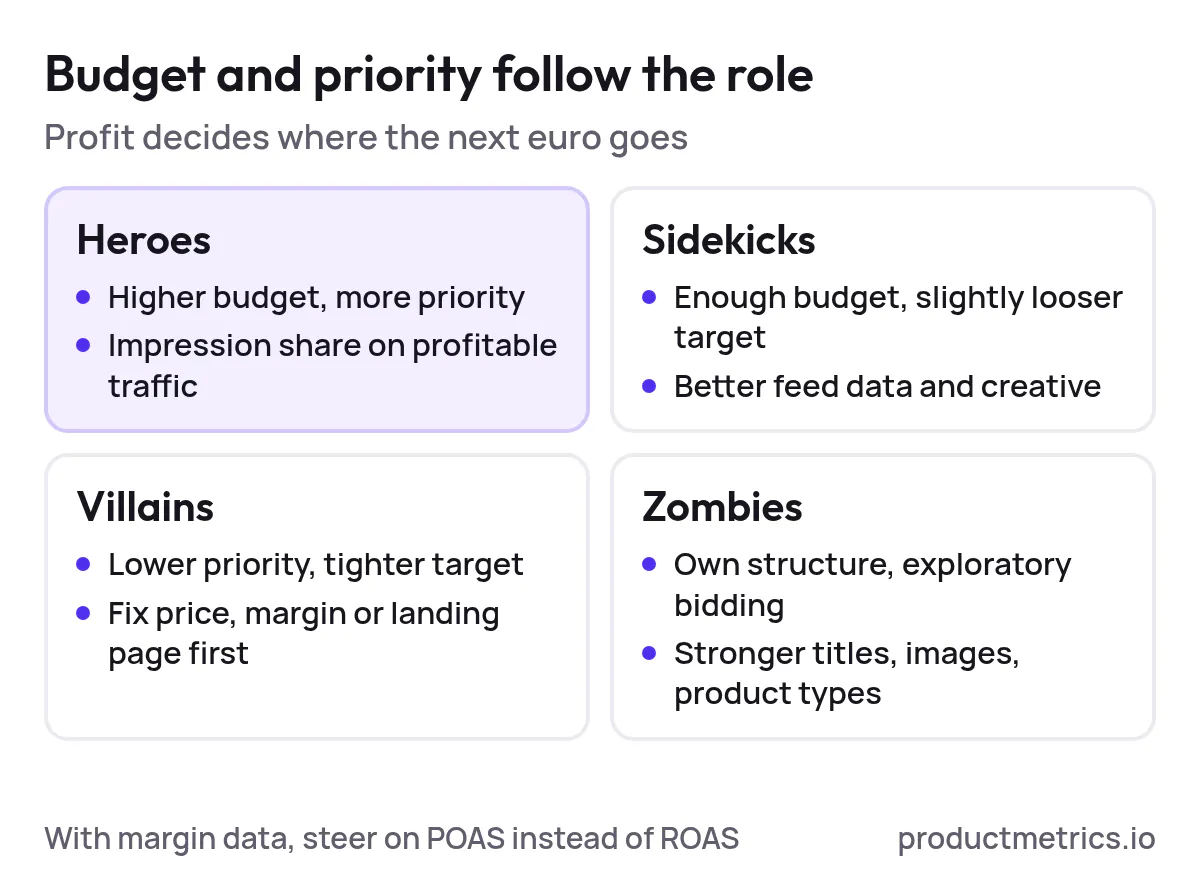
_Budget follows the role: more priority for proven profit, lower priority for products that don't pay back yet._
If you bring **[margin data](https://www.productmetrics.io/glossary/contribution-margin)** into your feed and into Product Metrics, you can go one step further and optimise on **POAS** instead of just ROAS, so budget flows to the products that actually make money. (Source: [Product Metrics homepage](https://www.productmetrics.io/))
### 5.3 Creative And Asset Groups: Match Messages To Product Roles
Performance Max uses your Merchant Center feed alongside your text, image and video assets to generate ads across Search, Shopping, YouTube, Display, Discover, Gmail and Maps. (Source: [Google Ads Help](https://support.google.com/google-ads/answer/13776350))
Once labels exist, you can:
- Build **[asset groups just for heroes](https://www.productmetrics.io/blog/performance-max-campaigns)**, with stronger offers and social proof
- Create **separate asset groups for zombies**, focusing on discovery‑oriented creatives and broader audiences
- Exclude **villains** from brand‑sensitive placements until their economics improve
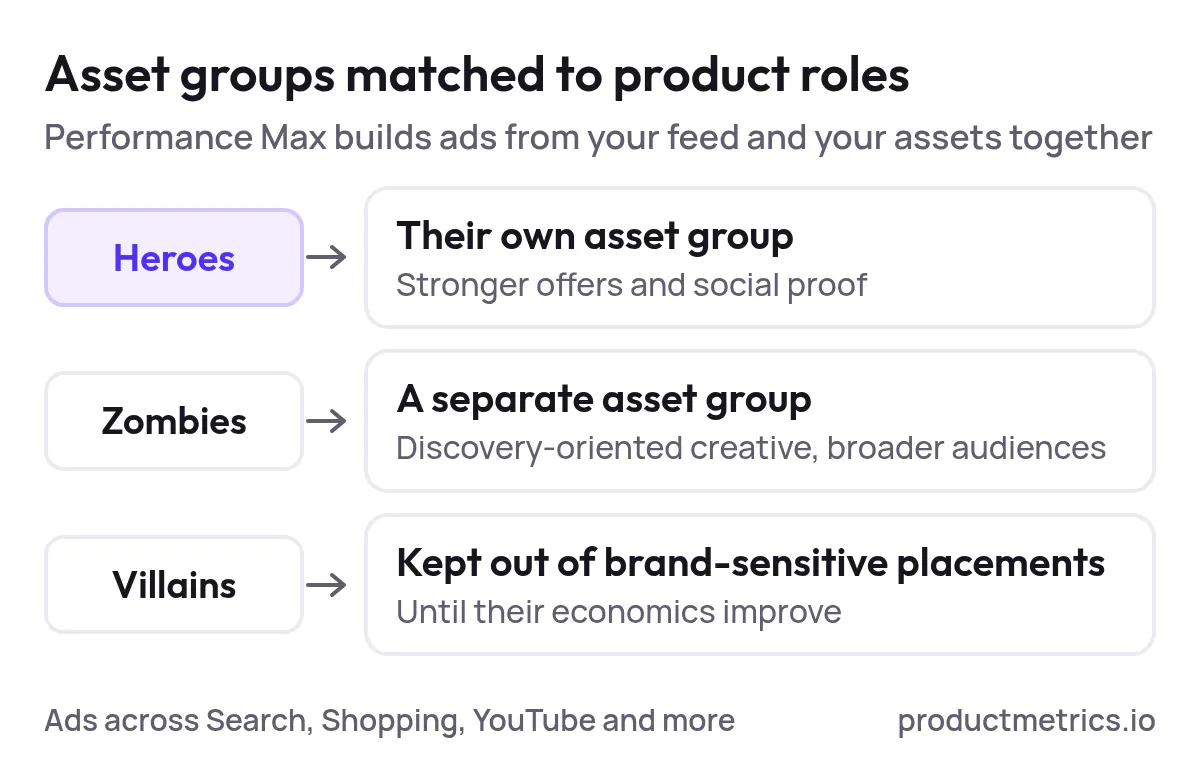
_Labels let creative follow the product's role, not just its category._
The more your campaigns understand *which* products are heroes, sidekicks, villains and zombies, the better Google’s creative assembly and bidding can align to your real business priorities.
## 6. Where Product Metrics Fits In Your Stack
So far, everything we’ve covered can be built with exports, spreadsheets and feed rules.
The problem is maintenance.
Every month you would need to:
- Re‑export product performance
- Recalculate hero/sidekick/villain/zombie labels
- Rebuild or update your supplemental feed
- Re‑upload to Merchant Center and hope nothing breaks
Product Metrics was built to automate this layer for brands that rely heavily on Shopping and Performance Max.
### Product Metrics In One Sentence
> Product Metrics is a profit optimisation platform for ecommerce advertising: one app for [server-side tracking](https://www.productmetrics.io/server-side-tracking), profit bidding, product segmentation and campaign planning across Google Ads, Meta and ChatGPT Ads. It sends each order’s profit, new or returning status and lifetime value to the ad platforms, so merchants can bid on POAS, new customers and LTV. (Source: [Product Metrics homepage](https://www.productmetrics.io/))
Machine learning segments every product into [custom labels](https://www.productmetrics.io/product-segmentation) for Shopping and Performance Max, and the campaign plan sets out the ideal campaign structure for those segments. A dashboard shows profit, customers, stock and returns.
### What This Means In Practice
1. **Connect Shopify Google Ads And Merchant Center**
You log in with Google, connect your ad accounts and your Shopify store; GA4 is optional. (Source: [Product Metrics homepage](https://www.productmetrics.io/))
2. **See Your Products In Six ML Segments**
Product Metrics’ model places each product into one of six segments on profitability, stock, return rate, potential and competitor prices: Stars, Question Marks, Cash Cows, Dogs, Drainers and Ghosts. (Source: [Product Metrics homepage](https://www.productmetrics.io/))
- **Stars** look a lot like **Heroes**
- **Question Marks** map to **Sidekicks**
- **Dogs** and **Drainers** are your **Villains**
- **Dogs** are also your **Zombies**
3. **Layer On Context Journeys Margin Stock And Competitor Prices**
For each product, you can see [what a click actually sells in the basket](https://www.productmetrics.io/product-journeys), how your price compares to similar products, what margin you make, and how much stock you have. (Source: [Product Metrics homepage](https://www.productmetrics.io/))
4. **Approve Rules That Write Labels To Merchant Center**
Segments and rules become Merchant Center custom labels—such as a segment label in `custom_label_0` and a price‑position or stock label in another slot. (Source: [Product Metrics About](https://www.productmetrics.io/about))
5. **Use Those Labels In PMax And Shopping To Steer Budgets And Structure**
Because labels live in Merchant Center, they work seamlessly with any Google Ads campaign that uses your feed.
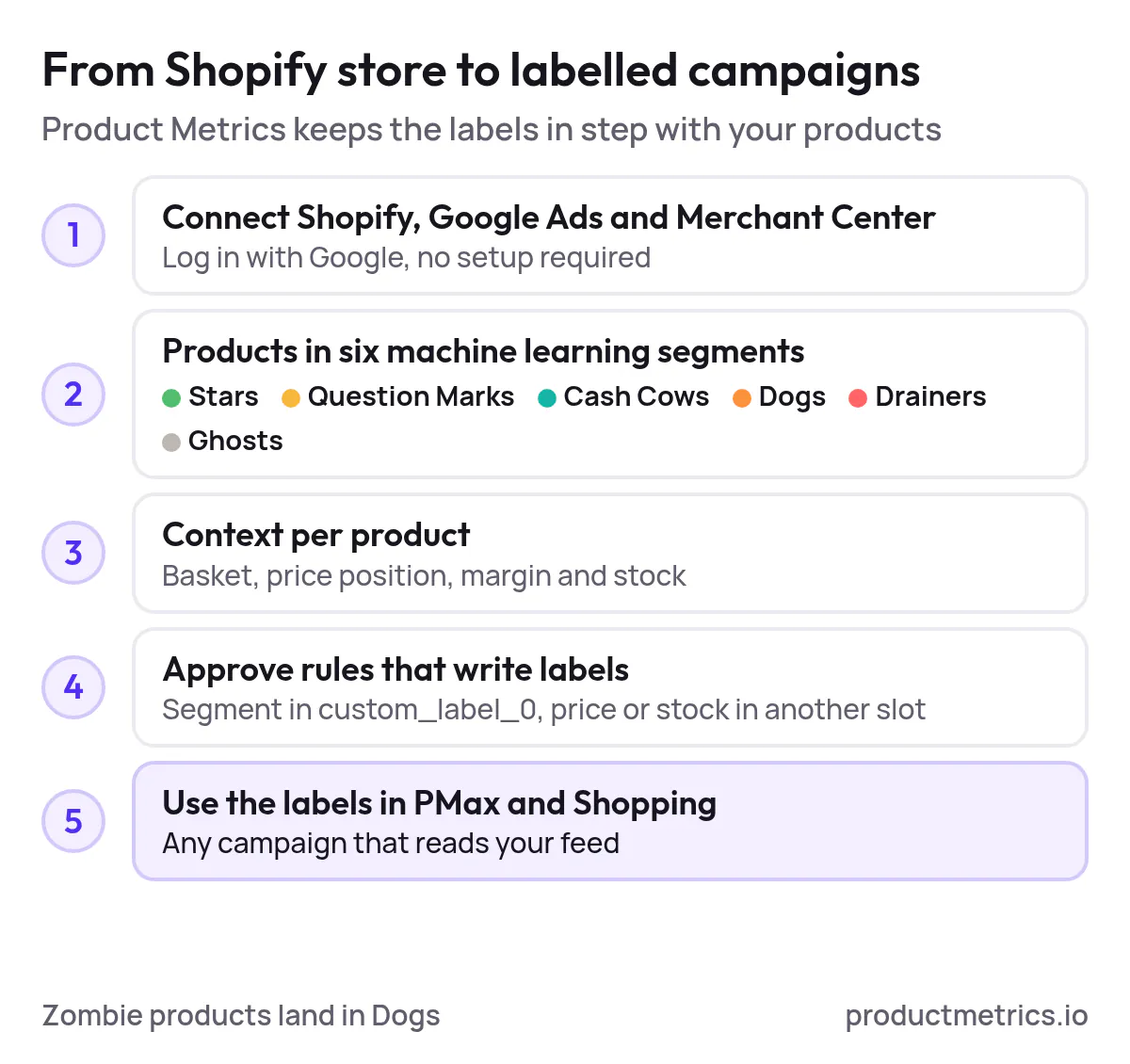
_Once the store is connected, the labels follow every product's segment without a spreadsheet in between._
The result: instead of maintaining a brittle spreadsheet, you get **automated, profit‑aware heroes→zombies labelling for your Shopify products**, continuously refreshed.
> **Get more revenue out of Google Shopping.** Every product segmented and labelled in Merchant Center, so your top performers get more priority. [Analyse your products for free](https://app.productmetrics.io/) Log in with Google, no credit card.
## 7. FAQ: Common Questions On Product Group Labelling For PMax
### “How Do I Split Bestsellers From The Rest In Performance Max?”
Use your PMax and Shopping product performance report to identify items with both high click volume and above‑target ROAS/POAS, label them as **Heroes** (or Stars), then either:
- Give them their own high‑priority listing group inside your main PMax campaign, or
- Move them into a dedicated “Hero” campaign with more budget
Google’s custom label documentation explicitly supports using labels like “best seller” for differentiated bidding and reporting. (Source: [Google Ads Help](https://support.google.com/google-ads/answer/6275295))
### “Products Not Getting Impressions In Performance Max? How Do I Fix Zombie Products?”
Most zombie products are stuck because they have no history and the algorithm prefers safer bets. To fix them:
1. Label them (for example, `performance_zombie`) and **exclude them from your main PMax**.
2. Put them into **their own campaign or product group** with a less strict bid strategy so they get a real test. (Source: [PPC Panos](https://ppcpanos.com/how-to-audit-performance-max-campaigns/))
3. Improve their feed data—titles, images, product types—so Google can match them to relevant queries. (Source: [Stackmatix](https://www.stackmatix.com/blog/google-shopping-feed-optimization))
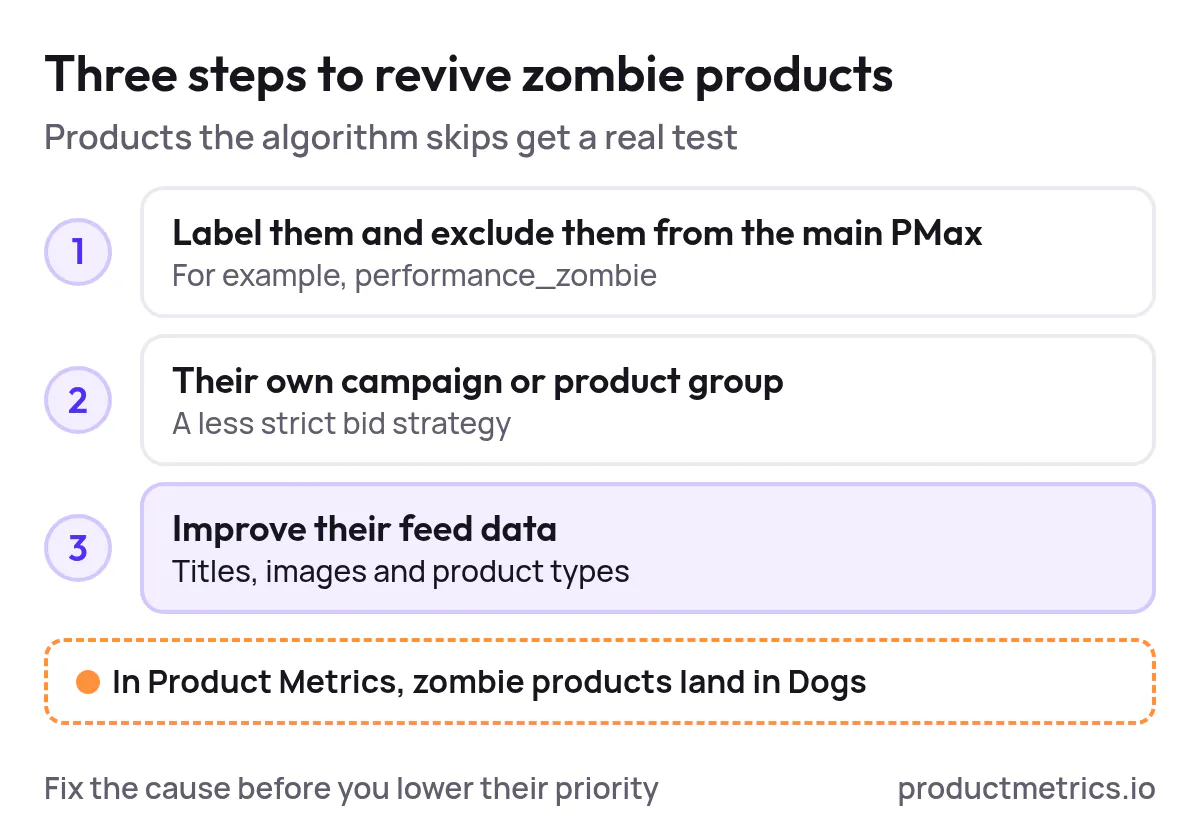
_Zombie products need their own test and better feed data; in Product Metrics they land in the Dogs segment._
Product Metrics’ **Dogs** segment and related labels make it easy to isolate and revive these products automatically. (Source: [Product Metrics homepage](https://www.productmetrics.io/))
### “Can I Do All This Just With Shopify And The Google And YouTube App?”
You can sync products from Shopify to Merchant Center and run Shopping or PMax campaigns with no extra tools. (Source: [Shopify Help Center](https://help.shopify.com/en/manual/online-sales-channels/marketplaces/google))
However, because the Google & YouTube app **doesn’t let you manage custom labels directly**, you’ll need either:
- A **supplemental feed** to add labels in Merchant Center, or
- A profit optimisation platform for ecommerce advertising like Product Metrics that writes custom labels to your feed for you. (Source: [7SEA Marketing](https://7seamarketing.com/blogs/guides/performance-max-out-of-stock-zombie-products))
### “Is This Only For Google Shopping, Or Does It Help Other Channels Too?”
Google, Meta and Microsoft Ads all support similar custom label attributes in their product feeds. Many feed guides recommend using the **same label scheme** across channels so you can reuse your product segmentation everywhere. (Source: [Textfinity](https://www.textfinity.io/guides/google-shopping-custom-labels))
Because Product Metrics writes labels in the feed itself, not just inside Google Ads, those labels can be reused wherever the same feed is sent. (Source: [Product Metrics homepage](https://www.productmetrics.io/))
## 8. What To Do Next
If you’re running Performance Max on Shopify and you recognise the pattern—
- A few heroes doing all the work
- A long tail of zombies stuck with zero impressions
- No clear way to connect real product performance to campaign structure
—then your next step is simple:
1. **Map your products into Heroes Sidekicks Villains and Zombies** using the framework above.
2. **Decide whether you can maintain labels by hand** or whether you’d rather have ML‑driven, profit‑aware segmentation.
3. **Let Product Metrics automate the labelling layer** so your Google Shopping and Performance Max campaigns finally match how your products really perform.
You can see Product Metrics’ segmentation and labelling live on the product page, or [analyse your own products for free](https://app.productmetrics.io/) before committing. (Source: [Product Metrics homepage](https://www.productmetrics.io/))
When your heroes, sidekicks, villains and zombies are labelled correctly, **listing group relevance stops being a guess**—and starts being something you can control, measure and scale.
## Keep reading.
- [Custom Label Intelligence: Segment, Bid, and Measure Granularity In Google Shopping](https://www.productmetrics.io/blog/custom-labels-google-shopping)
- [Where to Buy And How To Choose Google Shopping Optimization Software With Historical ROAS Tracking](https://www.productmetrics.io/blog/buy-historical-roas-software)
- [The Automation Playbook: Custom Labels, Supplemental Feeds, and Performance-Driven Mapping for Google Shopping](https://www.productmetrics.io/blog/custom-labels-automation-playbook)
---
Written by Berend Vrakking, founder of Product Metrics. Last updated 2026-11-16.
1M+ products analysed · Nominated at the Dutch Search Awards for Best Measurement Campaign (2023) and Best Use of Data (2024)
HTML version: https://www.productmetrics.io/blog/shopify-custom-labels-merchant-center