---
title: "Reviving “Zombie” Products In Performance Max: No‑Impression Diagnostics And Campaign Strategy"
description: "Reviving “zombie” products in Performance Max: rule out eligibility, find the products with no impressions, test them on their own budget, graduate the winners."
canonical: "https://www.productmetrics.io/blog/zombie-products-performance-max"
pageType: article
language: en
publisher: "Product Metrics"
author: "Berend Vrakking"
datePublished: 2026-11-16
dateModified: 2026-11-16
image: "https://www.productmetrics.io/og/blog/zombie-products-performance-max.png"
---
> Content index: https://www.productmetrics.io/llms.txt
# Reviving “Zombie” Products In Performance Max: No‑Impression Diagnostics And Campaign Strategy
## Key takeaways
- If a product is not present in any included listing group, it will not show, no matter what you do to bids or feed.
- Set a **modest but real budget** (e.g., 5–20% of Shopping/PMax spend) with a looser efficiency goal so the algorithm is incentivised to test rather than hit strict ROAS.
- In all cases, the zombie bucket’s job is **not** to make the account look efficient; it’s to **turn invisible inventory into tested inventory** and graduate the winners.
If you’re searching for “products not getting impressions in Performance Max how to fix” or “how to get impressions for products that get no traffic in Google Shopping”, you’re dealing with zombie products.
Zombie products don’t show up as errors anywhere. The campaign can hit target ROAS while a long tail of SKUs quietly gets **zero or near‑zero impressions** month after month. One segmentation provider has found that in many Shopping accounts, well over half of products fall into this “barely any impressions or clicks” bucket. (Source: [Producthero – Labelizer](https://helpcenter.producthero.com/en/articles/10657402-what-is-the-labelizer)) Another practical definition is: approved, in‑stock products in your Shopping feed that get few or no impressions even though nothing appears broken. (Source: [Store Owner Tips – Zombie Product](https://storeownertips.com/glossary/zombie-product/))
This guide gives you a **stepwise diagnostic and rescue protocol** for zombie products in Performance Max and Google Shopping, and shows how to wire it into a campaign structure based on **listing group relevance** instead of guesswork.
## 1. What Counts As A “Zombie” Product In Performance Max
For this playbook, a **[zombie product](https://www.productmetrics.io/glossary/zombie-products)** is a SKU that meets all of these conditions:
- It’s **approved** in Google Merchant Center.
- It’s **in stock** and priced normally.
- It’s **included** in at least one Shopping or Performance Max [listing group](https://www.productmetrics.io/glossary/listing-group).
- Over a reasonable window (typically 30 days), it has **zero or almost zero impressions**.
That’s distinct from:
- **Disapproved products** (blocked by policy or feed errors, visible in Diagnostics). (Source: [Google Ads Help – How to fix Shopping campaigns not running or low traffic](https://support.google.com/google-ads/answer/6275319))
- **Expired or missing products** (feed not refreshed, missing required attributes, or excluded destinations). (Source: [Google Merchant Center – Product data specification](https://support.google.com/merchants/answer/7052112))
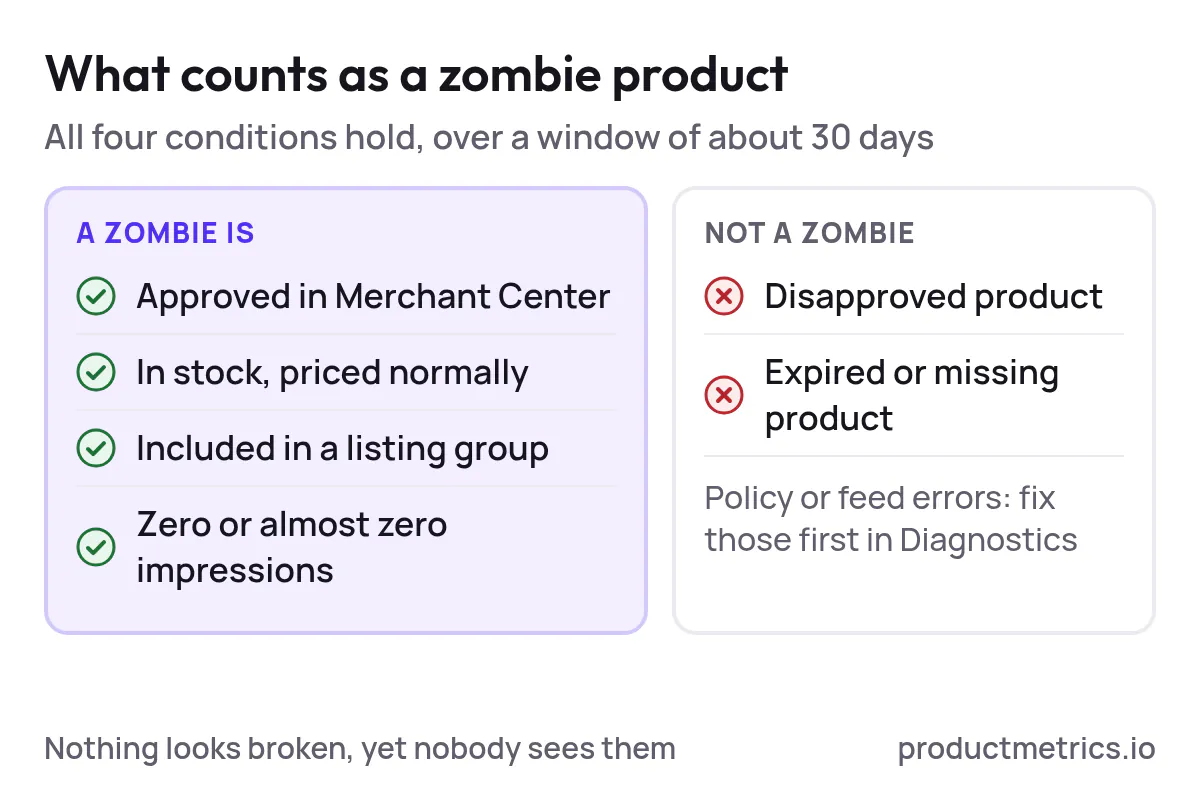
_A zombie passes every eligibility check and still gets no impressions; a disapproved product is a feed problem, not a zombie._
Why do zombies show up at all?
- **[Smart Bidding](https://www.productmetrics.io/glossary/smart-bidding) follows past winners.** Automated Shopping and Performance Max campaigns allocate more budget to products with strong conversion history; newer or quieter items get starved of tests. (Source: [Store Owner Tips – Zombie Product](https://storeownertips.com/glossary/zombie-product/))
- **Low listing group relevance hides them.** When thousands of SKUs sit in a handful of generic product groups, high‑volume winners and low‑demand or low‑margin products share the same bid and learning bucket. The algorithm optimises toward the average and sidelines much of the product range. (Source: [Product Metrics – Product group relevance in Google Shopping](https://www.productmetrics.io/blog/google-shopping-product-group-performance))
In Product Metrics’ [Product Segmentation model](https://www.productmetrics.io/product-segmentation), these zombies map closely to **Dogs**: products that hold a place in your campaigns but whose profitability stays low. Product Segmentation places every product into one of six segments—Stars, Question Marks, Cash Cows, Dogs, Drainers and Ghosts—using machine learning on profitability, stock, return rate, potential and competitor prices, then writes the segment into a Merchant Center custom label for use in Shopping and Performance Max. (Source: [Product Metrics – BCG matrix & Product Segmentation](https://www.productmetrics.io/es/glosario/matriz-bcg))
Ghosts are, by definition, **inactive products with no impressions**; Dogs are your structurally defined zombie list.
## 2. First Rule: Rule Out Eligibility And Policy Issues
Before you design a zombie product campaign strategy for Google Ads, confirm you’re not dealing with basic eligibility, policy, or setup problems. Otherwise you’ll be “optimising” products that can’t legally or technically serve.
### 2.1 Check Merchant Center Diagnostics
1. In Google Merchant Center, go to **Products → Diagnostics → Items**.
2. Filter by the country of sale used in your Shopping/PMax campaigns.
3. Look at these columns per item:
- **Destination status** (Shopping ads, Free listings, etc.).
- **Item issues** (policy violations, missing required attributes, price or availability mismatches, etc.).
Google’s Diagnostics view is the canonical source for whether items are eligible to show in Shopping ads and what’s blocking them. (Source: [Google Ads Help – About product diagnostics](https://support.google.com/google-ads/answer/12097493))
If your “zombies” show disapproved or limited here, fix those issues first.
Typical blockers:
- Missing or invalid required fields like **price, availability, [GTIN](https://www.productmetrics.io/glossary/gtin), shipping, tax**.
- **Policy violations** on landing pages (e.g., broken URLs, restricted content).
- **Account‑level issues** such as unverified domain or missing shipping settings for the targeted country. (Source: [Google Merchant Center – Product data specification](https://support.google.com/merchants/answer/7052112); [Issue severity and Diagnostics](https://developers.google.com/shopping-content/guides/how-tos/severity-mapping))
### 2.2 Confirm The Campaign Can Spend At All
In Google Ads, verify the basics:
- The **Performance Max or Shopping campaign is enabled**, within its start/end dates, and not limited by account‑level billing issues.
- Budgets are not effectively zero for your market (e.g., $1/day in a competitive vertical).
- Bid strategy and targets are realistic. Google specifically warns that **very high Target ROAS or very low priority can cause low traffic or few impressions**, especially in new campaigns. (Source: [Google Ads Help – How to fix Shopping campaigns not running or low traffic](https://support.google.com/google-ads/answer/6275319))
If you’re launching a brand‑new campaign or account, allow for the **review and learning window**. Google notes that reviews for new ads and feeds can take 24–48 hours and that Smart Bidding can show a temporary “Learning” status for up to 7 days after major changes. (Source: [Google Ads Help – How to fix Shopping campaigns not running or low traffic](https://support.google.com/google-ads/answer/6275319))
**Figure: How long to wait before judging a zombie fix.** A new campaign can need 2 days for review and 7 days to leave Learning; the zombie bucket itself gets 30 to 60 days before you judge it.
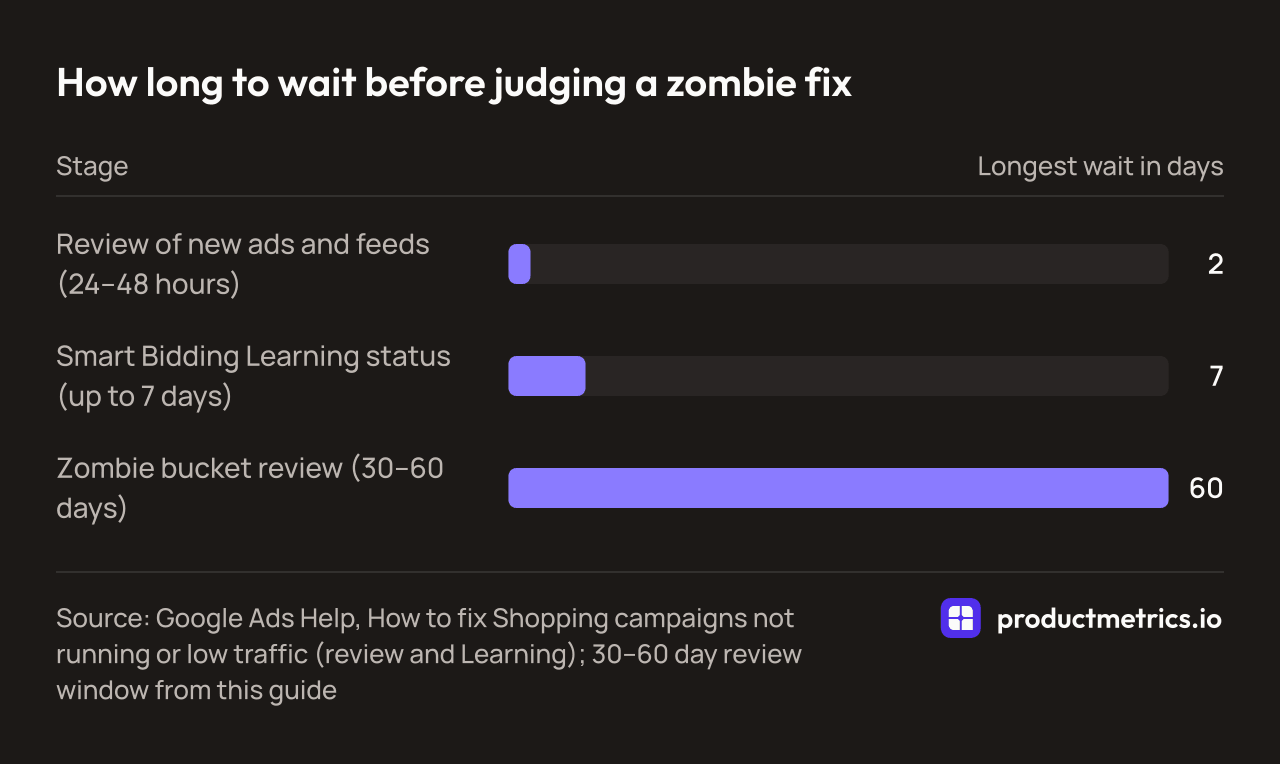
| Stage | Longest wait in days |
| --- | --- |
| Review of new ads and feeds (24–48 hours) | 2 |
| Smart Bidding Learning status (up to 7 days) | 7 |
| Zombie bucket review (30–60 days) | 60 |
_Source: Google Ads Help, How to fix Shopping campaigns not running or low traffic (review and Learning); 30–60 day review window from this guide_
[Google Ads Help](https://support.google.com/google-ads/answer/6275319)
### 2.3 Confirm The Products Are Actually In A Listing Group
Zombie troubleshooting is pointless if your products aren’t selected anywhere.
- For **Standard Shopping**, open the campaign → ad group → **Product groups**. Make sure your items are not sitting under *Everything else* with status Excluded.
- For **Performance Max**, open the campaign → **Asset groups → Listing groups** and check which SKUs are included under each listing group node.
Performance Max listing groups are the **only product filter inside a PMax retail campaign**; asset groups organise creatives, but share the same budget and bid strategy. (Source: [Product Metrics – Performance Max for ecommerce](https://www.productmetrics.io/blog/performance-max-for-ecommerce)) If a product is not present in any included listing group, it will not show, no matter what you do to bids or feed.
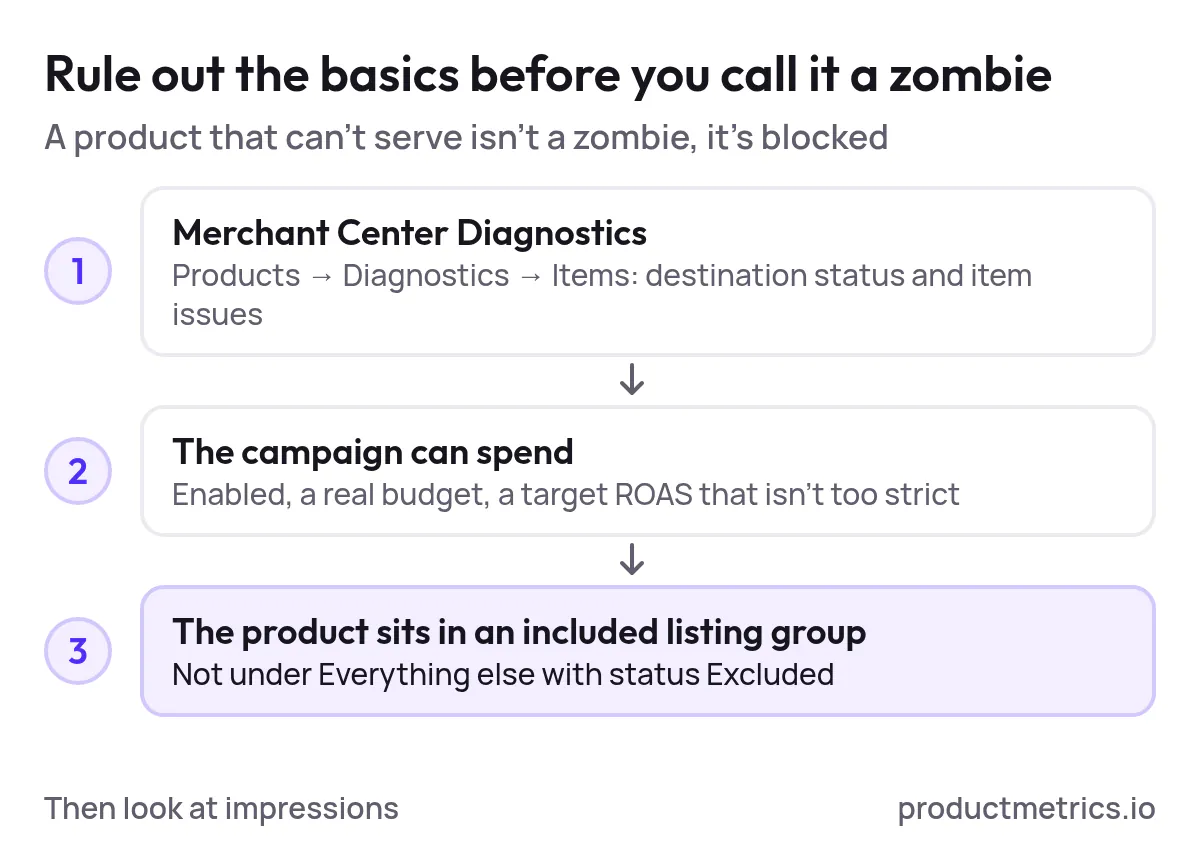
_Three checks come before any zombie fix: a product that fails one of them is blocked, not ignored by the algorithm._
## 3. How To Find Zombie Products In Performance Max And Google Shopping
Once eligibility and structure are clean, you can answer the core question: “How do I find zombie products in Performance Max?”
### 3.1 A Manual Method Inside Google Ads
Use at least a 30‑day window so you’re not reacting to single‑week noise.
1. In Google Ads, go to your Shopping or PMax campaign.
2. Open **Products** (for Shopping) or **Listing groups** in the relevant asset group (for PMax).
3. Set the date range to **Last 30 days** (or longer for low‑volume accounts).
4. Sort by **Impressions (ascending)**.
Anything **approved, in stock, and included** with almost no impressions is a likely zombie. This “sort by impressions and export near‑zero rows” approach is widely used by practitioners for zombie detection. (Source: [Store Owner Tips – Zombie Product](https://storeownertips.com/glossary/zombie-product/))
A practical working rule:
- Define zombie as **0–10 impressions** in 30 days, or
- **<0.1%** of the account’s median per‑SKU impressions over that period.
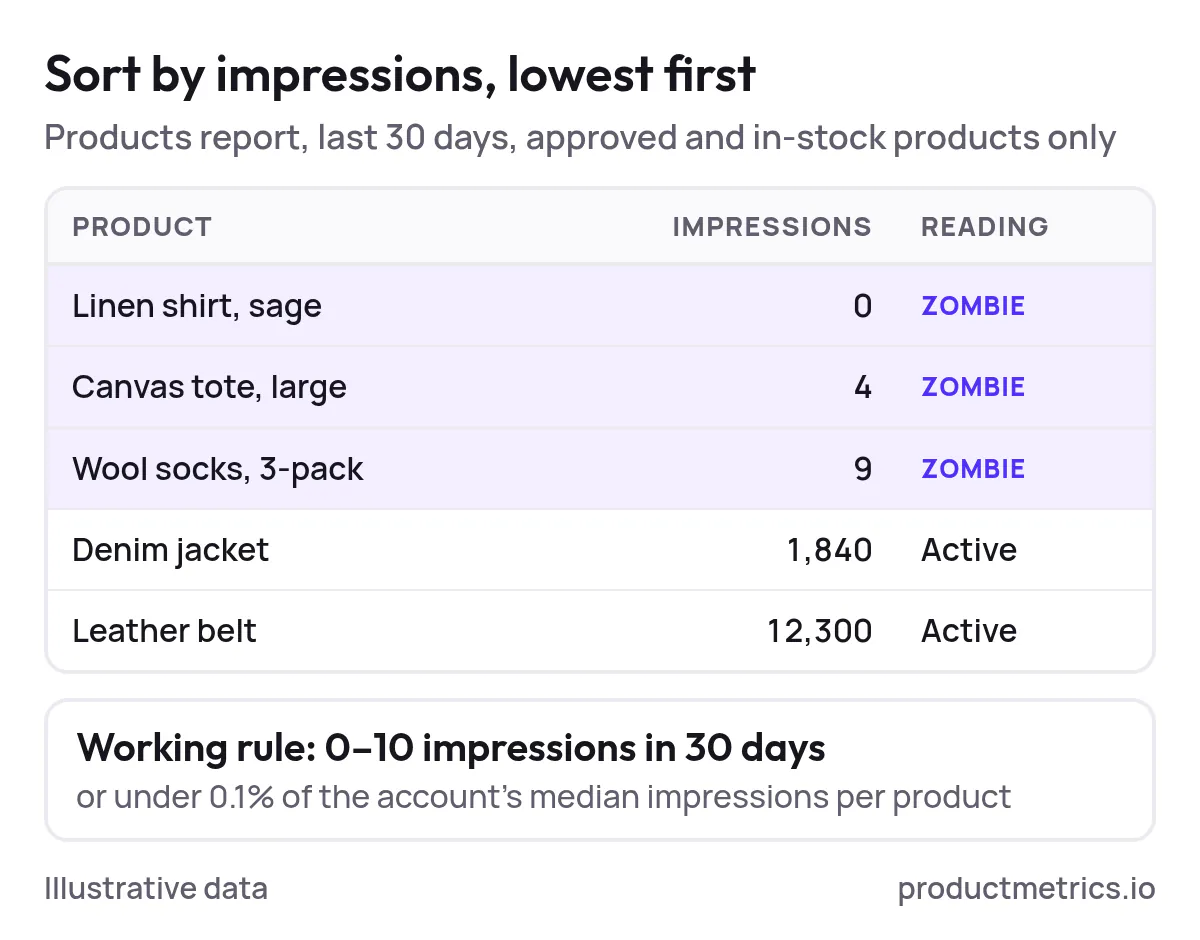
_Sorted by impressions, the zombies sit at the top of the list; with 0–10 impressions in 30 days they meet the working rule. Illustrative data._
Export the results with product IDs and join them to your ecommerce data so you can see revenue, [margin, and stock](https://www.productmetrics.io/inventory-insights) alongside impression counts.
### 3.2 A Structured Method Using Product Metrics
Product Metrics is a profit optimisation platform for ecommerce advertising: one app for [server-side tracking](https://www.productmetrics.io/server-side-tracking), profit bidding, product segmentation and campaign planning across Google Ads, Meta and ChatGPT Ads. It sends each order’s profit, new or returning status and lifetime value to the ad platforms, so merchants can bid on POAS, new customers and LTV.
Machine learning segments every product into custom labels for Shopping and Performance Max, and the campaign plan sets out the ideal campaign structure for those segments. A dashboard shows profit, customers, stock and returns.
If you’re already sending click and revenue data into Product Metrics, there’s a more systematic way:
- Product Segmentation places each SKU into one of six segments based on **machine learning** on **profitability, stock, return rate, potential and competitor prices**, then writes that label into a [Merchant Center custom label](https://www.productmetrics.io/glossary/custom-labels). (Source: [Product Metrics – BCG matrix & Product Segmentation](https://www.productmetrics.io/es/glosario/matriz-bcg))
- **Dogs** are the segment for products that hold a place in your campaigns but whose profitability stays low—i.e., structurally defined zombie products. (Source: [Product Metrics – Performance Max for ecommerce](https://www.productmetrics.io/blog/performance-max-for-ecommerce))
Instead of reverse‑engineering zombies from raw impression logs, you simply:
1. Filter on `custom_label_0 = dogs` (or the slot you’ve assigned) in Merchant Center or Google Ads.
2. Treat that segment as your **canonical zombie list** for Shopping and PMax.
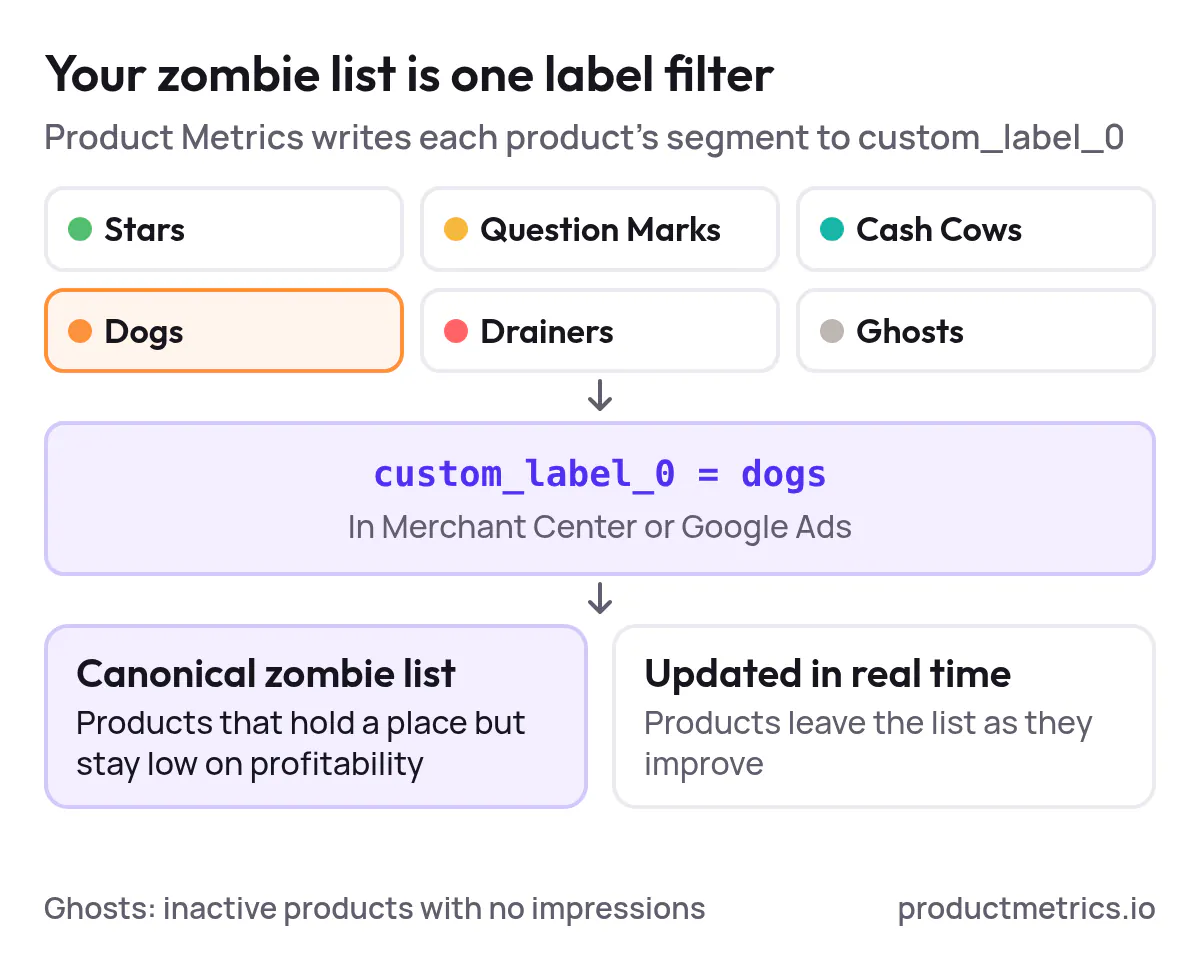
_Zombie products land in Dogs, so one label filter gives you the list; Ghosts stay the segment for products with no impressions at all._
Because Product Segmentation recalculates segments in real time, Dogs update automatically as products improve and move into higher‑value segments. (Source: [Product Metrics – Performance Max for ecommerce](https://www.productmetrics.io/blog/performance-max-for-ecommerce))
## 4. How To Get Impressions For Products That Get No Traffic In Google Shopping
Finding zombies is the easy part. The hard part is **getting them enough impressions to fairly test their potential** without wrecking account‑level efficiency.
Here is a stepwise **no‑impression rescue protocol**.
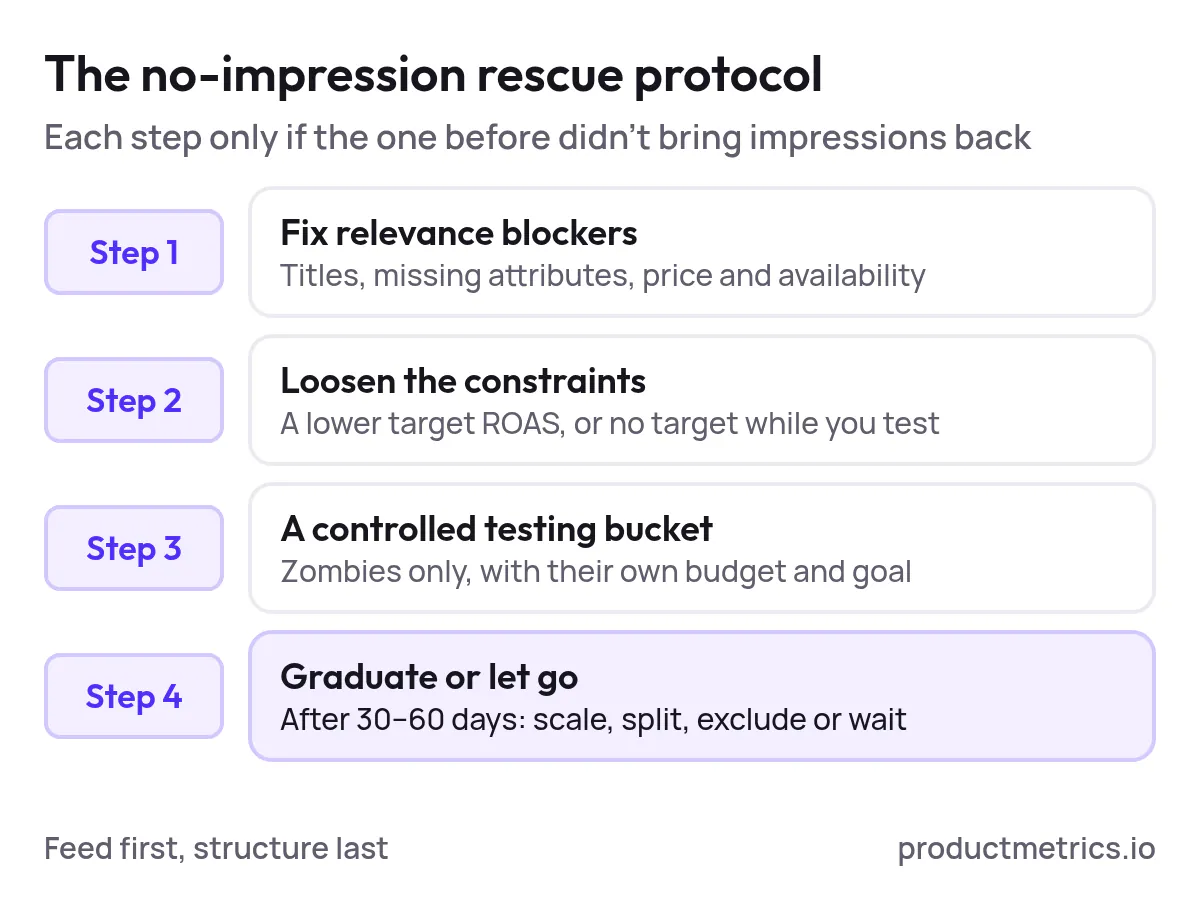
_Start with the feed and the targets; a separate zombie structure is the third step, not the first._
### Step 1 – Fix The Obvious Relevance Blockers
Before you touch structure or bids, improve the chance that each zombie actually enters relevant auctions.
Focus on three areas:
1. **Titles and descriptions**
- Put product type, brand, and key attributes (size, colour, material, model) early in the title; Google often truncates titles after ~70 visible characters, so front‑load important terms. (Source: [Google Merchant Center – Product data specification](https://support.google.com/merchants/answer/7052112))
- Make sure titles use the same language customers use in queries, not only internal SKU names.
2. **Required and strongly recommended attributes**
Missing fields like **brand, GTIN, colour, size, and age group** can limit your ability to enter certain auctions or reduce ad quality, which lowers impression share. (Source: [Google Merchant Center – Product data specification](https://support.google.com/merchants/answer/7052112))
Use Merchant Center’s “Missing or invalid data” error types and any feed‑optimisation tool you use to bulk‑fix these. (Source: [Google Shopping Optimization Handbook](https://static.godatafeed.com/content/whitepapers/Google_Shopping_Optimization_Handbook.pdf))
3. **Price and availability**
- Check that prices in your feed match the landing page and that products aren’t unintentionally marked as out of stock or below a minimum order value. (Source: [Google Ads Help – How to fix Shopping campaigns not running or low traffic](https://support.google.com/google-ads/answer/6275319))
- If you have access to [price benchmarking](https://www.productmetrics.io/competitor-prices) in a CSS or feed tool, sanity‑check whether zombies are simply priced too far above the market.
Fixing these issues alone can revive a share of zombies without any structural changes.
### Step 2 – Loosen Constraints That Starve Zombies Of Tests
If your feed is clean, the next most common reason zombies never see daylight is **overly strict bidding goals** in a structure dominated by best‑sellers.
Google’s own troubleshooting guidance lists **aggressive Target ROAS targets and low priority** as causes of low traffic in Shopping and PMax campaigns. (Source: [Google Ads Help – How to fix Shopping campaigns not running or low traffic](https://support.google.com/google-ads/answer/6275319))
Practical levers:
- On your **[catch‑all Shopping or PMax campaign](https://www.productmetrics.io/blog/google-shopping-campaign-segmentation)**, consider:
- Temporarily lowering Target ROAS, or
- Switching to **[Maximize conversion value](https://www.productmetrics.io/glossary/maximize-conversion-value)** without a Target ROAS, especially while you test long‑tail products.
- Make sure budgets aren’t so tight that winners consume the entire daily spend before the long tail has a chance to serve.
You still won’t get perfect coverage—Smart Bidding will always prefer safer bets—but this at least allows zombies to enter more auctions.
### Step 3 – Give Zombies Their Own Controlled Testing Bucket
At some point, you reach diminishing returns trying to help zombies inside a single, blended campaign. This is where an explicit **[zombie test structure](https://www.productmetrics.io/blog/custom-labels-performance-max)** pays off.
A simple pattern:
1. **Define the zombie label**
- In your feed, set a custom label such as `custom_label_4 = zombie` for all SKUs below your impression threshold, or rely on Product Metrics’ Dogs label written to `custom_label_0`. (Source: [Product Metrics – BCG matrix & Product Segmentation](https://www.productmetrics.io/es/glosario/matriz-bcg))
2. **Create a dedicated zombie product selection**
- **Standard Shopping:** Create a new Shopping campaign or ad group and subdivide product groups by this custom label so only zombies are included.
- **Performance Max:** In a dedicated PMax campaign or asset group, subdivide the listing group by the zombie label and only include that value. Google documents that listing groups and product attributes (including custom labels) are what control which products can serve in PMax. (Source: [Product Metrics – Performance Max for ecommerce](https://www.productmetrics.io/blog/performance-max-for-ecommerce))
3. **Give the zombie bucket its own budget and goal**
- Set a **modest but real budget** (e.g., 5–20% of Shopping/PMax spend) with a looser efficiency goal so the algorithm is incentivised to test rather than hit strict ROAS.
- Keep the same or slightly lower Target ROAS than your main campaign, or use Maximize conversion value to prioritise volume over immediate efficiency.
**Figure: Zombie test budget as a share of Shopping and Performance Max spend.** A zombie bucket on 5–20% of Shopping and Performance Max spend leaves 80–95% for the campaigns that already perform.
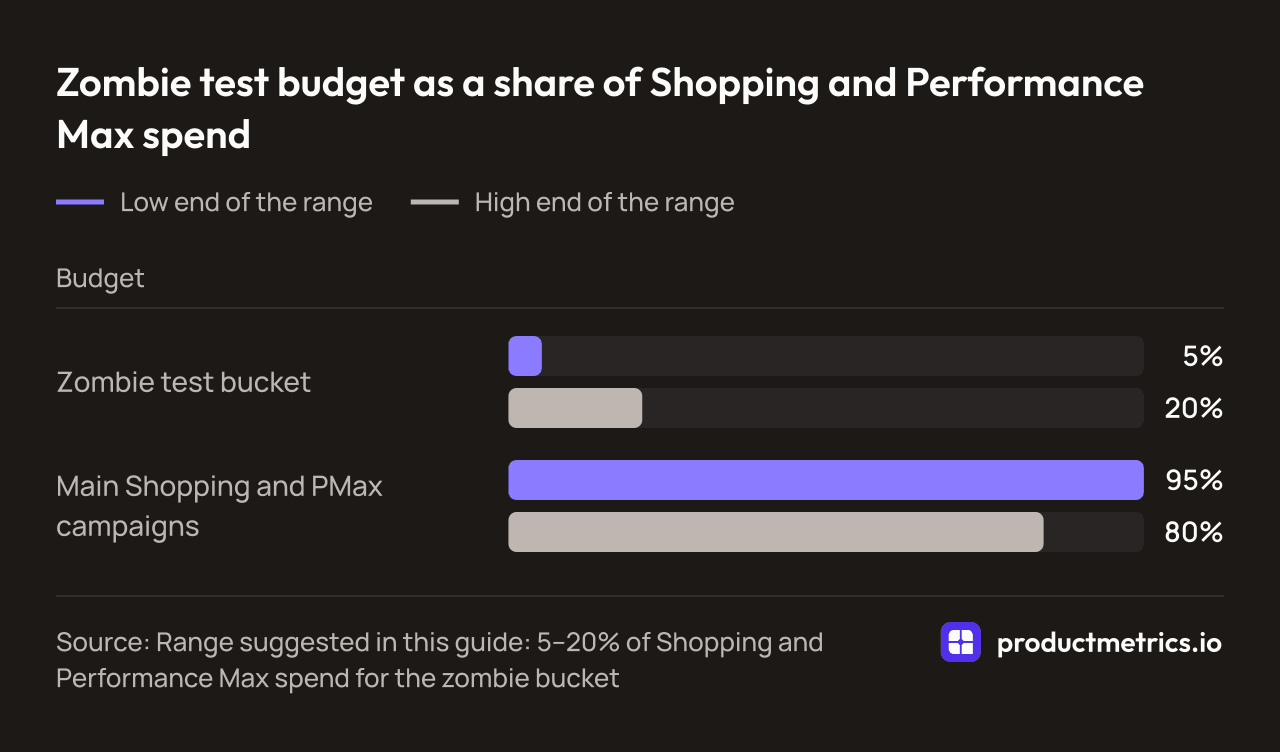
| Budget | Low end of the range | High end of the range |
| --- | --- | --- |
| Zombie test bucket | 5% | 20% |
| Main Shopping and PMax campaigns | 95% | 80% |
_Source: Range suggested in this guide: 5–20% of Shopping and Performance Max spend for the zombie bucket_
Channable’s Labelizer, which also uses Hero/Sidekick/Villain/Zombie labels, explicitly recommends separating Zombies into their own campaign when the goal is to give low‑traffic products enough visibility to collect performance data. (Source: [Channable – Labelizer segmentation for PMax](https://www.channable.com/blog/channable-labelizer)) The same logic applies whether your labels come from a feed tool or from Product Metrics.
### Step 4 – Decide Who Graduates And Who Stays Dead
After 30–60 days (or longer in very low‑volume verticals), review the zombie bucket:
1. For each product, check:
- **Impressions and clicks** (did it actually get a test?).
- **Conversions and revenue.**
- **[ROAS or POAS vs its own break‑even ROAS](https://www.productmetrics.io/break-even-roas-calculator)**, not just the account average.
Product Metrics’ Performance Max playbook recommends judging each product against **its own break‑even ROAS calculated as 1 ÷ [contribution margin](https://www.productmetrics.io/glossary/contribution-margin)**, then classifying it into four decisions: scale, split, exclude, or wait. (Source: [Product Metrics – Performance Max for ecommerce](https://www.productmetrics.io/blog/performance-max-for-ecommerce))
Apply the same pattern to ex‑zombies:
- **Scale:** Products that clear both break‑even and account target. Move them into your main “bestsellers” segment or campaign.
- **Split:** Products that beat break‑even but not the account target; consider giving them their own controlled structure with a target tied to their economics.
- **Exclude:** Products that stay below break‑even with enough clicks to judge. Label them for exclusion in Listing groups or remove them from the feed for Shopping ads.
- **Wait:** Products with too few clicks to tell; keep them in the zombie bucket for another window.
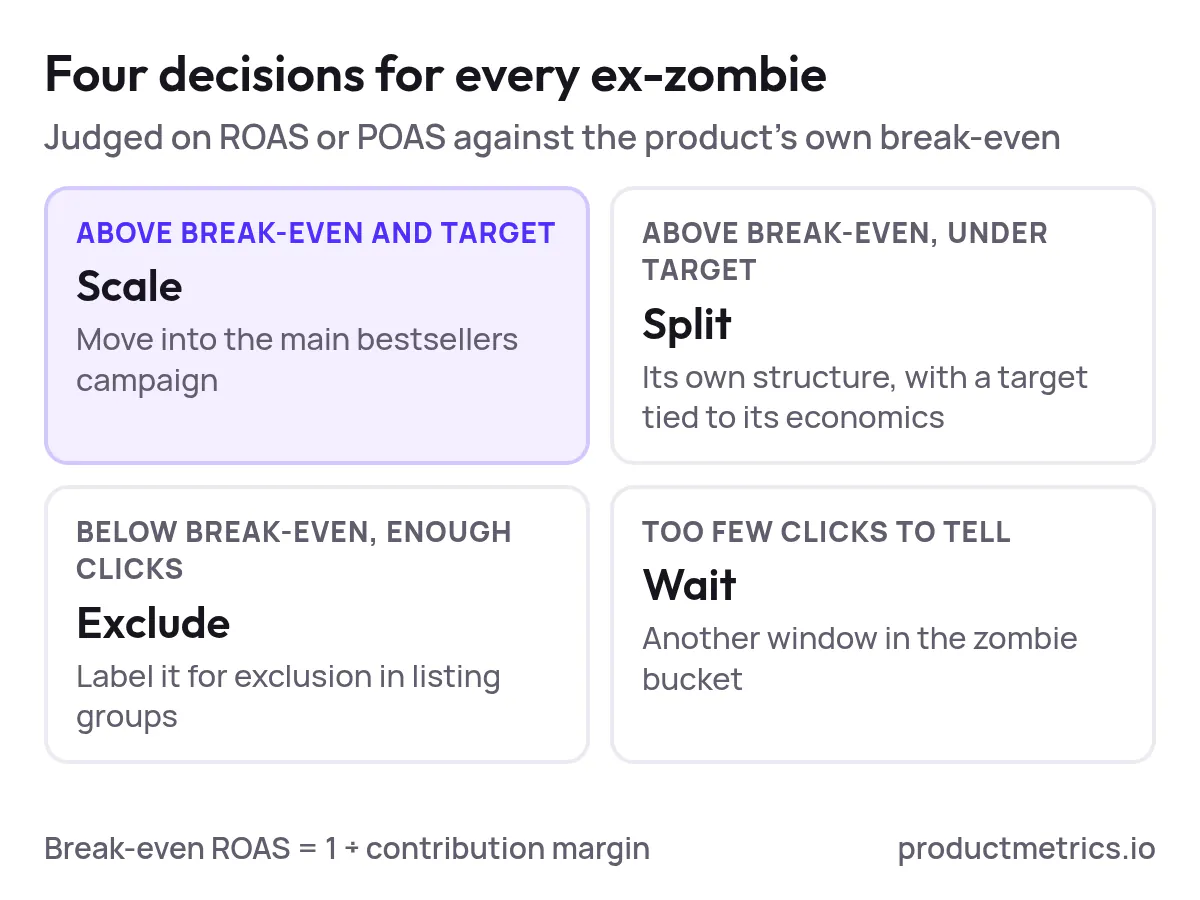
_Each ex-zombie is judged against its own break-even, so a low-margin product can't hide behind the account average._
## 5. Zombie Product Campaign Strategy For Google Ads
Putting this together, here are campaign‑level strategies that work in practice while respecting **listing group relevance** and data volume.
### 5.1 Don’t Over‑Segment: Keep Enough Conversions Per Campaign
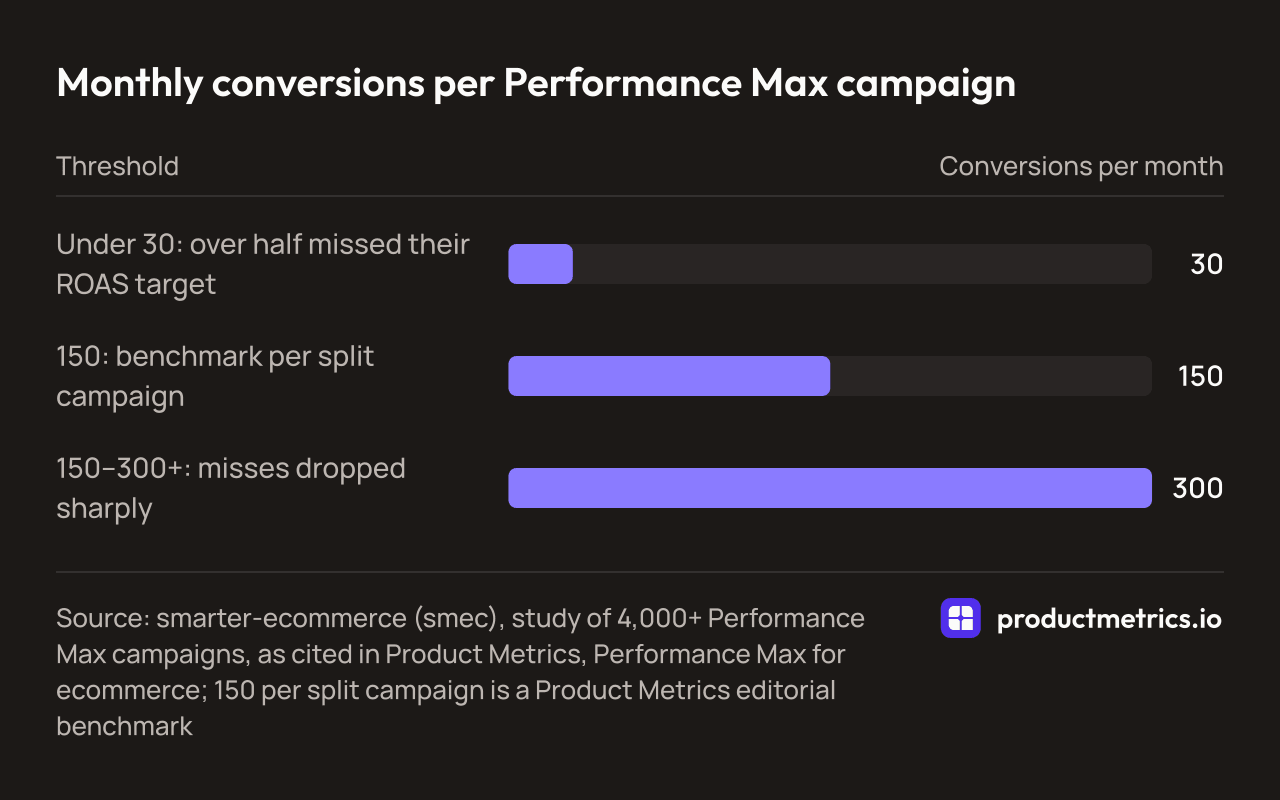
Performance Max and Shopping need enough conversions for Smart Bidding to learn. A large study of 4,000+ PMax campaigns from smarter‑ecommerce (smec) found that over half of campaigns with fewer than 30 conversions per month missed their ROAS target, while that share dropped sharply as monthly conversions rose to 150–300+. (Source: [Product Metrics – Performance Max for ecommerce](https://www.productmetrics.io/blog/performance-max-for-ecommerce))
Product Metrics’ own guidance suggests keeping around **150 conversions per month per split campaign** as a working benchmark—an editorial rule of thumb, not a Google limit. (Source: [Product Metrics – Google Shopping & PMax structure by profit](https://www.productmetrics.io/blog/product-segmentation-google-shopping-pmax))
**Figure: Monthly conversions per Performance Max campaign.** Under 30 conversions a month, over half of the Performance Max campaigns in smec's study missed their ROAS target; 150 per split campaign is the working benchmark.
| Threshold | Conversions per month |
| --- | --- |
| Under 30: over half missed their ROAS target | 30 |
| 150: benchmark per split campaign | 150 |
| 150–300+: misses dropped sharply | 300 |
_Source: smarter-ecommerce (smec), study of 4,000+ Performance Max campaigns, as cited in Product Metrics, Performance Max for ecommerce; 150 per split campaign is a Product Metrics editorial benchmark_
[Product Metrics, Performance Max for ecommerce](https://www.productmetrics.io/blog/performance-max-for-ecommerce)
So when you design a zombie structure:
- Avoid spinning up a separate campaign if it will only get a handful of conversions.
- Use **[labels and listing groups](https://www.productmetrics.io/blog/pmax-product-segmentation)** for reporting and product selection, and only split into a new campaign when you genuinely need a different budget or target.
### 5.2 A Simple Three‑Bucket Structure
For many ecommerce accounts, a three‑campaign or three‑segment approach balances control and data:
1. **Scale campaign (or segment)**
- Contains your strongest performers (Product Metrics Stars and high‑ROAS Cash Cows).
- Higher budget, tighter Target ROAS.
2. **Core campaign**
- Holds the bulk of the products: Question Marks, mid‑performers, and products still gathering evidence.
- Standard budget and Target ROAS.
3. **Zombie / Dog campaign or segment**
- Contains Dogs (your zombie products) and low‑evidence Drainers, filtered via custom labels. (Source: [Product Metrics – BCG matrix & Product Segmentation](https://www.productmetrics.io/es/glosario/matriz-bcg))
- Modest test budget, looser efficiency goal, stronger feed optimisation focus.
Structurally, this can be:
- Three **Performance Max campaigns**, each using listing groups filtered by the relevant labels, or
- One PMax campaign for Scale + Core, plus a **Standard Shopping zombie test campaign** for more transparent product‑level reporting.
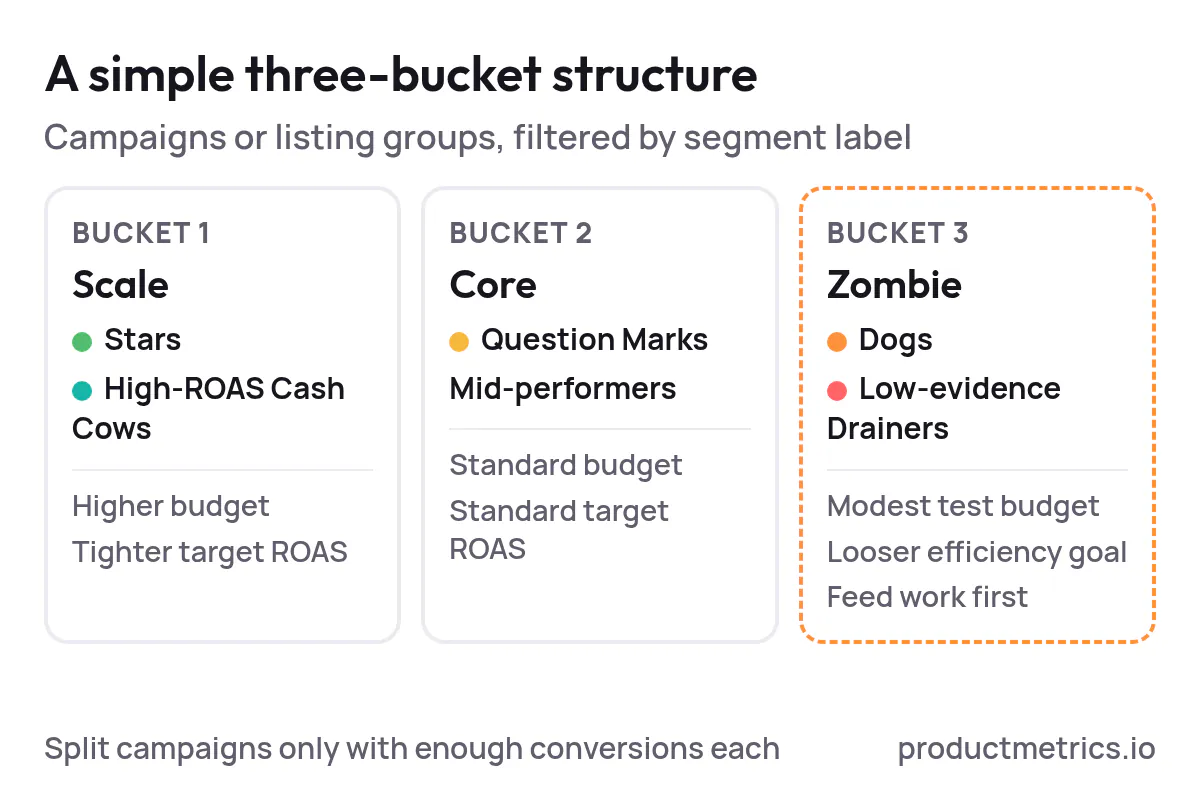
_Three buckets, filtered by segment label: zombie products in Dogs get their own modest test budget._
In all cases, the zombie bucket’s job is **not** to make the account look efficient; it’s to **turn invisible inventory into tested inventory** and graduate the winners.
### 5.3 Keep Listing Group Relevance Front And Centre
Within each bucket, you still want **coherent product groups**:
- Products grouped together should share similar **query intent, product economics, and business priority**, so one shared bid and learning bucket makes sense. (Source: [Product Metrics – Product group relevance in Google Shopping](https://www.productmetrics.io/blog/google-shopping-product-group-performance))
- Don’t dump every Dog from every category into one undifferentiated “Zombie” product group. Segment by at least **[category, price band, or margin tier](https://www.productmetrics.io/blog/profit-segmentation-google-shopping)** so you can give genuinely promising products more headroom than clearance items.
That way, when a zombie wakes up, you know which part of the product range it belongs to structurally.
## 6. Turning One‑Off Fixes Into A Repeatable Protocol With Product Metrics
Zombie clean‑ups are expensive if you have to rebuild them from scratch every quarter. The long‑term win is to **bake zombie detection and treatment into your normal Shopping and Performance Max workflows.**
Here’s how that looks with Product Metrics as your profit optimisation platform for ecommerce advertising.
### 6.1 Use Product Segmentation As Your Always‑On Zombie Detector
Product Metrics’ Product Segmentation engine:
- Reads product‑level ad clicks and ROAS/POAS from Shopping and PMax, plus stock, return rate, potential and competitor prices.
- Segments every SKU in real time into **Stars, Question Marks, Cash Cows, Dogs, Drainers, Ghosts** with machine learning on profitability, stock, return rate, potential and competitor prices. (Source: [Product Metrics – ROAS accuracy benchmark](https://www.productmetrics.io/blog/google-shopping-roas-accuracy-benchmark))
- Writes those segments into **Merchant Center custom labels** via a supplemental feed you approve. (Source: [Product Metrics – BCG matrix & Product Segmentation](https://www.productmetrics.io/es/glosario/matriz-bcg))
In that model, your **dogs** are exactly the products that **hold a place in your campaigns but whose profitability stays low**—i.e., canonical zombies. (Source: [Product Metrics – Performance Max for ecommerce](https://www.productmetrics.io/blog/performance-max-for-ecommerce))
### 6.2 Connect Labels To Shopping And PMax Structure
Once labels are live in Merchant Center, you:
- Subdivide **Standard Shopping product groups** or **[PMax listing groups](https://www.productmetrics.io/performance-max)** by the performance label (e.g., Stars, Dogs, Ghosts).
- Include or exclude values to match your three‑bucket structure (Scale/Core/Zombie).
- Keep campaigns consolidated until the Zombie/Dog bucket has enough evidence to justify its own campaign.
Product Metrics’ campaign‑structure guide walks through this label‑first approach and provides a downloadable label planner that maps five custom‑label slots to performance, margin, stock, season, and lifecycle. (Source: [Product Metrics – Google Shopping & PMax structure by profit](https://www.productmetrics.io/blog/product-segmentation-google-shopping-pmax))
### 6.3 Judge Zombie Results With ROAS And POAS
Because Product Metrics joins **margin, cost of goods, and stock data** to your ad performance, you can judge ex‑zombies on **[POAS (profit on ad spend)](https://www.productmetrics.io/glossary/poas)** and contribution after ads, not just revenue. (Source: [Product Metrics – Performance Max for ecommerce](https://www.productmetrics.io/blog/performance-max-for-ecommerce))
That lets you distinguish between:
- A revived zombie that sells but can never clear its own break‑even, and
- A sleeper product that quietly becomes a [Cash Cow](https://www.productmetrics.io/glossary/growth-share-matrix) once it gets visibility.
> **Get more performance out of Performance Max.** Give your best-performing products more priority, segmented on your own data. [Analyse your products for free](https://app.productmetrics.io/) Log in with Google, no credit card.
## 7. One‑Page Checklist: The No‑Impression Ladder
Use this as a screenshot‑ready “ladder” the team can follow whenever the question comes up: “How do we fix products not getting impressions in Performance Max?”
1. **Confirm eligibility**
- Check Merchant Center Diagnostics for disapprovals or limited status.
- Fix missing required attributes and policy issues.
2. **Check campaign health**
- Campaigns active, budgets non‑trivial, no billing holds.
- Targets not so aggressive that they suppress traffic.
3. **Measure your zombie rate**
- In Google Ads, sort products by impressions over 30 days.
- Flag products with near‑zero impressions that are approved and in stock.
4. **Label the zombies**
- Add a custom label (e.g., `zombie`) in your feed, or rely on Product Metrics’ **Dogs** segment written to Merchant Center.
- Verify the label appears correctly in product data.
5. **Fix the feed for that list**
- Tighten titles and descriptions.
- Fill missing attributes (brand, GTIN, colour, size, etc.).
- Sanity‑check price and availability.
6. **Create a testing structure**
- Select zombies via custom labels in Shopping product groups or PMax listing groups.
- Give them a small but real test budget with a looser efficiency target.
7. **Review and graduate**
- After 30–60 days, classify each product: scale, split, exclude, or wait, based on ROAS/POAS vs its own break‑even.
- Move winners out of the zombie bucket; lock in exclusions for proven losers.
8. **Automate the loop**
- Use Product Segmentation to keep Dogs and Drainers current.
- Keep labels, listing groups, and campaign structure aligned as segments change.
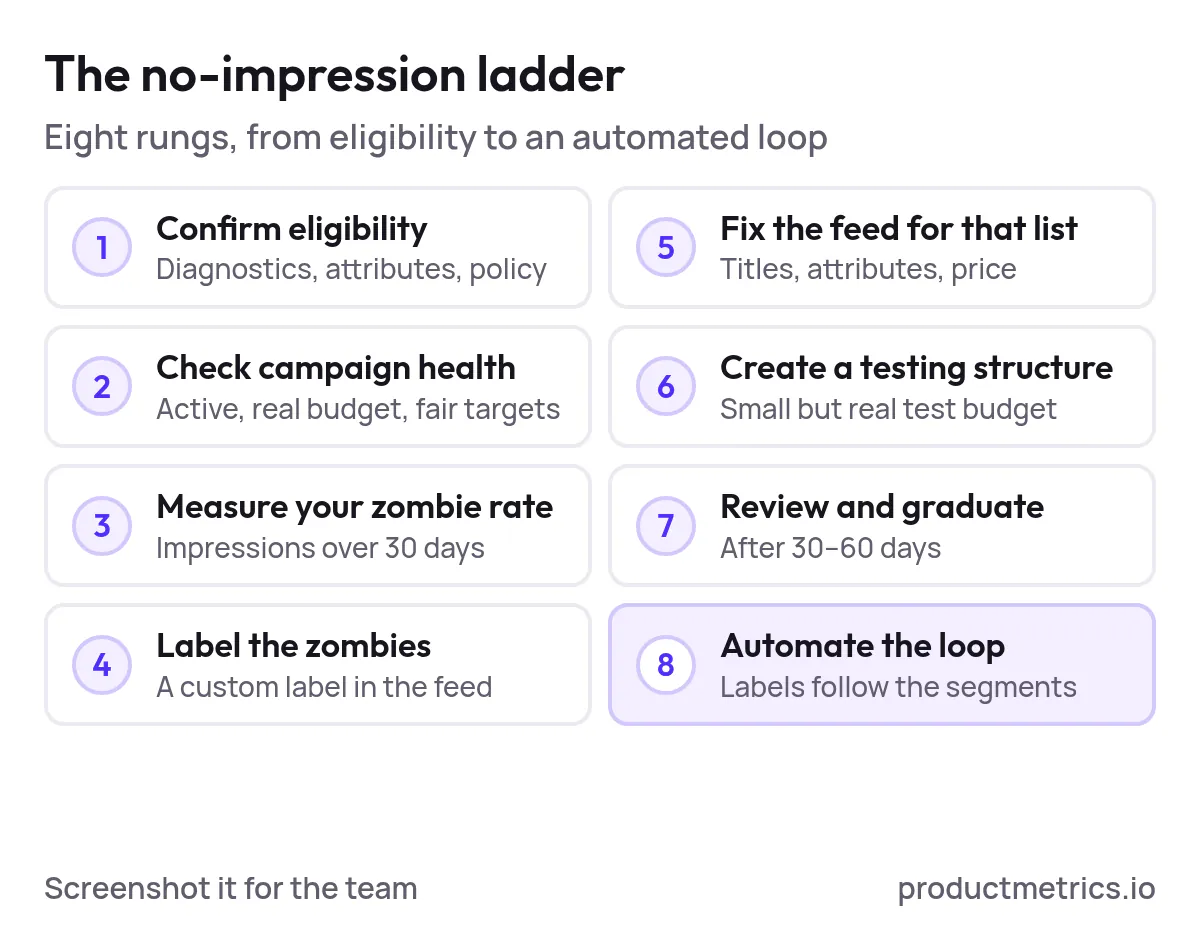
_The ladder runs from eligibility to an automated loop, so the team climbs it the same way every time._
## 8. Next Step: See Your Own Dogs And Zombies
Zombie products are not a curiosity—they’re **untested inventory you already paid to stock**. The combination of:
- Clean feed and Diagnostics,
- Label‑driven listing group relevance, and
- A small, explicit **zombie test budget**
turns “no‑impression” SKUs from background noise into a measurable experiment.
Product Metrics is built to be the **profit optimisation platform for ecommerce advertising** under that strategy:
- Product Segmentation classifies every SKU into six performance‑based segments, including **Ghosts** for products with no impressions. (Source: [Product Metrics – BCG matrix & Product Segmentation](https://www.productmetrics.io/es/glosario/matriz-bcg))
- Merchant Center labels make those segments directly selectable in Shopping and PMax structures. (Source: [Product Metrics – Google Shopping & PMax structure by profit](https://www.productmetrics.io/blog/product-segmentation-google-shopping-pmax))
From there, you can:
- **[Analyse your products for free](https://app.productmetrics.io/)** with a Google login and see how many of your SKUs are Dogs right now. (Source: [Product Metrics – Matriz BCG page](https://www.productmetrics.io/es/glosario/matriz-bcg))
- Or **book a demo** to walk through a zombie‑to‑Dogs rescue plan on your own data. (Source: [Product Metrics – Performance Max for ecommerce](https://www.productmetrics.io/blog/performance-max-for-ecommerce))
Either way, the goal is the same: **fewer invisible products, cleaner product groups, and a Performance Max structure where every SKU gets the test it deserves.**
## Keep reading.
- [Advanced Custom Labels for Performance Max - Split Bestsellers from the Rest Without Guesswork](https://www.productmetrics.io/blog/custom-labels-performance-max)
- [Performance Max At The Product Level: See The Data, Find Wasted Spend, And Build Profit‑Per‑Product Reports](https://www.productmetrics.io/blog/performance-max-product-level-report)
- [Performance Max Campaigns: How They Work and How to Improve](https://www.productmetrics.io/blog/performance-max-campaigns)
---
Written by Berend Vrakking, founder of Product Metrics. Last updated 2026-11-16.
1M+ products analysed · Nominated at the Dutch Search Awards for Best Measurement Campaign (2023) and Best Use of Data (2024)
HTML version: https://www.productmetrics.io/blog/zombie-products-performance-max