
Merchant Center Feed Rules: Steps, Examples and Fixes
Merchant Center feed rules, now called attribute rules, fix product data while Google processes it. Setup steps, copyable examples, fixes and what to automate.
Merchant Center feed rules are transformations Google Merchant Center applies to your product data during processing, without touching your source file. Google now calls them attribute rules.
I use them to make correct data readable to Google, and that is their limit: a rule fixes how a value is written, not whether it is true. Every operation and limit here comes from Google’s Merchant Center Help, read on 5 November 2026.
What are Merchant Center feed rules?
Merchant Center feed rules, renamed attribute rules, are ordered instructions that change product attributes during processing. They map unrecognised headers, clean up values, fill gaps under a condition and assign custom labels.
You turn them on with the Advanced data source management add-on (Settings, Add-ons, Discover). Then open Data sources, pick a primary product source and go to its Attribute rules tab.
Older guides say “feeds” and “feed rules” for the same screens.
Google’s attribute rules documentation splits the operations into two groups: ones that choose where a value comes from, and ones that modify it.
| Operation | What it does | Limit |
|---|---|---|
| Set to | Takes a column, another attribute or fixed text | Fails only if every reference fails |
| Set to multiple | Sets several destination values | Included and excluded destinations, Shopping ads excluded countries |
| Extract | Pulls a pattern out of text | Needs a dependable pattern |
| Take latest | Uses the most recently updated source | Price and availability only |
| Find & Replace | Swaps one value for another | Runs in sequence, not all at once |
| Prepend, Append | Adds text before or after | Fails only if every source reference fails |
| Calculate, Split & Choose | Computes or splits values | Check the result on real products |
| Clear | Empties the attribute | No later rule touches that product |
What can a feed rule not fix?
A feed rule cannot make a wrong fact right. Mapping brand_name to brand tells Google where the brand lives, but it can’t correct a wrong name in that column.
Keep core product facts in the source: identity, description, images and manufacturer data. A rule that hides a source error only adds a dependency for the next person auditing the feed.
Who owns a feed rule?
The harder problem in most accounts isn’t a missing attribute; it’s ownership.
A product you discounted yesterday still sits in a high-margin campaign, and nobody knows whether the shop export, a supplemental feed or an old rule wrote that label. Treat rules as maintained production logic with an owner, not fixes you save and forget.
How do you create a feed rule in Merchant Center?
You create a feed rule on a primary data source’s Attribute rules tab: add a rule for one attribute, save it as a draft, test it, apply it and reprocess the source.
Prepare first, because testing only shows the products you think to check.
| Before you start | Why |
|---|---|
| Edit access to the right data source | A rule on the wrong source never touches the attribute |
| A sample of products | Covers in- and out-of-stock items, variants and every country you sell in |
| The system that owns the attribute | Shop, PIM, supplemental feed or an existing rule |
| The current configuration and output | Your rollback if the new rule misfires |
| A named reviewer | Someone checks the rule when its inputs change |
- Check the current valueFind the attribute on the primary source and note both its submitted and its processed value, so you know where the discrepancy starts.
- Write the rule as one sentenceFor example: when brand is empty, set brand to the brand_name column. It keeps the source column, the target attribute and any fixed text apart.
- Pick the operationSet to for a mapping or fixed value, Find & Replace for value clean-up, Extract for a text pattern, Take latest for price or availability from several sources.
- Limit it with a conditionTarget a verified ID list or an exact source value, not every product. Broad matches do the most damage on condition, brand and country-specific rules.
- Save as draft, then Test rulesStep through awkward variants, missing inputs and products that must stay unchanged in the draft value preview.
- Apply, reprocess and read diagnosticsApply changes, reprocess the data source and check the processed products and item-level issues. A saved rule only proves the rule saved.
- Log the changeRecord the date, purpose, owner, condition and expected result, plus the event that should trigger a review, such as a supplier switch.
Why does rule order matter?
Rule order matters because Google runs attribute rules in cascade: the first rule runs, then the second reads its result, and so on. The safe order is map headers first, normalise values second, apply scoped defaults last.
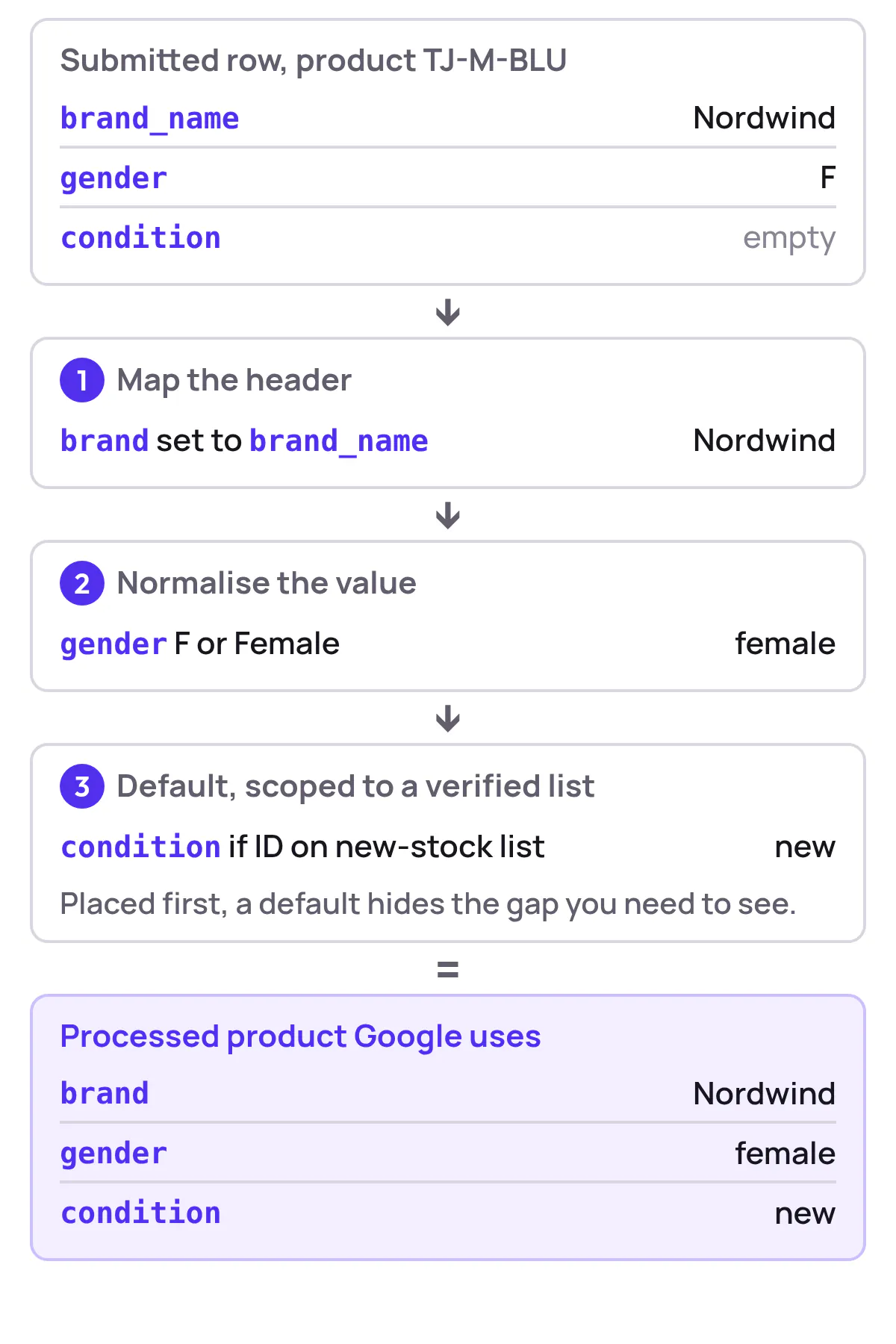
The reason is the gap. A default placed first fills condition before you learn the source never sent it.
A stock rule that runs before availability mapping reads the raw text, not the cleaned value. When a label looks wrong, trace the value at the point where that rule runs, not only in the final product record.
The test that matters most is on the products a rule must leave alone, not only the ones it should repair.
A costly slip is saving a rule against a supplemental source when the input belongs to the primary source: confirm which source supplies the attribute before you debug the condition.
Feed rule examples you can copy
These patterns are starting points, not configurations to paste unchecked. Each one assumes you’ve looked at the raw values first.
| Goal | Operation | Input | Output |
|---|---|---|---|
| Map an unrecognised header | Set to | brand_name column |
brand |
| Standardise gender codes | Find & Replace, or Set to with a condition | F or Female |
female |
| Pull size from a title | Extract | Trail Jacket - Size M |
size = M |
| Prefer the fresher price | Take latest | Primary feed and a price supplemental feed | Price from the most recently updated source |
| Set condition for new stock | Set to, scoped to an ID list | Warehouse list of new IDs | condition = new |
| Clean availability text | Find & Replace | In Stock! |
in_stock |
Normalise codes with a condition, not a default
Say a fashion shop receives F, M and Female in its gender column. Map F and Female to female and handle M explicitly. A product-wide female default would erase valid differences instead of cleaning them.
Extract only from a dependable pattern
Extract works when every title follows the same pattern. Test it on the messiest titles in the feed: punctuation, missing size markers, bundles. If the formats differ much, a structured size column beats ever more complicated title parsing.
Take latest compares sources, not column names
Take latest picks whichever data source updated price or availability most recently; Google limits it to those two attributes.
It can’t tell that a price_2026 column is newer than price_2025 in the same file. If your export carries both, point Set to at the right column, or fix the export.
Don’t manufacture missing product facts
Google’s local product-data specification requires brand for new products, except movies, books and musical recordings, and GTIN for new products that have one assigned by the manufacturer.
The same page warns against using your store name as the brand unless you make the product. Scope brand-fill rules to that, and get assigned GTINs from the manufacturer rather than inventing them.
condition is required for used and refurbished products, so a blanket new default on a mixed range describes some products wrongly. Scope it to a verified ID list.
For enrichment at the source, the guide to Shopify catalog improvements with ECORN covers the upstream work, and Google’s product categories need the same care: they’re more than another text clean-up.
How do custom labels work with feed rules?
Custom labels are five optional attributes, custom_label_0 to custom_label_4, that Google never shows to shoppers and that you use to split products in Performance Max, Shopping and Demand Gen campaigns.
Google’s custom label specification allows one value per product per field, 1–100 characters, and up to 1,000 unique values per field across the account. Values beyond that are ignored for reporting and bidding.
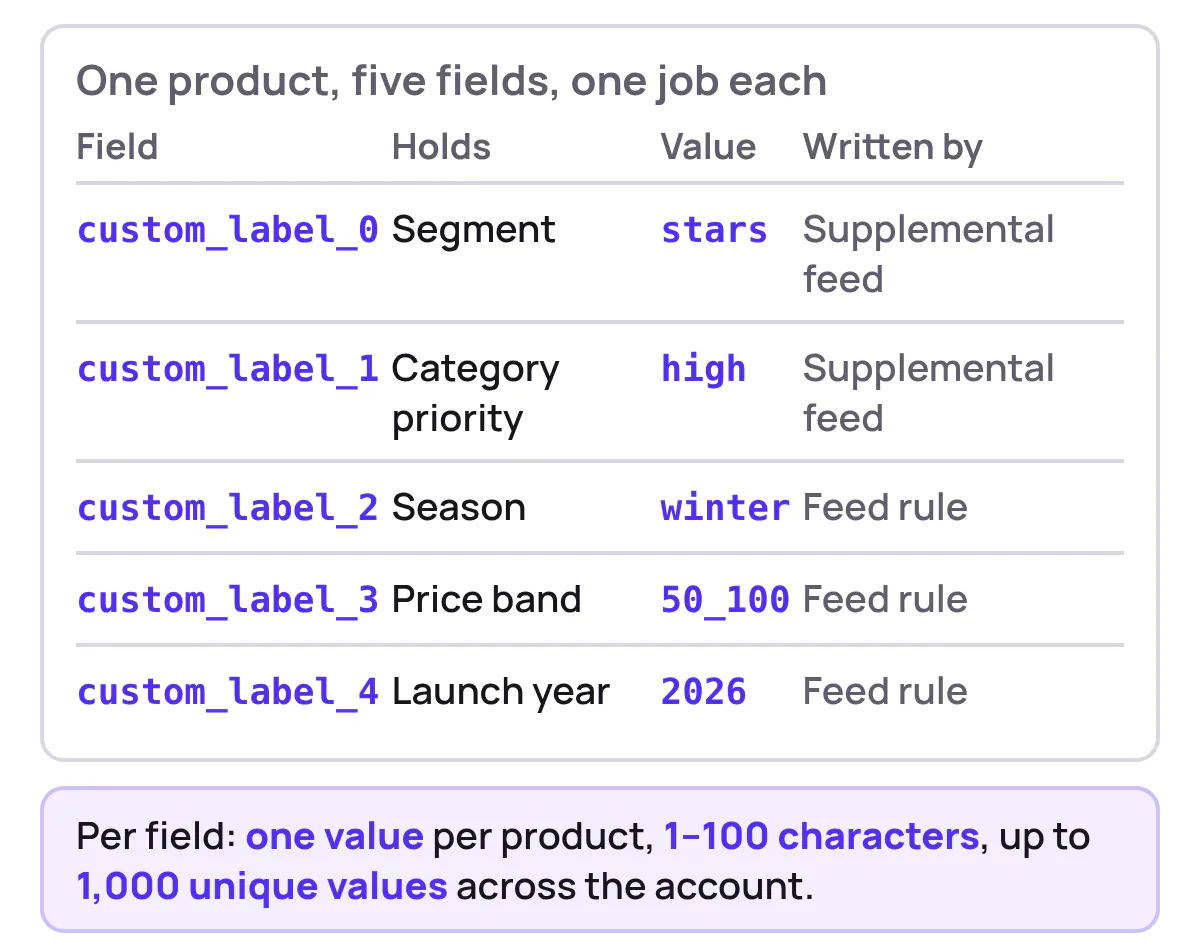
Spend a field only on a split someone will use to set campaign priorities. Fix its vocabulary before anyone writes to it: high_margin, low_stock, star_candidate.
Google treats label values as not case sensitive, but high-margin and high_margin are still two values in two product groups.
Why do commercial labels go stale?
A margin or stock label is only as current as the data behind it. Feed rules reapply on every processing run, but margin, returns and stock cover usually live outside the feed.
At Product Metrics, Product Rules run after segmentation and write labels to a Merchant Center supplemental feed.
For example, the Promote Star candidates rule sets custom_label_0 to star_candidate when POAS is at least 1.4, margin at least 40% and stock cover over 8 weeks. That rule is only right while its inputs are.
A discount changes the margin, a delivery changes stock cover and ad results change POAS, so reapplying a saved condition to stale inputs doesn’t help.
When a product’s segment changes, its label changes and Merchant Center merges it on the next fetch (06:30 in our setup). The product then moves to whichever campaign or asset group your team split on that label.
Check the campaign impact before you publish
Tightening a threshold can empty the campaign it feeds. Preview the split before changing the logic, and decide what happens to a product that stops qualifying.
| Check | What to confirm |
|---|---|
| Input freshness | Margin, returns and stock reflect today, not last month’s export |
| Exit behaviour | An old value is replaced or removed when a product stops qualifying |
| Campaign coverage | Qualifying products have a home, and so does everything else |
Doing these checks by hand works for a short product list. Across a full range, the labels that drive your priorities need to come from data that updates itself.
Why do feed rules break, and how do you fix them?
A feed rule that worked yesterday and fails today usually means its input changed, not the rule: a renamed header, new stock wording or a supplemental source that stopped updating.
Start from the symptom and inspect the raw input before you edit the rule again.
| Symptom | Likely cause | Fix |
|---|---|---|
| Attribute shows as unrecognised | Source header never mapped | Add a Set to rule for that header |
| Value rejected | Unsupported value, such as Brand new for condition |
Normalise to new before dependent rules run |
| Attribute ignored in an XML feed | Google namespace prefix missing | Add the g: prefix and its namespace declaration |
| Products disappear after an export change | Exporter sent only changed items to a full-file source | Send the complete product file again |
| In-stock items show out of stock | Stale supplemental availability, or wrong rule order | Check source update dates; run the stock rule after mapping |
| Used items show as new | Unscoped default | Scope the default to a verified ID list |
Diagnose output that’s valid but commercially wrong
Some failures never produce an error. A feed can process cleanly while its labels describe yesterday’s stock or last week’s price.
Compare the freshness of the supplemental and primary sources first. If a supplemental source overwrites current availability with an older value, the stock label is valid and wrong.
Google’s guide to supplemental feeds and feed rules shows how each supplemental feed, such as one for price and one for availability, can carry its own rule set, and notes that rules can only be created in Merchant Center, not through the Content API.
Check your product feed sync schedules against your fetch and processing history.
Keep a regression sample and stable IDs
Keep a fixed sample of products in a spreadsheet: out-of-stock items, regional differences and variants. After every material edit, compare expected and processed output, then read the item-level diagnostics once processing finishes.
Keep IDs identical across sources. A supplemental row with a different ID never matches its product, so the rule’s input was never there.
For the errors Merchant Center does report, the Merchant Center errors guide traces each one back to its source.
Which rules should stay manual, and which should you automate?
Keep stable formatting rules in Merchant Center and automate labels built on changing commercial data. Header mapping rarely changes; labels built on margin, returns and stock need fresh inputs every day.
| Criterion | Manual feed rules | Automated labels |
|---|---|---|
| Who writes the logic | Your team, rule by rule | Product Rules on top of segmentation |
| What updates a label | A person edits the rule; processing reapplies it | A segment change, merged on the next fetch |
| Who sets prices | Your team | Your team; Product Metrics never changes prices |
| Best fit | Stable mappings and clean-up | Margin, returns and stock that change often |
| Audit trail | The change log you keep | Labels traceable to segments and rule conditions |
| Setup | Low per rule, rising as rules multiply | Log in, choose ROAS or POAS, add a supplemental feed once |
Feed rules already run automatically, so automation isn’t about execution. It’s about who keeps the inputs fresh and who checks that a label still supports the campaign decision.
With Product Segmentation, labels reach Merchant Center through one supplemental feed, with no feed rules to maintain, while your team still chooses the logic and the campaign priorities.
Hand over one label at a time
List every custom label you maintain by hand and mark those driven by margin or stock. Pick one, write the automated version to a spare field and compare the two before you remove the manual one.
The spare field keeps the two approaches from overwriting each other. Investigate disagreements, confirm the campaign routing and name an owner before you switch. Automation removes the rule maintenance, not the responsibility for the decision.
Final thoughts
The most useful habit with feed rules is boring: write down what each rule reads, what it writes and when its assumptions expire. Formatting rules belong close to the feed; commercial labels belong close to the data that decides them.
Once the feed is clean, the work moves to campaigns and the shop.
If you’re also building acquisition campaigns, SimpleLab Digital’s guide on how to create Google search campaigns covers that separate workflow; just don’t use campaign changes to compensate for product data you haven’t validated.
And a clean feed only gets shoppers to the product page. Magic Genie’s guide to turning store traffic into more sales covers the merchandising and conversion work a better feed supports but can’t replace.
Written by
Berend Vrakking, Founder of Product Metrics
1M+ products analysed · Nominated at the Dutch Search Awards for Best Measurement Campaign (2023) and Best Use of Data (2024)
Keep reading.
Custom Label Intelligence: Segment, Bid, and Measure Granularity In Google Shopping
Custom Label Intelligence for Google Shopping: a five-slot label schema, label-level dashboards and an experimentation ladder for Shopping and Performance Max.
Google Shopping APIs: Merchant API Guide for 2026
Google Shopping APIs in 2026 mean the Merchant API: sub-APIs, setup, product fields, quotas, reporting joins and the Content API shutdown, from Google's docs.
Product feed management software: 10 options for 2026
Product feed management software compared by job: feed rules, marketplace operations, managed services and product profitability. Choose what to pilot.
Frequently asked questions.
How quickly does a new feed rule reach my products?
Can a feed rule take products out of Shopping ads?
What happens if a rule clears a required attribute?
See which of your products to push, fix or pause. Start with your own products, or a 30-second estimate.
Check one product first: work out its break-even ROAS in the calculator. Then see where all your products stand.
Questions, or want to spar about your products? Book a demo: a video call with Berend, then a demo account.