
Implementation Playbook: Segmenting Google Shopping by Product Group Relevance Step-by-Step (Rules, Labels, and Scripts)
Implementation playbook for segmenting Google Shopping by product group relevance: a 30-minute audit, a 4-phase rollout, a label schema and a 14-day pilot.
If your Shopping or Performance Max spend is concentrated in a few messy product groups, you’re not short on budget—you’re short on relevance.
This playbook walks through a low‑risk, step‑by‑step rollout to segment Google Shopping by product group relevance, then operationalize it with rules, labels, and scripts. The goal: move from “evaluating tools” to a controlled pilot of Product Metrics without blowing up your existing performance.
You’ll ship:
- A relevance-based product label schema that works for both Standard Shopping and Performance Max
- A phased campaign structure using those labels (no big‑bang restructures)
- Lightweight rules and script logic to keep segmentation fresh
1. What Product Group Relevance Really Means
Google Shopping ads don’t use keywords. They use your Merchant Center feed as input, then you decide which products to bid on through product groups (Standard Shopping) or listing groups (Performance Max). (Source: Product Metrics – Google Shopping ads)
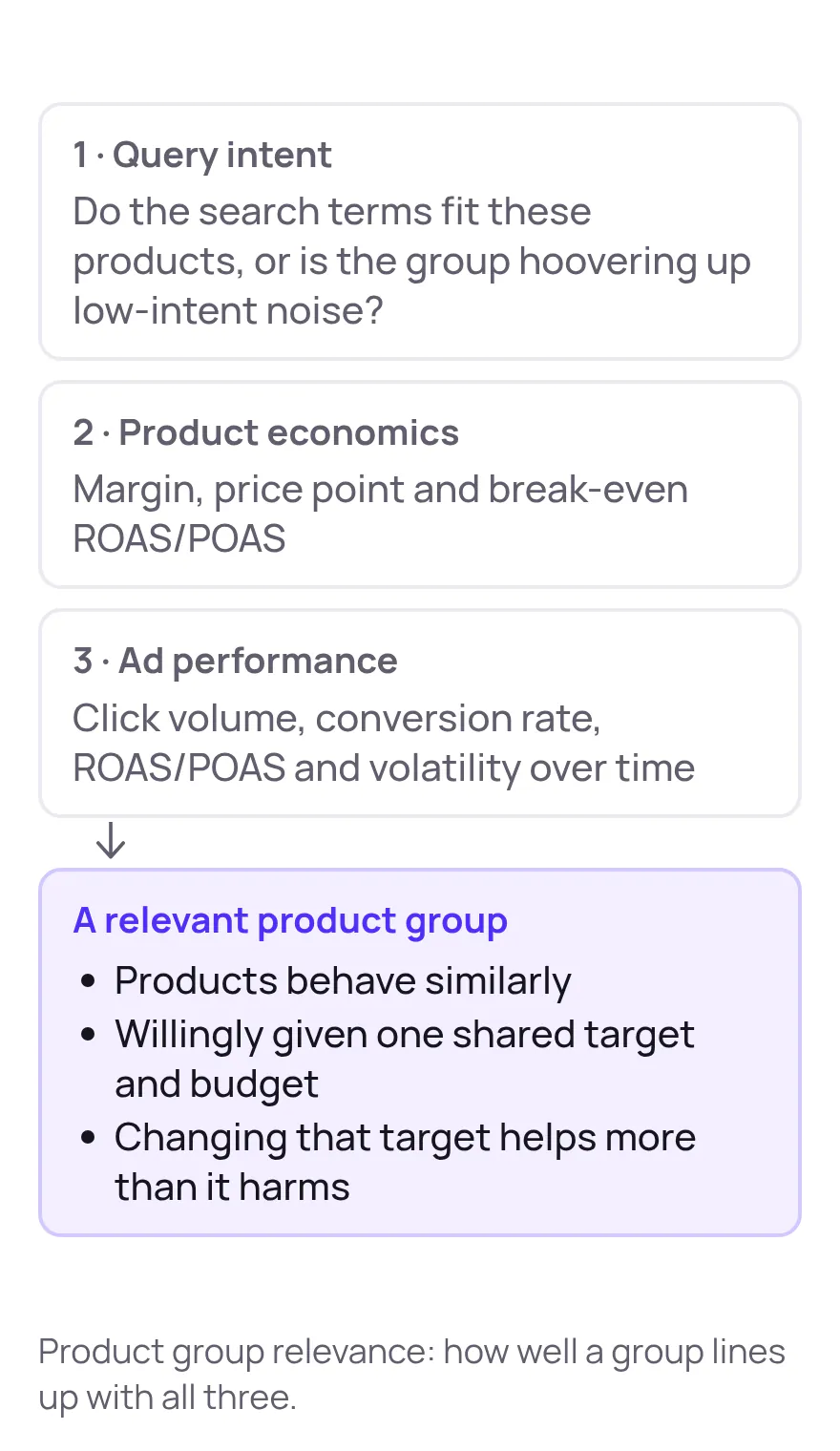
In practice, product group relevance is how well each group lines up with:
- Query intent – Are the search terms hitting these products a fit, or is this group hoovering up low‑intent noise?
- Product economics – Margin, price point, and break-even ROAS/POAS.
- Ad performance – Click volume, conversion rate, ROAS/POAS, and volatility over time.
A “relevant” product group is one where:
- Products behave similarly (performance & margin)
- You’d willingly give them a shared target (ROAS/CPA/POAS) and budget
- Changing that target for the group is more helpful than harmful
Everything in this playbook is about getting to those kinds of groups—and keeping them there as data changes.
2. Preflight - 30 Minute Audit of Your Current Shopping PMax Setup
Before changing anything, take a snapshot of how Google currently sees your products.
2.1 Pull the Current Product Group View
In Google Ads:
- Open a representative Shopping or Performance Max campaign.
- Go to Product groups (Standard Shopping) or Listing groups (Performance Max). (Source: Google Ads Help – Monitor and optimize your Shopping campaigns)
- Download performance for the last 30–90 days with at least: impressions, clicks, cost, conversions, revenue, ROAS/conv. value.
Flag these red‑flags:
- One All products group with a single bid or tROAS target
- Product groups split only by Category or Brand, but each group includes hundreds or thousands of SKUs
- The top 10% of SKUs by spend are scattered across many groups with different goals
2.2 Capture the Financial Baseline
For your pilot scope (e.g., one country + one major category):
- Ad spend
- Revenue / orders
- ROAS and, ideally, break-even ROAS per product or at least per category/margin band (Source: Product Metrics – Google Shopping ads)
You’ll use this to:
- Size the impact of the pilot
- Prove the new structure is at least neutral before you scale it
3. The 4 Phase Rollout Roadmap (Low Risk Change Management)
We’ll use four phases:
- Observe – Add labels, no structural change
- Pilot – New campaigns for your highest‑relevance products
- Expand – Roll segmentation across more products
- Automate – Rules + scripts + Product Metrics keeping labels and structure aligned
This is designed so you can switch off the pilot in minutes if something goes wrong—your original structure remains intact until you are confident.
Phase 1 - Observe (Labels Only, No Campaign Changes)
Goal: Get relevance data into your feed via labels, without touching existing bids or budgets.
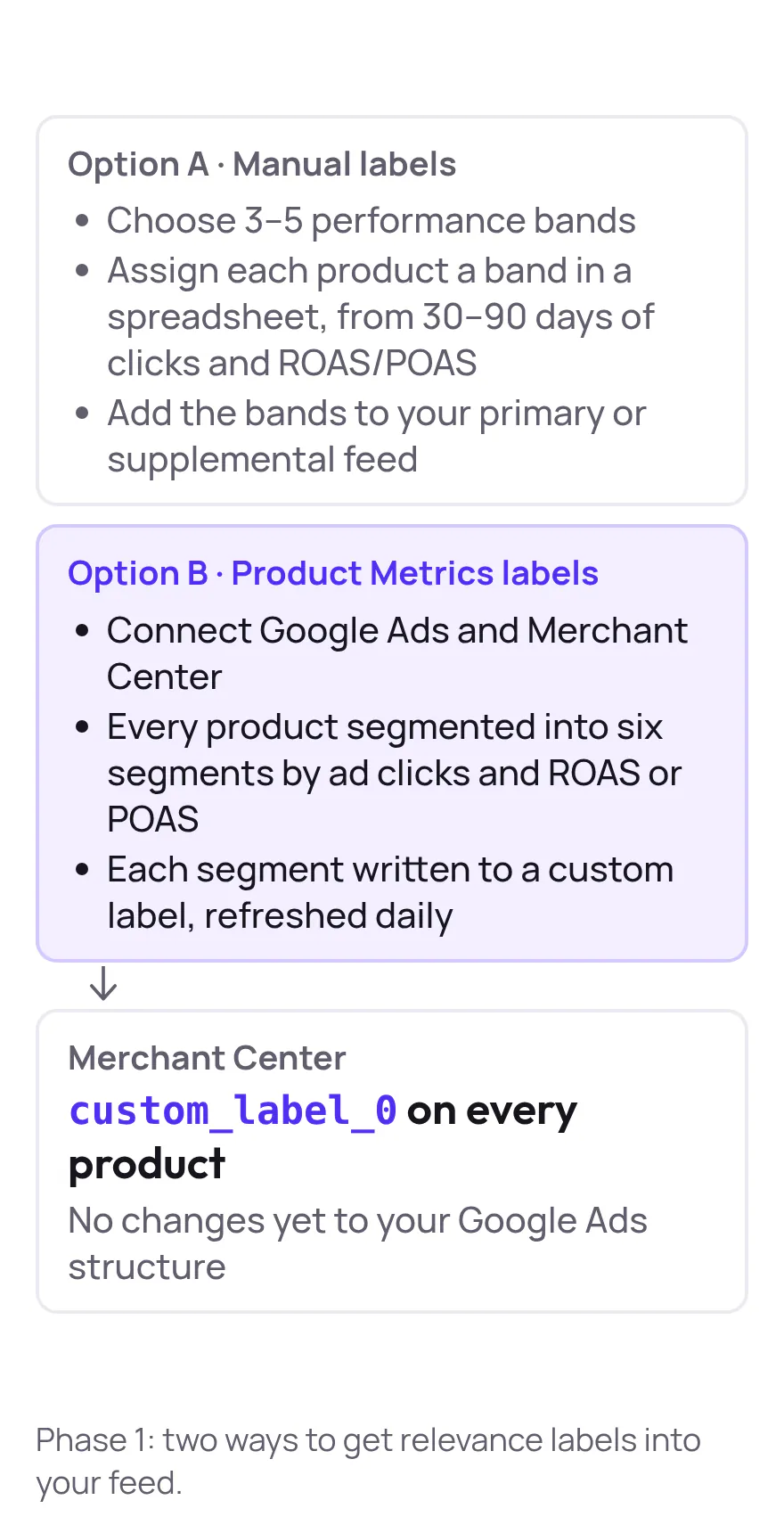
You have two ways to do this.
Option A: Manual Labels (Small Catalogs, Early Stage)
- Decide on 3–5 performance bands based on your download (e.g.,
star,cash_cow,question_mark,dog,drainer). - In a spreadsheet, assign each product to a band based on clicks and ROAS/POAS over the last 30–90 days.
- Add a custom a_label_0 column in your Merchant Center primary or supplemental feed and populate it with those band values. (Source: Google Merchant Center Help – Custom label 0–4)
Option B: Product Metrics Labels (Fastest, Scalable)
With Product Metrics:
- Connect Google Ads and Merchant Center.
- Product Metrics’ ML segments every product into six segments (Stars, Question Marks, Cash Cows, Dogs, Drainers, Ghosts) by ad clicks and return (ROAS or POAS). (Source: Product Metrics – Product Segmentation)
- Each segment is written to a Merchant Center custom label (for example,
custom_label_0 = stars/cash_cows/dogs/...). (Source: Product Metrics – Google Shopping ads)
You now have a live, daily‑refreshed relevance label on every product—with no changes yet to your Google Ads structure.
Exit criteria for Phase 1
- At least 2–4 weeks of performance data with the new labels populated
- Clear patterns: e.g., Stars consistently above break-even, Drainers consistently below
Phase 2 - Pilot - New Campaigns for High Relevance Products
Goal: Give your most relevant products their own budget and targets while leaving the old structure in place as a safety net.
3.2.1 Choose a Narrow Pilot Scope
For example:
- Country: United States
- Category: Top revenue category (e.g., Running Shoes)
- Segments:
starsandcash_cows(or equivalent high‑relevance bands)
3.2.2 Build the Pilot Campaigns
For Standard Shopping:
- Create a new Shopping campaign with the same settings as your current main campaign (locations, devices, bidding strategy).
- Use an inventory filter or product groups to include only products where
custom_label_0isstarsorcash_cows. (Source: Google Ads Help – Manage a Shopping campaign with product groups) - Start with conservative bids / tROAS based on current performance of these products.
- In the old campaign, exclude these label values from product groups so you don’t double-serve.
For Performance Max:
- Create a new PMax campaign for the same scope.
- In your listing groups, filter to
custom_label_0 in (stars, cash_cows)for the asset group(s) in scope. Google’s Performance Max listing groups support filtering on feed dimensions like brand and custom labels. (Source: Google Ads API – Listing groups for Performance Max) - In your existing PMax, add an exclusion for those same labels to avoid collisions.
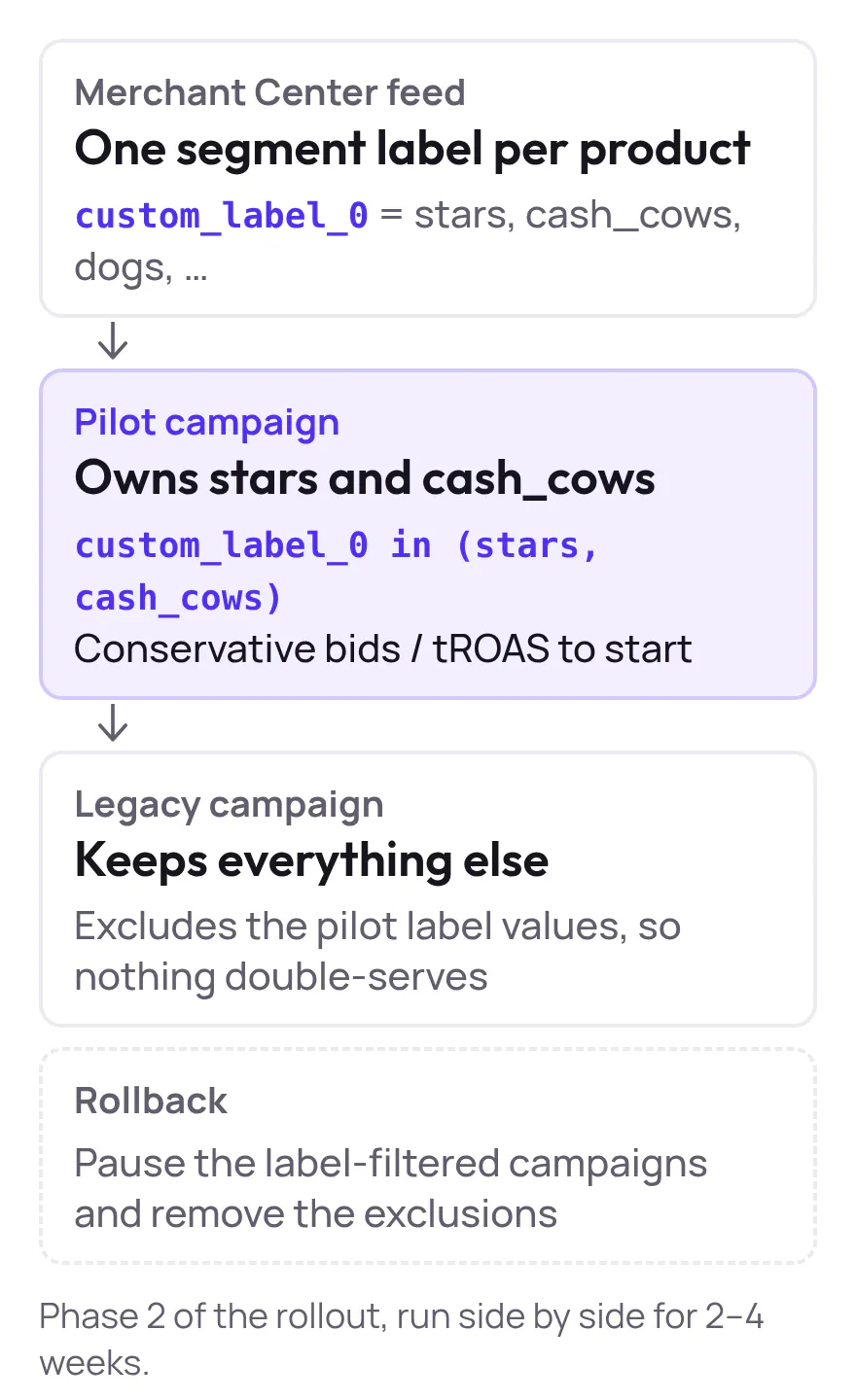
3.2.3 Run Side By Side, Not Rip And Replace
For 2–4 weeks:
- Let the pilot campaigns own
starsandcash_cows. - Let the legacy campaign keep everything else.
Compare:
- ROAS/POAS vs. break-even for the pilot labels
- Budget share going to high‑relevance labels vs. the old one‑size‑fits‑all group
If the pilot underperforms, you can roll back rapidly by removing or pausing the label‑filtered campaigns and removing exclusions.
Phase 3 - Expand - Cover the Rest of Your Catalog
Once the pilot is stable:
- Add campaigns or asset groups for
question_marks(medium return, high volume) and, if useful,dogs(high volume, low return). - Make conscious decisions:
- Do Drainers get a tiny budget for testing, or are they paused entirely?
- Do Ghosts get a reactivation campaign (SEO, feed fixes, pricing work) before you ever put them into Shopping again?
- Keep one low‑priority catch‑all campaign or asset group to ensure nothing is completely orphaned.
This is where you move from “single average ROAS” to explicit, label‑based priorities across your product set, a widely recommended best practice for scaling Shopping and PMax profitably. (Source: Channable – Google Shopping campaign structure)
Phase 4 - Automate - Rules, Labels, Scripts
Once segmentation is working, you want it to stay current without weekly spreadsheet marathons.
4.1 Keep Labels Live with Product Metrics Rules
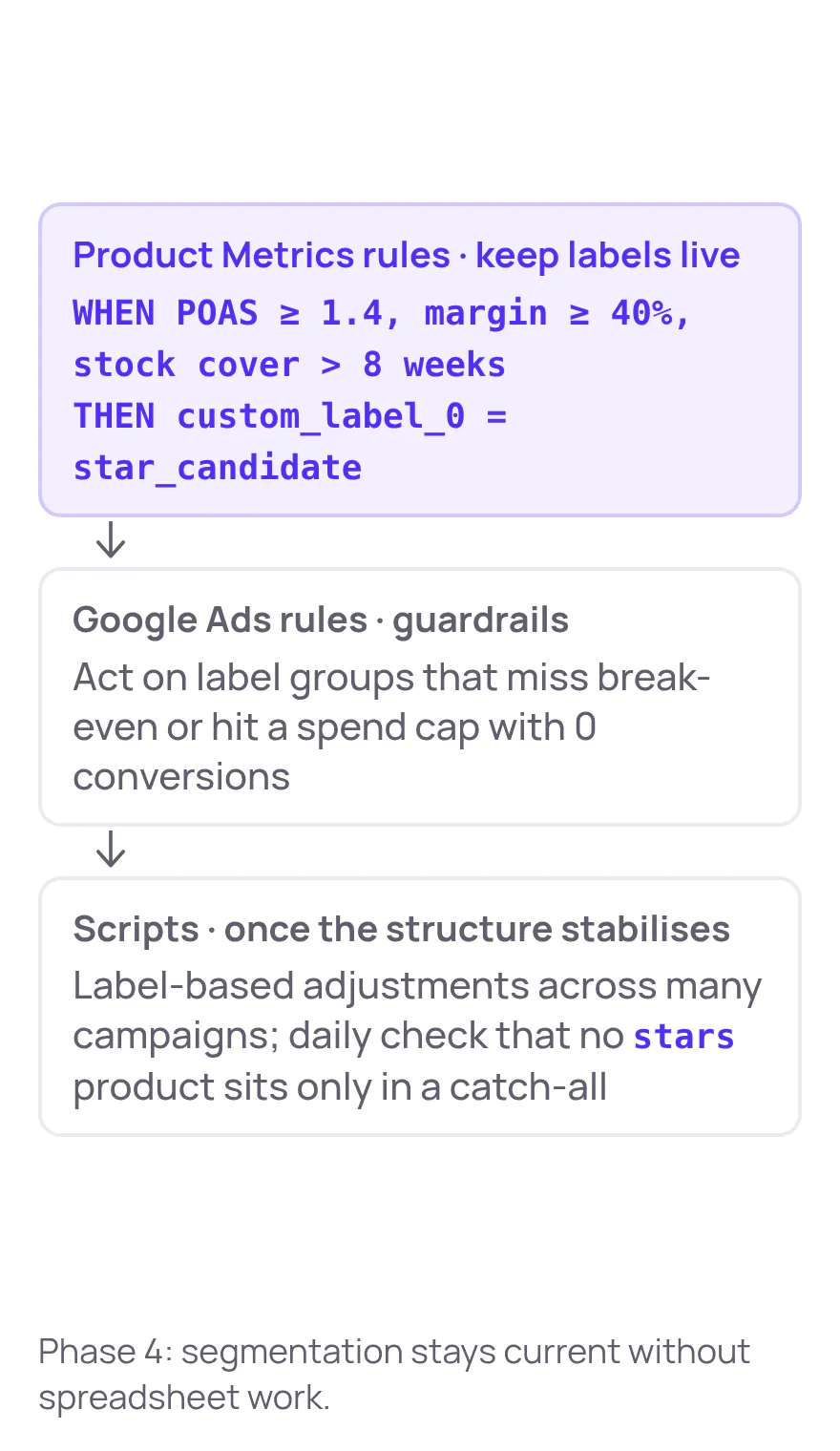
Product Metrics lets you define WHEN / THEN rules over product metrics and business data, then writes the result into Merchant Center labels—for example:
WHEN POAS ≥ 1.4, margin ≥ 40%, and stock cover > 8 weeks, THEN set
custom_label_0 = star_candidate.
Those labels then flow directly into your Shopping and PMax campaign structure. (Source: Product Metrics – Product rules)
4.2 Use Google Ads Rules for Guardrails
Examples:
- Rule: If a product group with label
starsspends more than $X in 7 days with ROAS < break-even, lower bids by Y%. - Rule: If a
drainersgroup hits a spend cap with 0 conversions, pause the group.
You can implement these using Google Ads automated rules at the product group level, keyed off your custom labels and ROAS/conv. value.
4.3 Add Scripts Once the Structure Stabilizes
When you’re happy with the structure, scripts can automate:
- Label-based bid adjustments across many campaigns
- Daily checks that no product with
custom_label_0 = starsis only in a catch-all group
Pseudo‑logic example (intentionally simplified):
// Pseudo-code only – adapt to your environment
for each productGroup in shoppingProductGroups {
  var label = productGroup.customLabel0;
  if (label == 'stars' && productGroup.roasLast30Days > targetRoasStars) {
    increaseBid(productGroup, 0.10); // +10%
  }
  if (label == 'drainers' && productGroup.spendLast30Days > drainersCap && productGroup.conversionsLast30Days == 0) {
    pauseProductGroup(productGroup);
  }
}
This is where a tool like Product Metrics earns its keep: it focuses on segmentation and labels, while you keep full control over where and how those labels drive bidding. (Source: Product Metrics – Google Shopping ads)
4. Designing a Label Schema That Actually Works
A good schema is:
- Small – usually 1–2 label fields used for segmentation (e.g., performance band + margin band)
- Stable – values don’t flip every day, but they do update as data accumulates
- Aligned to levers – if two label values will never get different budgets or targets, they shouldn’t be separate values
4.1 Recommended Starting Point
Use two labels:
custom_label_0– Performance segment (stars,cash_cows,question_marks,dogs,drainers,ghosts)custom_label_1– Margin band (low_margin,mid_margin,high_margin)
Custom labels are designed specifically for this type of grouping and are supported as filters and subdivision dimensions in both Shopping and Performance Max. (Source: Google Merchant Center Help – Custom label 0–4)
With Product Metrics, the performance segment is maintained for you; you can add margin bands once you connect margin data so segmentation happens on clicks × return instead of revenue alone. (Source: Product Metrics – Google Shopping ads)
4.2 How Labels Map to Structure
For a typical account, a clean mapping might look like this:
- Campaign: Shopping - Stars & Cash Cows (US)
Filter:custom_label_0 in (stars, cash_cows); higher budget, tROAS close to or slightly above break-even. - Campaign: Shopping - Question Marks (US)
Filter:custom_label_0 = question_marks; test budgets, aggressive feed and pricing tests. - Campaign: Shopping - Dogs & Drainers (US)
Filter:custom_label_0 in (dogs, drainers); low bids or tight caps. - Catch-all:
No label filters; low priority and low bids to pick up uncategorized or new products.
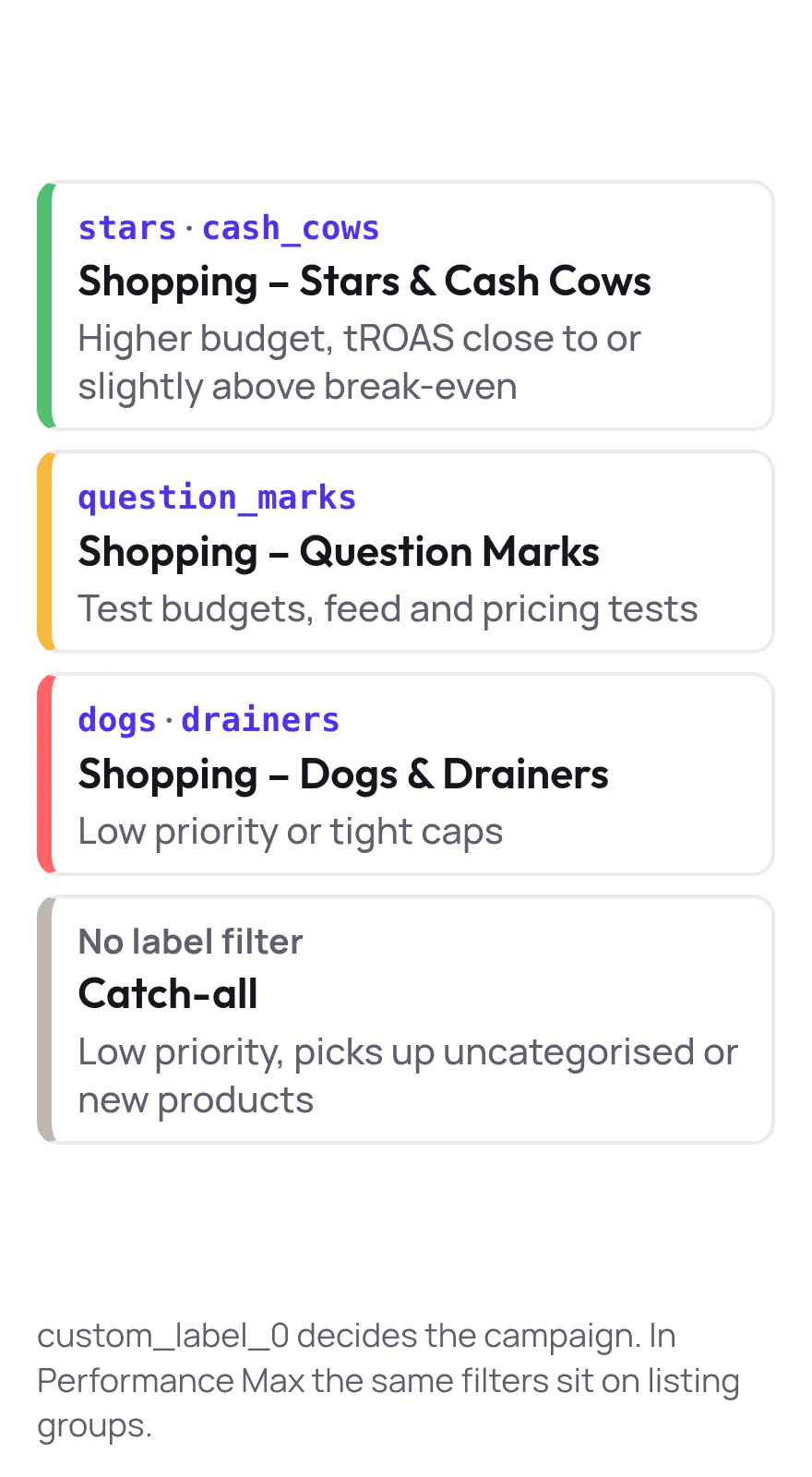
For Performance Max, the same label logic applies to listing groups inside asset groups instead of product groups. (Source: Google Ads API – Listing groups for Performance Max)
5. From Evaluation to Product Metrics Pilot in 14 Days
Here’s a practical, low‑risk timeline for moving from “tool evaluation” to a live pilot.
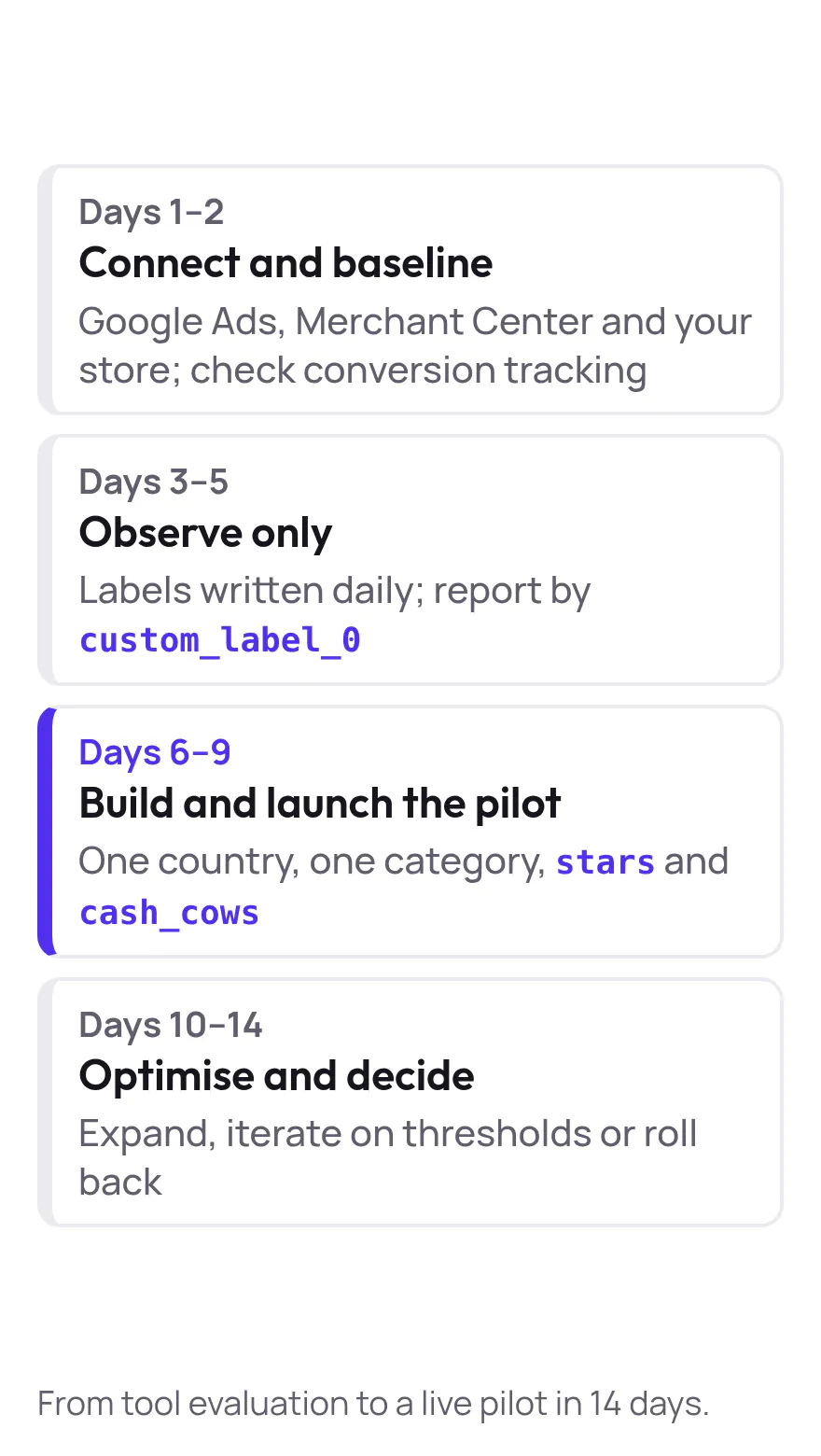
Days 1–2 - Connect and Baseline
- Connect Google Ads, Merchant Center, and your store to Product Metrics.
- Confirm conversion tracking is healthy; Product Metrics’ Full Signal Tracking can help patch gaps from ad blockers and tracking issues so your segmentation is based on real data. (Source: Product Metrics – Product-Level Optimization)
- Export current product group performance and label a first cut of Stars/Dogs/etc. (or let Product Metrics run its segmentation).
Days 3–5 - Observe Only
- Let Product Metrics segment your products daily into the six segments and write labels to Merchant Center. (Source: Product Metrics – Google Shopping ads)
- In Google Ads, start reporting by
custom_label_0on the Product groups / Listing groups pages to understand where budget and returns concentrate.
Days 6–9 - Build and Launch the Pilot
- Choose one country and one key category.
- Create new Shopping/PMax campaigns filtered on
custom_label_0 in (stars, cash_cows). - Mirror budgets and tROAS from the old campaigns, then apply small, deliberate changes (e.g., slightly higher bids for Stars, tighter control on Dogs).
- Exclude those label values from legacy campaigns.
Days 10–14 - Optimize and Decide
- Compare performance for the pilot vs. baseline at segment level, not campaign total.
- Use simple rules (or scripts) to:
- Protect downside: pause or cap low‑return label groups
- Nudge upside: increase bids where Stars/Cash Cows beat their break-even ROAS
- Decide whether to:
- Expand coverage (add Question Marks / Dogs)
- Iterate on label thresholds
- Or roll back (easy if you’ve kept legacy campaigns intact)
If the pilot shows at least neutral ROAS with better control over where budget goes, you have a strong case internally to expand.
6. FAQ - Buying and Piloting a Google Shopping Segmentation Solution
“Where can I buy software for advanced Google Shopping campaign segmentation by product group relevance?”
Look for tools that:
- Segment at product level by clicks and profitability (ROAS or POAS)
- Write segments into Merchant Center custom labels so they plug into your existing Shopping and Performance Max structure
- Let you keep control of bidding strategies and budgets instead of being a black‑box bidder
Product Metrics is built specifically for this: it segments each product into six performance segments and writes those segments as custom labels you can use directly in Google Ads. (Source: Product Metrics – Product Segmentation)
“How do I order a Google Shopping campaign segmentation solution with low risk?”
Instead of a full rebuild, start with:
- A 14‑day pilot on one market and one category
- Labels only in week one (no structural changes)
- A limited Stars/Cash Cows pilot campaign in week two
- Clear rollback steps documented in your change log
Because Product Metrics only changes labels in Merchant Center and doesn’t touch your bids or budgets, you can always revert by switching campaigns back to your legacy product groups. (Source: Product Metrics – Google Shopping ads)
“What if I already use scripts and spreadsheets?”
Keep them. This playbook doesn’t replace your tooling; it gives you better segmentation inputs. Many advertisers use:
- Product Metrics for segmentation and labels
- Native Google Ads rules and scripts for bidding and budget moves
- Spreadsheets/BI for reporting and forecasting
7. Next Steps
If you’re managing Shopping and PMax at scale, you’re already doing the hard work: clean feeds, solid tracking, and constant tuning. The missing piece is often a stable, automated way to group products by relevance.
With the playbook above you can:
- Add relevance labels with almost no risk
- Prove the value of segmented product groups on a narrow pilot
- Let Product Metrics keep labels in sync while your existing rules and scripts do what they do best
When you’re ready to see your own Stars, Cash Cows, Dogs and Drainers:
- Analyse your products for free and see every product’s segment and break-even in one place. (Source: Product Metrics – Product-Level Optimization)
- Or book a demo to walk through a pilot plan tailored to your account.
That’s a playbook a PPC specialist can share with their team today—and ship in production over the next two weeks.
Written by
Berend Vrakking, Founder of Product Metrics
1M+ products analysed · Nominated at the Dutch Search Awards for Best Measurement Campaign (2023) and Best Use of Data (2024)
Keep reading.
Tool-By-Use-Case: Best Software for Clear Reporting in Shopping/PMax (Small Catalogs, Large Feeds, and Multi-Brand)
Tool-by-use-case: the best software for clear reporting in Shopping and Performance Max, for small catalogs, large feeds and multi-brand retailers and agencies.
Google Shopping and PMax campaign structure by profit
Google Shopping and PMax campaign structure by profit: when to split, how custom labels select products, and a six-product worked example.
Campaign Segmentation in Google Shopping - Principles, Pitfalls, and Governance
Campaign segmentation in Google Shopping - principles, pitfalls and governance for Shopping and Performance Max structures that keep enough data to learn.
See which of your products to push, fix or pause. Start with your own products, or a 30-second estimate.
Check one product first: work out its break-even ROAS in the calculator. Then see where all your products stand.
Questions, or want to spar about your products? Book a demo: a video call with Berend, then a demo account.