
Stop Counting Refunds - A Retailer’s Guide To Google Ads Conversion Value Adjustments
Retract or restate refunded and cancelled orders with Google Ads conversion adjustments, so ROAS, POAS and Smart Bidding run on the value customers keep.
When you look at Google Ads, your Shopping and Performance Max campaigns might look wildly profitable.
Then your finance team closes the month, and a big chunk of that “revenue” has walked back through the returns desk.
If refunds and cancellations still show up as full‑value conversions, your ROAS/POAS is fiction—and Smart Bidding is optimising for customers who send you stock back.
This guide shows you how to fix that with conversion value adjustments, so:
- Reported revenue (or profit) in Google Ads matches commercial reality.
- Smart Bidding sees net value, not pre‑refund hype.
- Your COGS and margin signals stay clean for true POAS bidding.
1. What Conversion Adjustments Actually Are (In Retailer Language)
Google Ads lets you modify conversions after they’ve been recorded using conversion adjustments. You can:
- Retract a conversion entirely when an order is cancelled or fully refunded.
- Restate its value when only part of the order is returned, or when lifetime value changes.
Google’s own help docs explicitly call out returned or cancelled purchases as prime use cases for conversion adjustments. (Source: Google Ads Help – About conversion adjustments)
For Shopping and PMax retailers, this maps neatly to:
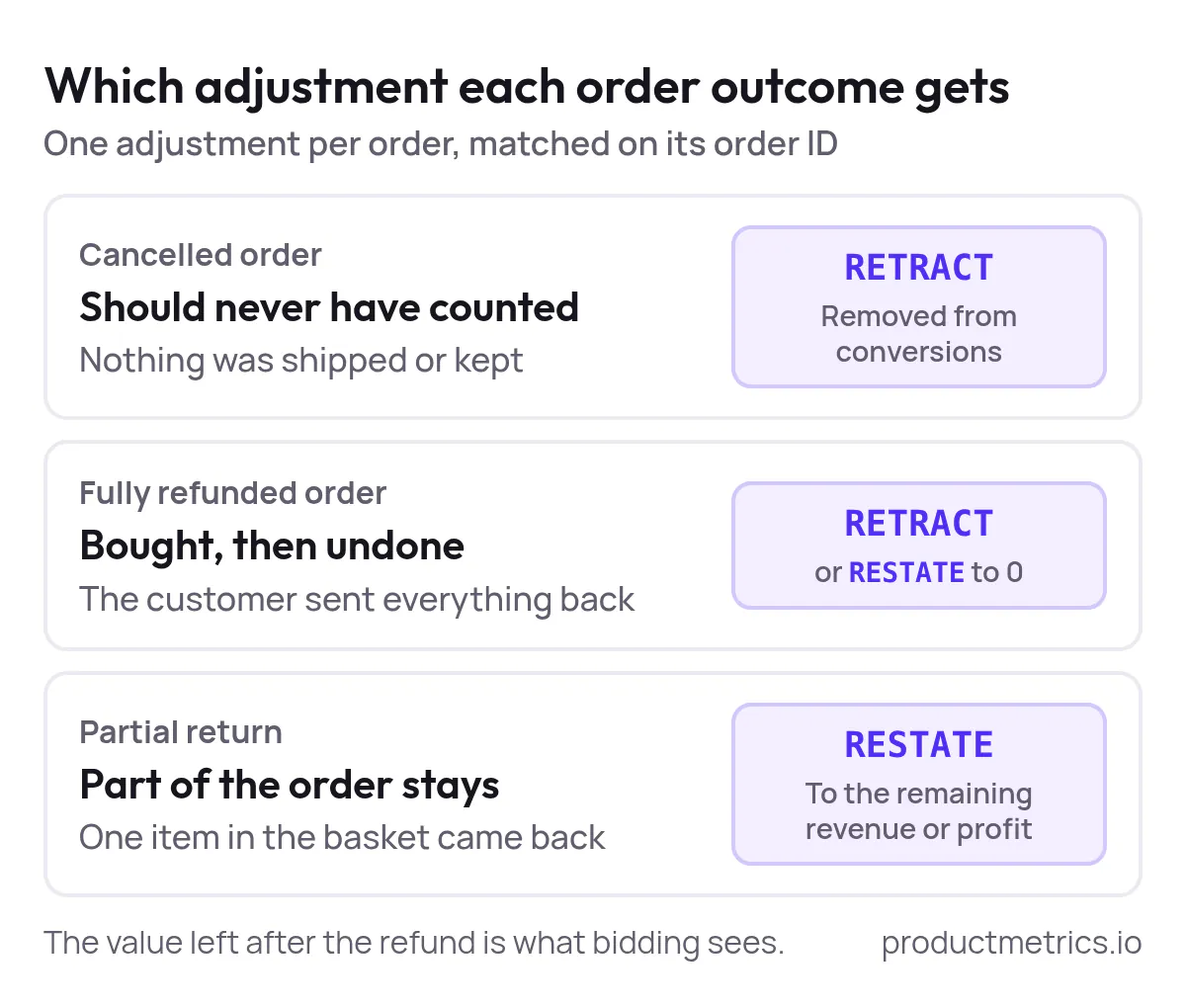
- Cancelled order → never should have been counted → RETRACT.
- Fully refunded order → customer bought, then undid it → RETRACT (or restate to zero).
- Partial return (one item in a basket) → order still has some value → RESTATE to the remaining revenue or profit.
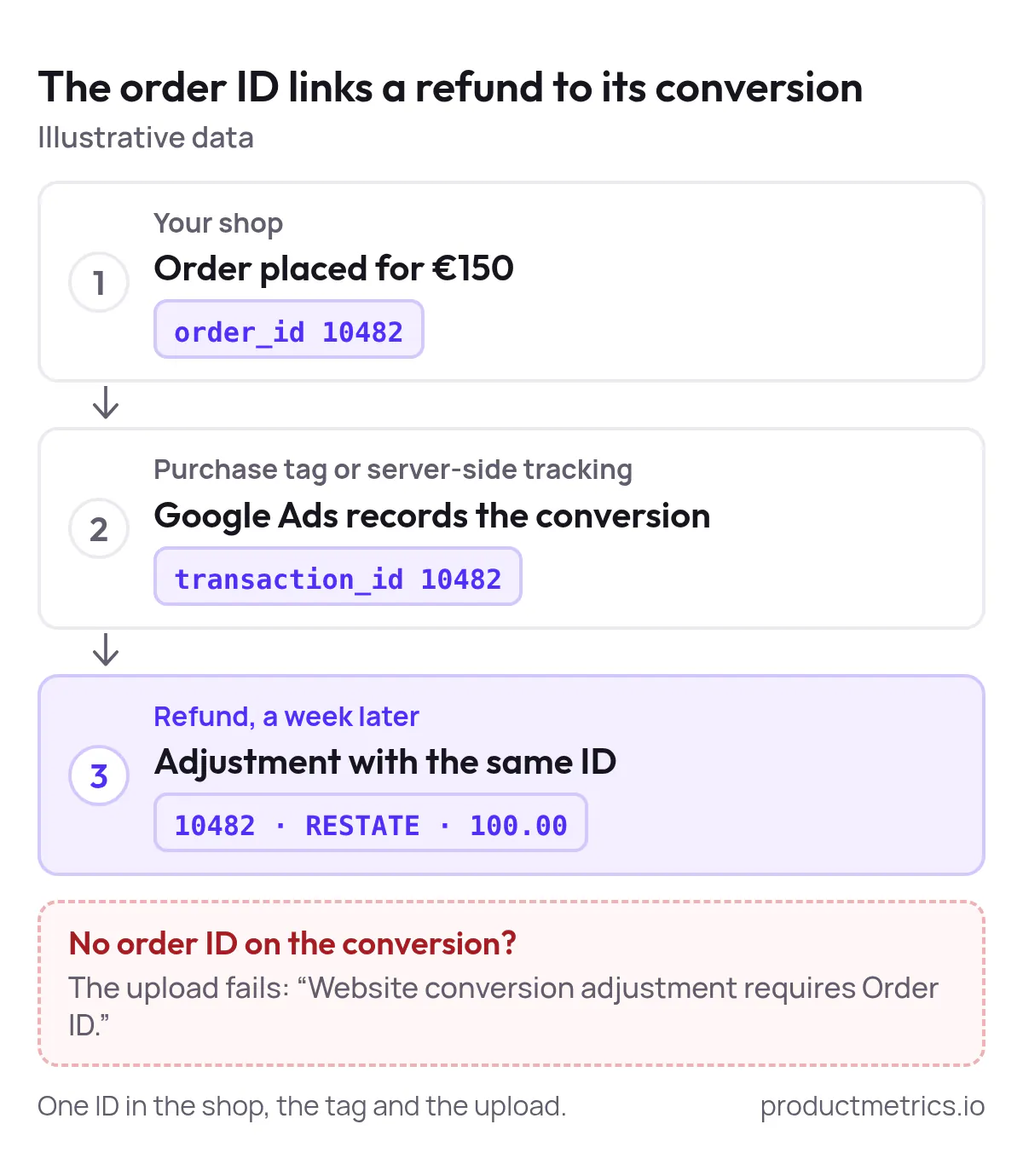
Under the hood, Google Ads links a conversion adjustment to the original conversion using an order/transaction ID (for web conversions) or a click ID plus timestamp (for certain offline cases). (Source: Google Ads Help – About conversion adjustments)
Developers can also upload these programmatically via the Google Ads API’s ConversionAdjustmentUploadService. (Source: Google Ads API – Import conversion adjustments)
Why This Matters For Smart Bidding
Google’s documentation notes two important timing windows:
- Smart Bidding window: Adjustments made within 7 days of the original conversion can still be used by bidding algorithms when learning.
- Reporting window: You can usually adjust conversions for up to 54 days after they’re first recorded, and reports will update accordingly even if bids don’t.
(Source: Google Ads Help – How to adjust your conversions)

Show the dataHide the data
| Window | Days after the original conversion |
|---|---|
| Smart Bidding window | 7 |
| Reporting window | 54 |
So if you run in a category with fast returns (fashion, shoes, supplements), getting refunds and cancellations back into Google Ads inside that ~7‑day window is the difference between:
- Bidding on people who keep products vs
- Bidding on people who buy three sizes and send two back.
2. Prerequisite - Make Sure Google Ads Knows Your Order IDs
Before you can subtract refunds from Google Ads conversion value, Google has to be tracking conversions in a way that can be matched back to your orders.
For web conversions, Google requires an order ID (transaction ID) to adjust them later via conversion adjustments. (Source: Google Ads Help – About conversion adjustments)
If you try to adjust a website conversion without one, you’ll hit errors like “Website conversion adjustment requires Order ID.” (Source: Google Ads API – ConversionAdjustmentUploadError)
Checklist:
- Your purchase tag must send an order/transaction ID to Google Ads.
- If you use Google’s global site tag, GA4, or server‑side tagging, confirm the order ID is mapped into the conversion event that’s linked back to Google Ads.
- That order ID must match your ecommerce platform’s order ID.
- This is what lets you join your refunds report back to the original conversion later.
- Avoid changing order IDs later in your backend.
- If your ERP overwrites or reformats them, you’ll struggle to match refunds reliably.
At Product Metrics, our Full Signal tracking sends conversions server‑side with order IDs and other cart data, which then flow into Google Ads and Meta together with revenue and profit. (Source: Product Metrics – WooCommerce server‑side tracking)
3. How To Subtract Refunds From Google Ads Conversion Value (Manual Uploads)
If you’re not ready for automation yet, you can clean things up with a simple weekly or monthly upload.
Step 1 - Export Refunds And Cancellations From Your Store
From your ecommerce platform or data warehouse, export a file with at least:
- Order ID (matching what you send to Google Ads)
- Original order date/time
- Refund or cancellation date/time (when status changed)
- Refunded amount per order (and ideally per line item)
- Status (cancelled, fully refunded, partially refunded)
Step 2 - Turn Business Logic Into Adjustment Rules
Decide how you’ll map real‑world outcomes to Google Ads adjustments:
- Cancelled before fulfilment
→ Treat as if the order never existed → RETRACT. - Fully refunded after fulfilment
→ Either:- RETRACT the conversion entirely or
- RESTATE the value to 0. In both cases, the order stops counting as value in your main conversion columns. (Source: Google Ads Help – How to adjust your conversions)
- Partial refund (one of three items returned)
- Keep the conversion; restate its new total value after the refund.
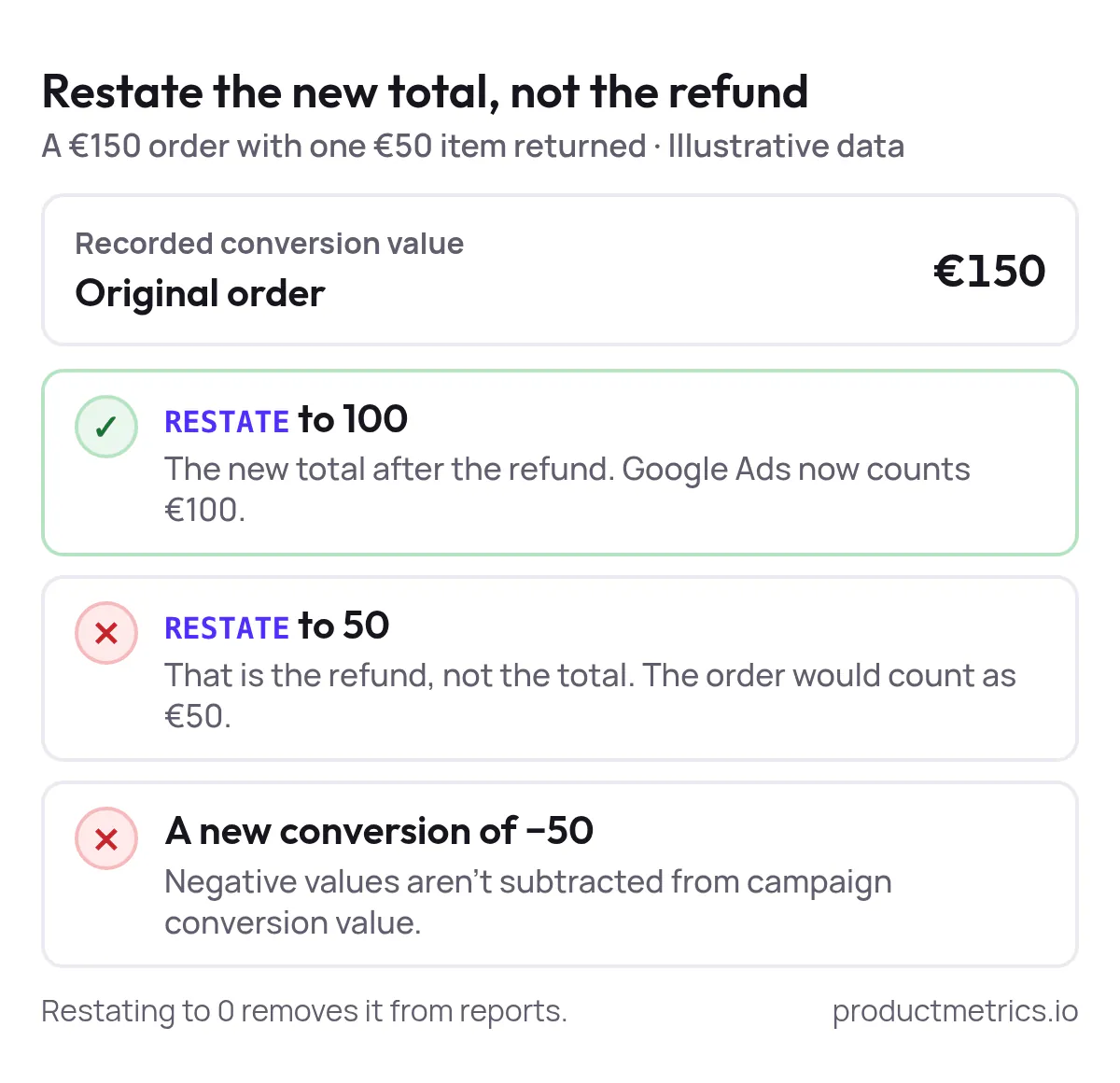
- Example: Original revenue $150 $50 refunded → restated value $100.
Google is explicit that for restatements, you send the new total value, not the refund delta; if your adjustment brings the value down to zero, the conversion is removed from reports. (Source: Google Ads Help – How to adjust your conversions)
Also, don’t try to handle refunds by sending negative conversion values. Advertisers who attempted that found Google Ads didn’t subtract them from campaign conversion value; Google’s own community support points them back to conversion adjustments as the correct mechanism. (Source: Google Ads Community – Can conversion value be negative?)
Step 3 - Fill Out Google’s Conversion Adjustment Template
In the Google Ads UI you can download a CSV template specifically for conversion adjustments:
- Go to Goals → Conversions → Uploads.
- Click the plus button and choose to view templates.
- Download the Conversion adjustments template (CSV or Google Sheet). (Source: Google Ads Help – How to adjust your conversions)
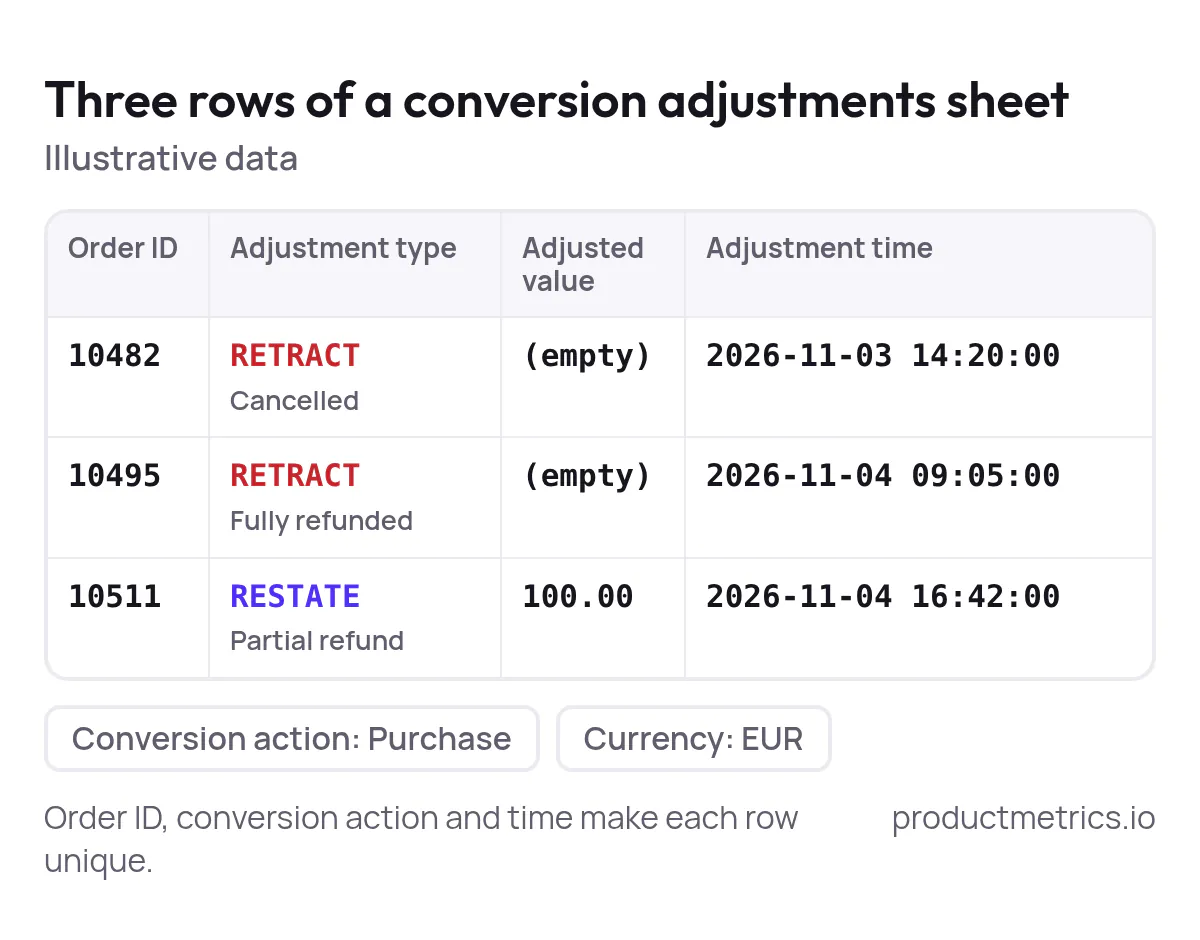
Key columns you’ll use:
- Order ID – your transaction ID from the original conversion.
- Conversion action – the specific purchase action you’re adjusting.
- Adjustment time – when the refund/cancellation happened.
- Adjustment type –
RETRACTorRESTATE. - Adjusted value – only for
RESTATE: the new total value after any refund. - Currency – if you operate in multiple currencies.
Google uses the combination of order ID, conversion name, and adjustment time to decide whether an adjustment is unique and should be applied. (Source: Google Ads Help – How to adjust your conversions)
Step 4 - Upload And Schedule
Once your sheet is ready:
- Upload it under Goals → Conversions → Uploads in Google Ads.
- Check for any processing errors (e.g., unknown order IDs, invalid adjustment types).
- Once you’re confident, you can set up scheduled uploads pulling from a cloud file. (Source: Google Ads Help – How to adjust your conversions)
Historically Google recommended waiting 24 hours after the original conversion before uploading adjustments, but an update to the Google Ads API in September 2024 removed that requirement—adjustments can now be uploaded as soon as the conversion is recorded. (Source: Google Ads Developer Blog – Improvements to conversion adjustment uploads)
Step 5 - Expect Your Numbers To “Get Worse” (And Healthier)
Once refunds and cancellations are subtracted, your ROAS/POAS and conversion rate will usually drop.
In categories with high return rates, practitioners report noticeable increases in CPA after enabling refund adjustments—not because campaigns got worse but because Smart Bidding finally stopped getting credit for orders that came back. (Source: Reddit – Your Google Ads ROAS is probably counting VAT and shipping as revenue)
That’s the point: your bids and budgets are now tuned to customers who keep products and generate profit.
4. Automatic Conversion Adjustments For Refunds In Google Ads
Manual uploads are fine as a stopgap. Long‑term, you’ll want refunds and cancellations to flow back to Google Ads automatically.
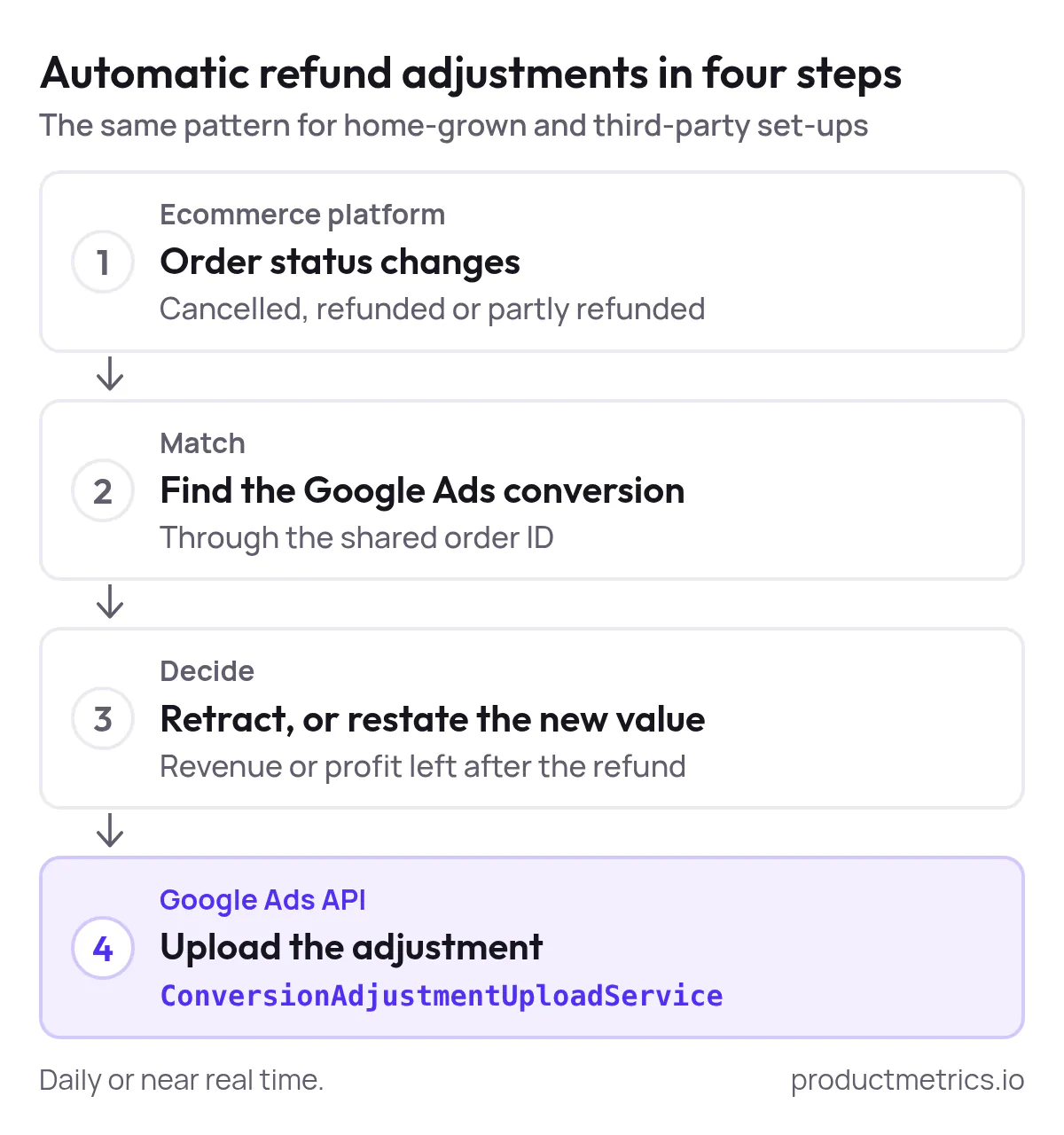
Conceptually, every solution—home‑grown or third‑party—follows the same pattern:
- Listen for order‑status changes in your ecommerce platform (Shopify, WooCommerce, Magento, etc.).
- Map each event to a Google Ads conversion using the shared order ID.
- Decide whether to retract or restate the conversion and compute the new value.
- Call the Google Ads API’s conversion adjustment endpoint with those details.
The Google Ads API documentation shows how to send these adjustments via ConversionAdjustmentUploadService, using either order IDs for web conversions or click IDs plus timestamps for some offline cases. (Source: Google Ads API – Import conversion adjustments)
Several specialised tools and plugins already do this. For example, the Omega Google Ads app for Shopify automatically uploads conversion adjustments when orders are refunded or cancelled, using RETRACT for full refunds and restating the value for partial ones. (Source: Omega Help Center – Conversion adjustment for refunded and cancelled orders)
How Product Metrics Fits In
Product Metrics is an optimisation platform for Google Shopping and Performance Max that focuses on product‑level profitability, combining ad data with margin, stock, and other retail signals. (Source: Product Metrics – Product‑level Google Shopping Optimisation) (Source: AINave – Product Metrics overview)
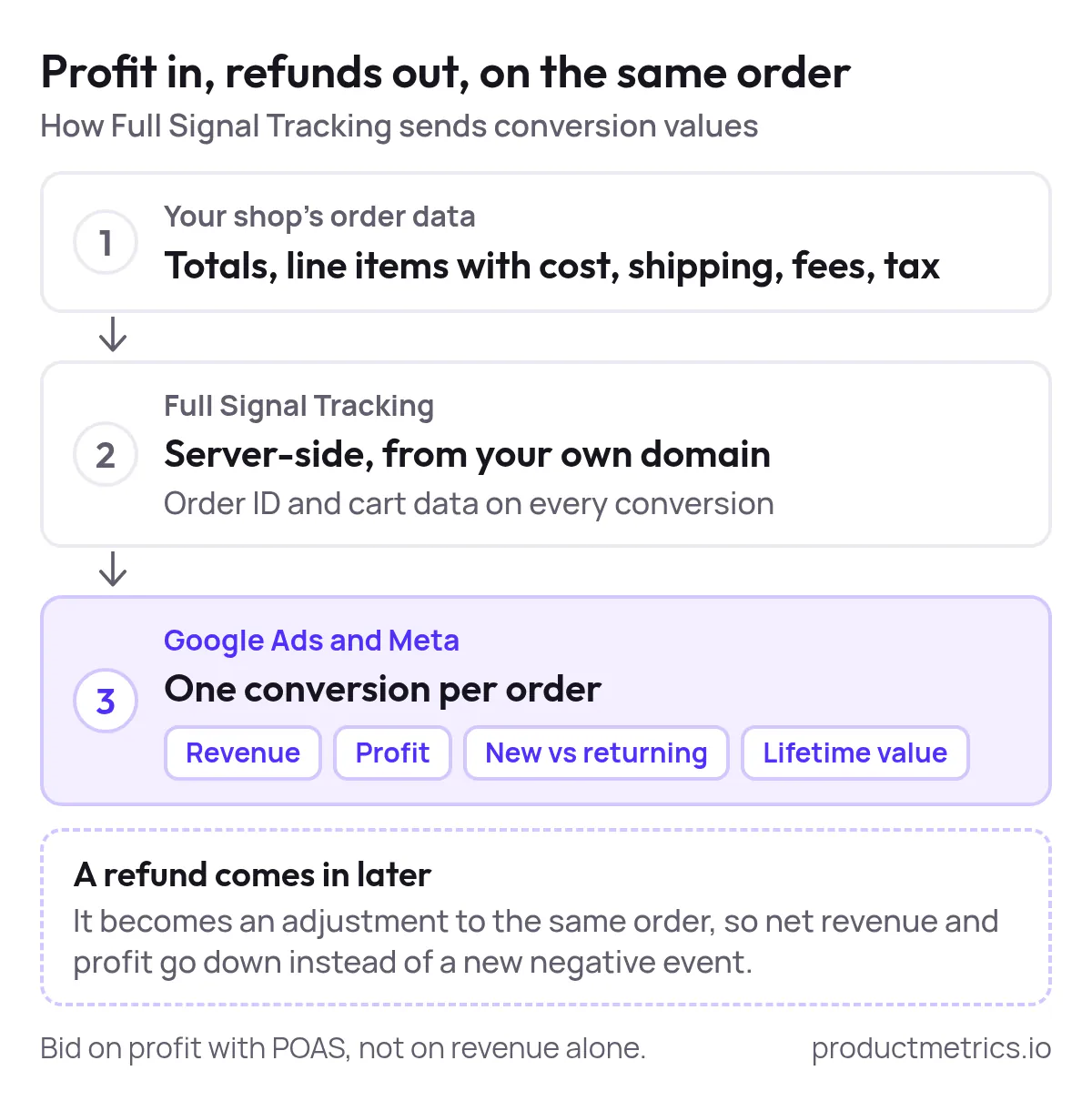
Our Full Signal Tracking sends server‑side conversions into Google Ads and Meta that already include:
- Revenue
- Profit
- New vs returning customer status
- Lifetime value
—so you can bid directly on profit (POAS) not just revenue. (Source: Product Metrics – ROAS dashboard tools guide)
On platforms like WooCommerce, refunds are treated as adjustments to the same order, which means your net revenue and profit are updated for that order rather than counted as new negative events. (Source: Product Metrics – WooCommerce server‑side tracking)
Paired with Google’s conversion adjustments, this lets you:
- Keep your primary conversion value as profit or net revenue.
- Automatically subtract returns and cancellations.
- Feed Smart Bidding a clean margin‑aware signal for every Shopping and PMax click.
5. Google Ads Counts Cancelled Orders As Conversions - How Do We Fix It?
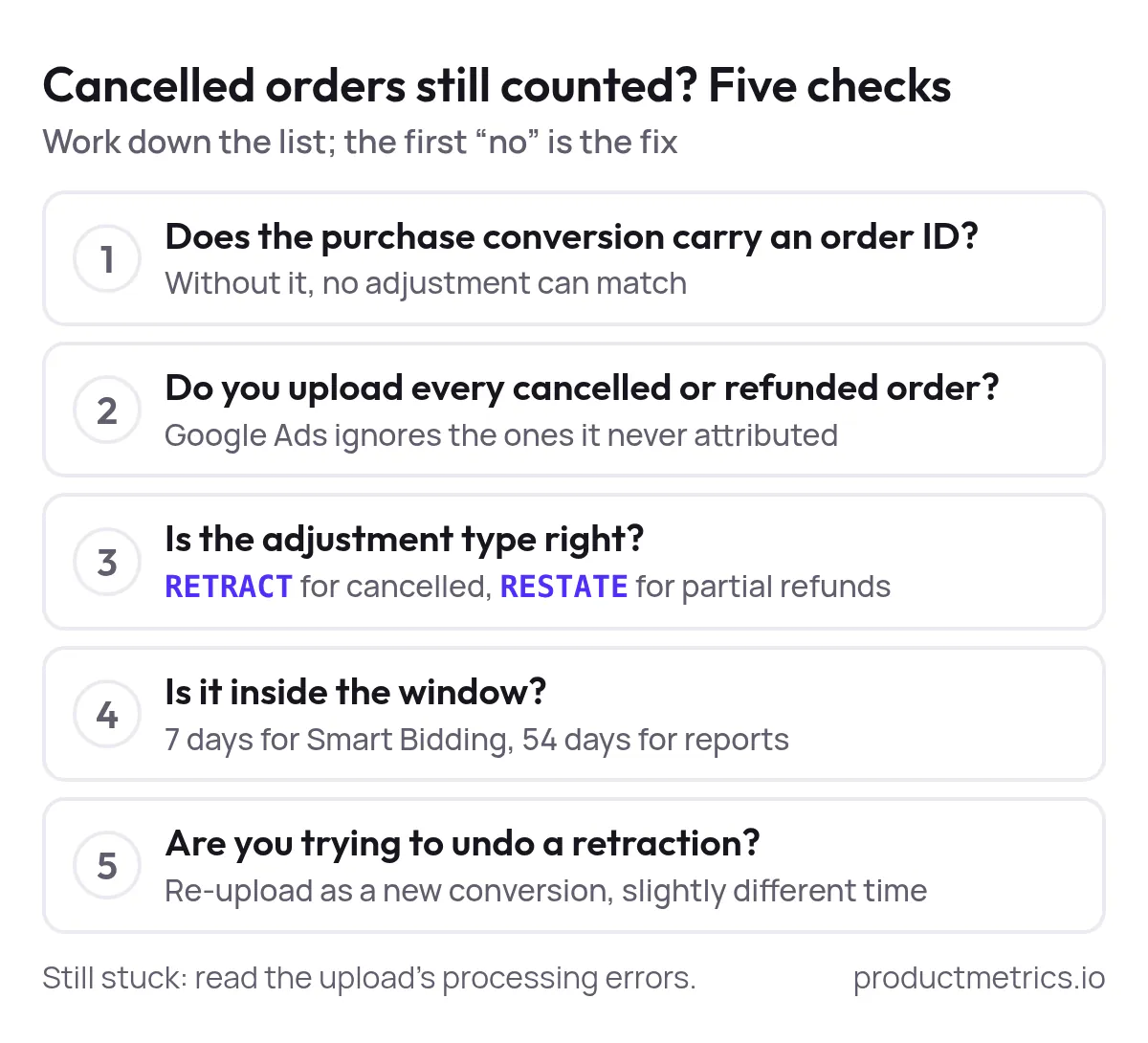
If you’re seeing cancelled or refunded orders still counted as conversions in Google Ads, run through this quick troubleshooting flow:
- Is the purchase conversion using an order ID?
- If not, add it to your tracking first; you can’t reliably adjust what you can’t identify later. (Source: Google Ads Help – About conversion adjustments)
- Are you uploading adjustments for all cancelled/refunded orders, or just those you “know” came from Google Ads?
- Google recommends uploading adjustments for all orders you want to adjust, even if you don’t know whether Ads was the source; Ads will silently ignore ones that weren’t originally attributed. (Source: Google Ads Help – About conversion adjustments)
- Are you using the right adjustment type?
- Cancelled order →
RETRACT. - Fully refunded order →
RETRACTorRESTATEto 0. - Partial refund →
RESTATEto the remaining value.
- Cancelled order →
- Are you adjusting within the allowed timeframe?
- Aim to send adjustments within 7 days for Smart Bidding impact; you can go up to 54 days for reporting corrections. (Source: Google Ads Help – How to adjust your conversions)
- Are you trying to “undo” a retraction?
- Once a conversion is retracted or its value is restated to 0, there’s no direct “unretract” button. Google’s workaround is to re‑upload the conversion as a new event with a slightly different timestamp. (Source: Google Ads Help – How to adjust your conversions)
If you’re still stuck, check the processing errors in Google Ads for your uploads. Common issues include missing order IDs or conversion actions that aren’t configured for uploads. (Source: withone.ai – Upload Conversion Adjustments guide)
6. Bringing COGS And Margin Into The Picture
Cleaning out refunds is step one. Step two is making sure the value you keep is actually meaningful for profit.
How Google Uses COGS For Shopping
Google Merchant Center supports a cost_of_goods_sold attribute that you can send alongside product prices. When you also send cart data with your purchase conversions, Google Ads can compute gross profit and gross profit margin (revenue minus COGS) for Shopping performance reporting. (Source: Google Merchant Center Help – Cost of goods (COGS)) (Source: Google Ads API – shopping_performance_view)
Official docs highlight that this is used to provide gross profit metrics for retail advertisers in Shopping reports. (Source: Google Ads API – Reporting for Shopping ads)
Gross profit itself is simply:
revenue – cost of goods sold (including product costs and other direct costs such as shipping to the customer, logistics fees, and some platform fees). (Source: Wayflyer – Profits in Focus report)
Many advanced advertisers go a step further and send profit (or net revenue) as the conversion value itself, so that ROAS in Google Ads is effectively POAS—profit on ad spend. Practitioner discussions frequently recommend excluding VAT and shipping from conversion value for this reason. (Source: Reddit – Your Google Ads ROAS is probably counting VAT and shipping as revenue)
Refunds And Profit Tracking - Getting To Commercially True Value
Once you’re tracking either:
- Gross revenue minus shipping/VAT or
- Gross profit per order
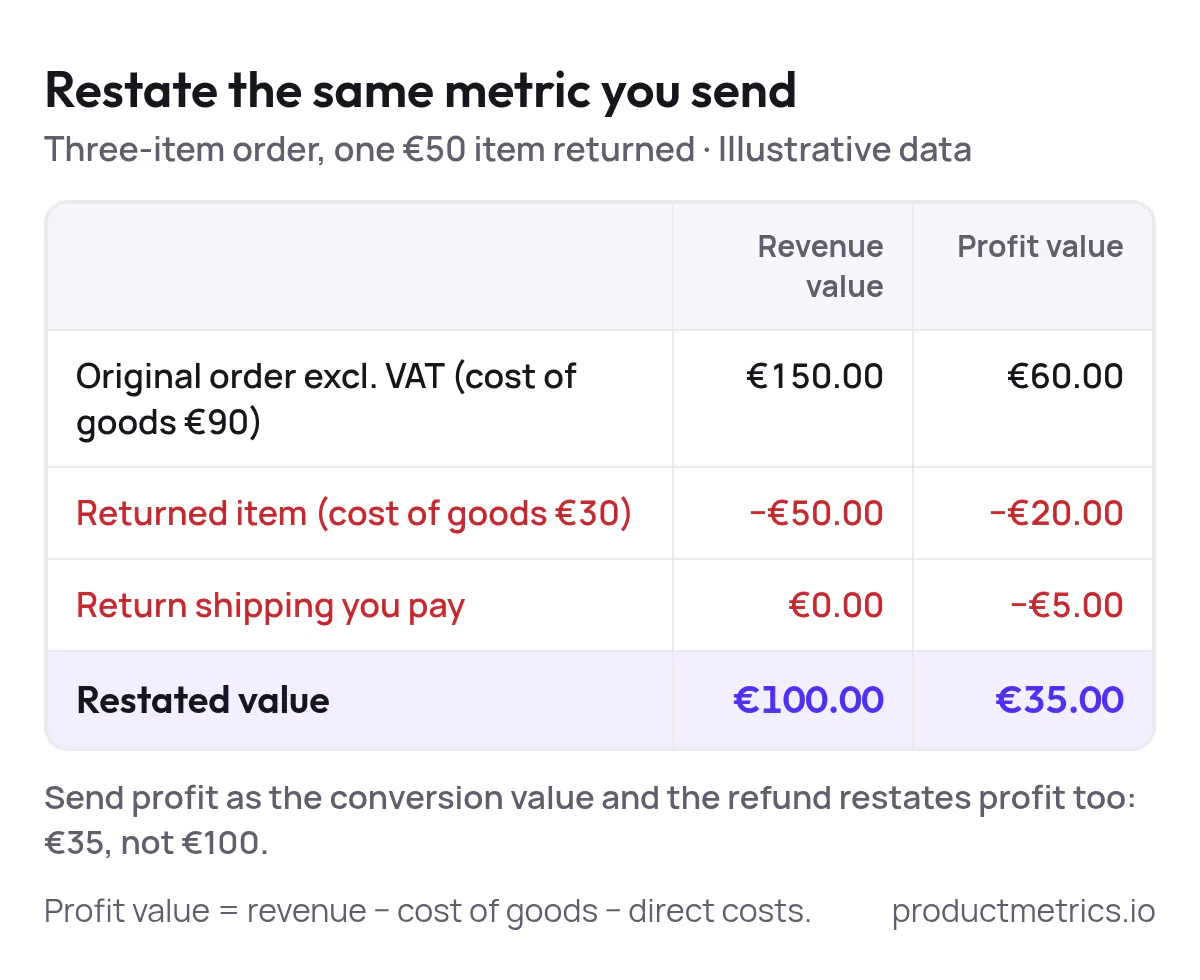
your conversion adjustments should restate that same metric when a refund hits:
- Full refund → restate value to 0.
- Partial refund → restate value to remaining profit after returned items and any refunded shipping/fees.
Product Metrics is built to help retailers do exactly this for Shopping and PMax: it combines cost prices margin data and cart‑level performance so you can track POAS at the product level and label products accordingly. (Source: Product Metrics – Product‑level Google Shopping Optimisation) (Source: AINave – Product Metrics overview)
Because Full Signal Tracking already sends profit to Google Ads and treats refunds as adjustments to the original order, your conversion values stay aligned with real‑world margin without you having to maintain your own API integration. (Source: Product Metrics – WooCommerce server‑side tracking)
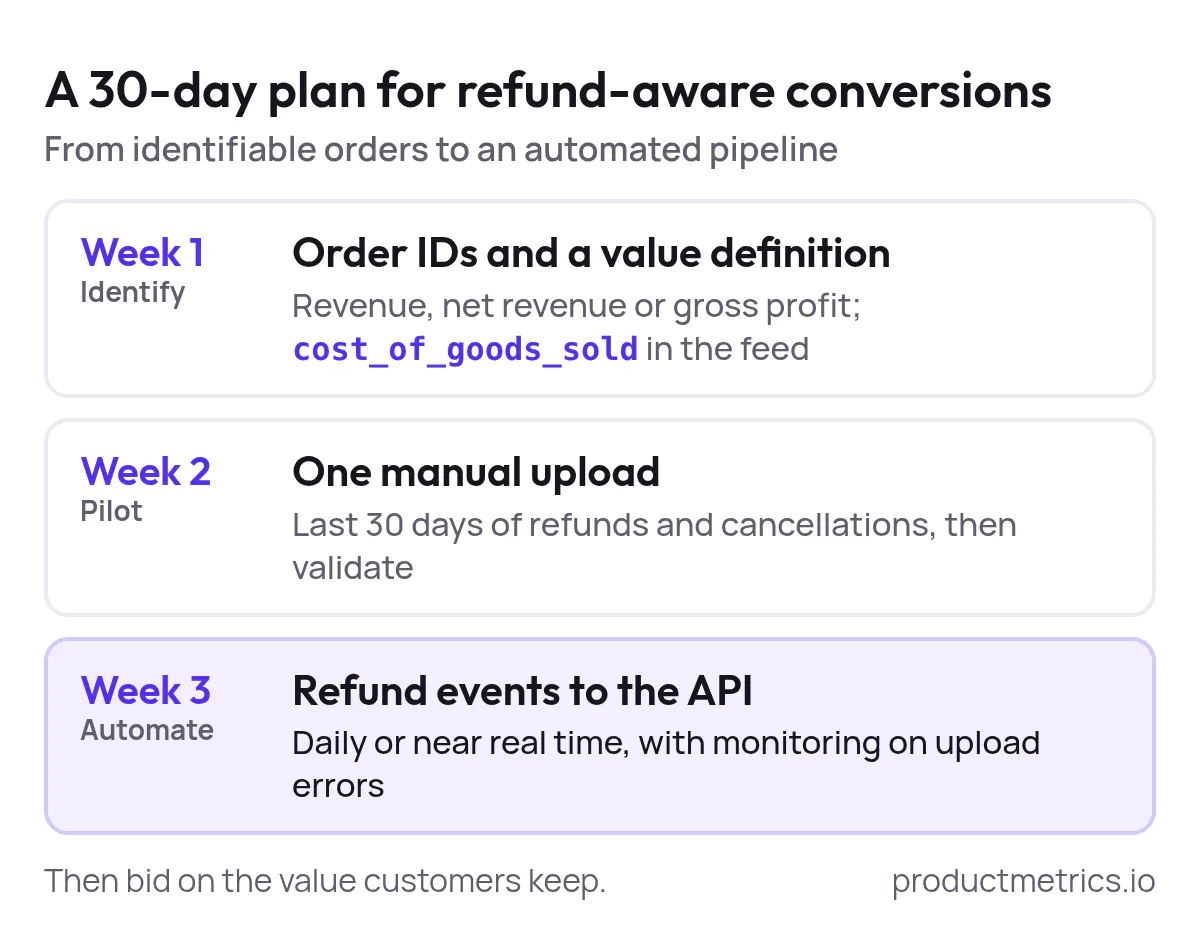
7. A Practical Implementation Plan For Your Next 30 Days
To make this operational—not just theoretical—here’s a simple 30‑day plan you can hand to your team or agency.
Week 1 - Make Conversions Identifiable And Margin Aware
- Confirm order IDs in conversion tracking for your primary purchase action.
- Decide your value definition: gross revenue net revenue or gross profit per order.
- If you want Google’s built‑in gross profit reports, start populating
cost_of_goods_soldin your Merchant Center feed. (Source: Google Merchant Center Help – Cost of goods (COGS))
Week 2 - Pilot Manual Refund Adjustments
- Export the last 30 days of refunds and cancellations from your ecommerce system.
- Map them into Google’s conversion adjustment template using
RETRACT/RESTATE. - Upload once, validate the results, and document any data issues (missing IDs mismatched currencies etc.). (Source: Google Ads Help – How to adjust your conversions)
Week 3 - Automate The Pipeline
- Work with your engineering or tracking partner to:
- Subscribe to refund and cancellation events.
- Generate adjustment payloads (order ID adjustment type new value timestamps).
- Send them to Google Ads via the Conversion Adjustment API on a daily or near‑real‑time schedule. (Source: Google Ads API – Import conversion adjustments)
- Put monitoring in place for API errors and Google Ads upload logs.
If you’d rather not build all of this from scratch, Product Metrics can take on the heavy lifting of server‑side tracking profit‑aware conversion values and refund adjustments for your Shopping and PMax campaigns, so you can focus on using the cleaner numbers to grow profitable orders.
Cleaning up refund and cancellation data isn’t glamorous. But once Google Ads stops counting refunds as conversions, your dashboards your bidding and your COGS/margin models all line up with what actually hits your bank account.
That’s when you can finally use Smart Bidding as it was intended: not to chase revenue but to compound profitable growth.
Written by
Berend Vrakking, Founder of Product Metrics
1M+ products analysed · Nominated at the Dutch Search Awards for Best Measurement Campaign (2023) and Best Use of Data (2024)
Keep reading.
Enhanced conversions vs server-side tracking
Enhanced conversions vs server-side tracking: one helps Google Ads match a conversion to an ad, the other decides whether it arrives. Setup, checks and our lab.
Google tag gateway vs server-side tagging: how to choose
Google tag gateway vs server-side tagging vs Full Signal Tracking: what each moves first-party, what it costs and which gets past ad blockers.
Google Ads Conversion Tracking Integration The End‑to‑End Playbook
Set up Google Ads conversion tracking end to end: choose an integration path, test the purchase tag and send profit as the conversion value.
See which of your products to push, fix or pause. Start with your own products, or a 30-second estimate.
Check one product first: work out its break-even ROAS in the calculator. Then see where all your products stand.
Questions, or want to spar about your products? Book a demo: a video call with Berend, then a demo account.